Seedance 2.5 Flash AI Video Generator

Generate 4–30 second videos in 480p or 720p from a prompt or your own image, video, and audio references.

VIDEO STUDIO

Seedance 2.5

Seedance 2.5 Flash · Faster creation. 1 credit/s at 480p, 3 credits/s at 720p.

Upload
Resolution
Aspect Ratio
Duration8s
4s30s

Sign in to view your generation history.

View more in your profile
Seedance 2.5 video template preview
0:000:00

**0.0–1.8s** **Visual:** Live-action texture with raw, detailed facial skin parameters. A young European male wearing silver over-ear headphones, a wine-red jacket, a black t-shirt, dark trousers, and brown boots. Front view, sitting on an…

What Is Seedance 2.5 Flash?

Seedance 2.5 Flash is the faster model in the Seedance 2.5 family, built for trying out a shot before you commit to it. Start with a prompt or add image, video, and audio references. Generate a first take, then try a different camera move, pace, or reveal while keeping the rest of the scene the same.

Start generating
  • 4–30 second clips
  • 480p or 720p output
  • Up to 20 reference files
A fashion scene unfolds in a meadow of giant mushrooms.

Seedance 2.5 Flash Key Features

Write a scene from scratch or guide it with a product photo, a reference clip, or a sound cue. Then choose the framing, resolution, and duration that suit the shot.

Text to video AI for a first take

Select Text to Video and describe what the viewer should see. Give the scene a subject, a single main action, and a final frame. With Seedance 2.5 Flash, you can test whether a close-up or a wide shot makes the idea clearer by running the same scene description with each framing.

Image to video AI for a product or character

Open Reference Generation and upload an image that shows the object you want to animate. Tell Seedance 2.5 Flash what should move and what should hold its position. For a product shot, ask for a slow camera slide while the item stays centered and its front remains visible.

Video and audio references for motion and timing

Combine images, videos, and audio in a request, with up to 20 reference files in total on JXP. Give each reference a job in the prompt. Use a video clip to illustrate the camera move and an audio clip to show where a movement should land. Watch the action and listen for the cue together.

A beauty clip preview with 720p and 480p output labels

480p and 720p output for different review stages

Seedance 2.5 Flash offers 480p and 720p. Use the same resolution when comparing several takes so you can judge the change you made to the prompt. When a small visual detail determines whether a take works, choose 720p and check that detail across the whole clip.

What Can You Create with Seedance 2.5 Flash?

Try a product reveal, a vertical ad, a moving storyboard, or a short scene. Use the first take to see whether the action reads clearly on screen.

Product reveal

Start on the edge of a closed jewelry box. Ask the camera to move closer as the lid lifts, then hold on the piece inside long enough for a viewer to recognize it.

Vertical ad concept

Frame a running shoe for a phone screen. Try a version that opens on the sole and one that opens on the whole shoe. Check which version makes the product clear sooner.

Moving storyboard

Turn a drawn hallway panel into a shot that follows the subject to a doorway. Use the result to decide when the camera should stop and where the subject should land in frame.

Short narrative beat

Prompt a character to notice a light in an empty shop and pause at the window. Use the last frame to show the reaction you want the next shot to pick up.

Creations

Seedance 2.5 Flash Video Examples

Explore Seedance 2.5 examples from the JXP gallery. Open any clip to see the prompt and use it as a starting point for your own take.

Who Is Seedance 2.5 Flash Built For?

Give creators, marketers, and storyboard teams a clip to review together before they commit to the framing, timing, or product message.

A short drama scene with alternate frames beside the main shot

Creators planning a short series

If you make episodic videos, test the opening of a scene or the beat that ends an episode. See where the character is looking when the shot ends so you can plan the first frame of the next clip.

A product advertisement with alternate takes of a fragrance shot

Marketers testing a product message

Use Seedance 2.5 Flash to make separate previews for two messages. A kitchen product might need a close-up of how it works or a wider shot showing it in use. Give each preview one message and review which one reads on a phone.

A storyboard sequence showing a suited character in a dim room

Agencies and storyboard artists preparing reviews

Use a moving draft to discuss blocking, framing, and timing with a client. Ask for feedback on one decision, such as when the product should enter frame. Save the chosen direction alongside the prompt and references so the team can carry it into production.

Seedance 2.5 Flash vs Seedance 2.5

Both models make clips up to 30 seconds. Compare output resolution, reference limits, and credits per second on JXP.

On JXPSeedance 2.5 FlashSeedance 2.5
Output resolution480p or 720p480p, 720p, 1080p, or 4K
Maximum clip length30 seconds30 seconds
Combined reference filesUp to 20Up to 50
480p credit rate1 credit/s2 credits/s
720p credit rate3 credits/s4 credits/s

Test a shot with Flash

Use Flash to try a new camera move or test a product reveal at 480p or 720p. Create with Flash

Finish at a higher resolution

Choose Seedance 2.5 for 1080p or 4K delivery, or when your shot needs more than 20 reference files. Open Seedance 2.5

Ways to Work Faster with Seedance 2.5 Flash

Make each preview answer one question about the shot, then use what you learn to plan the next take.

Check the cost before you generate

See the credit estimate in the studio as you change the duration, resolution, or reference videos.

Find earlier takes in generation history

Review the whole result and return to earlier attempts when you want to compare the framing or timing.

Revise one decision at a time

Keep the camera move that worked and adjust the light or final frame. Share both takes so your reviewer can see what changed.

How it works

How to Use Seedance 2.5 Flash

Write the scene, add any references you need, then generate and review the full clip.

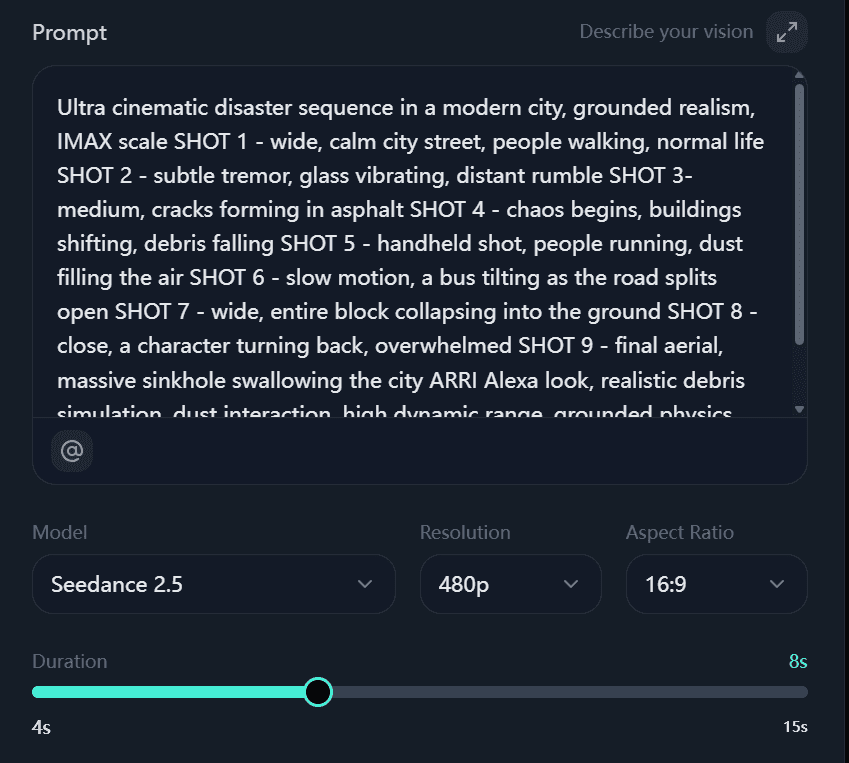
Write a Seedance 2.5 video prompt and choose generation settings
01
Step 1

Write the scene prompt.

Open the creation panel with Seedance 2.5 Flash selected. Describe the subject, what happens, how the camera moves, and what should be visible in the final frame.

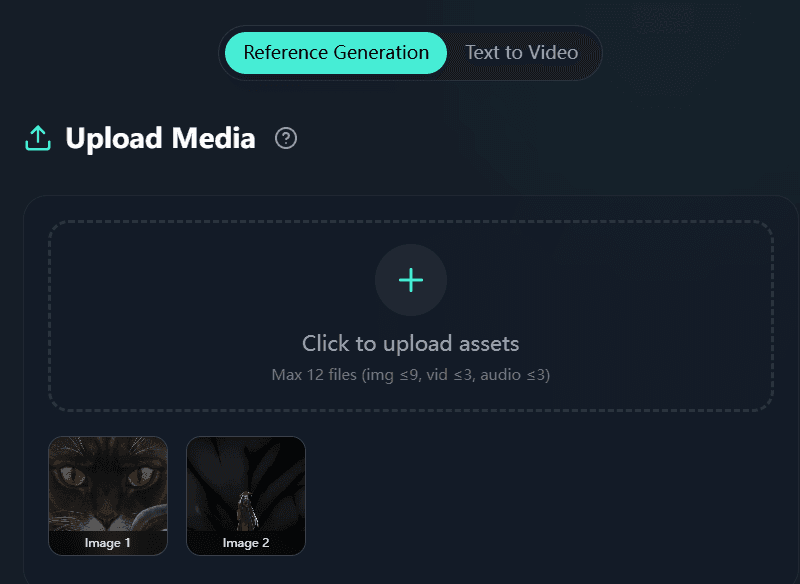
Upload visual references for a Seedance 2.5 video
02
Step 2

Add your reference materials.

Choose Reference Generation to add images, video, or audio. Tell Flash which file guides the look, motion, or timing. Use Text to Video if you’re starting with a prompt alone.

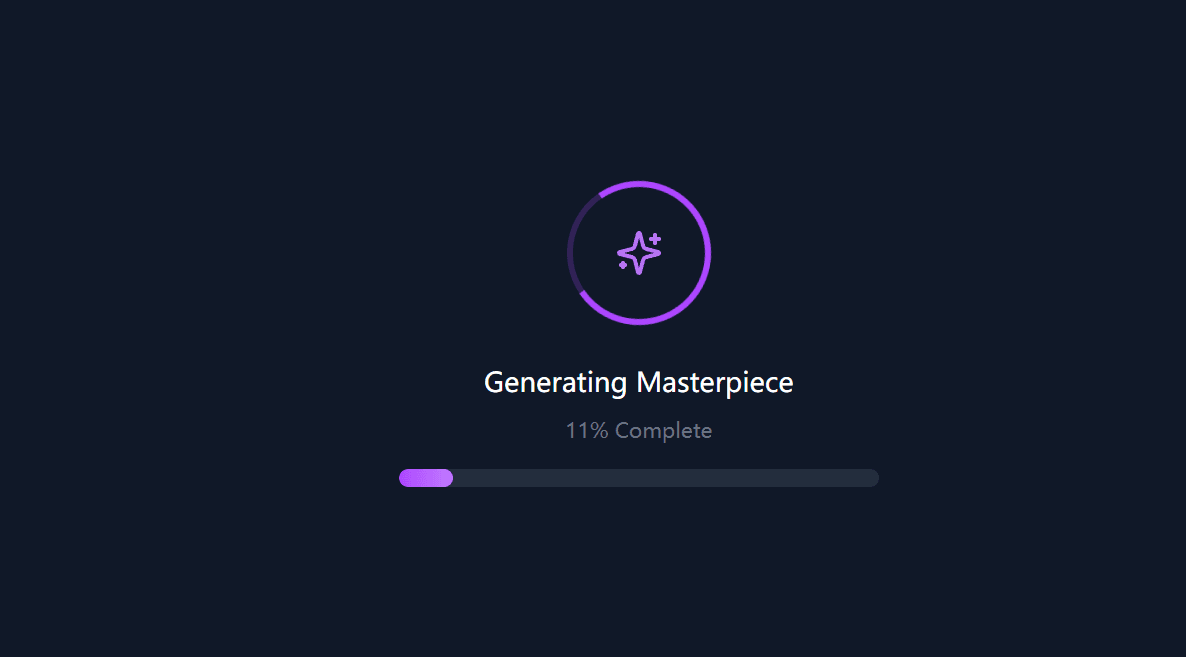
Generate and review a Seedance 2.5 video
03
Step 3

Generate, review, and refine.

Set the resolution, aspect ratio, and duration. For an eligible trial, choose 480p and 10 seconds. Check the credit estimate, generate the clip, and review it before deciding what to change.

Seedance 2.5 Flash Pricing

Flash costs 1 credit per billable second at 480p or 3 at 720p. Check your estimate and trial eligibility in the studio, or choose a JXP credit plan below.


Basic

$10

One-time payment

100 credits
  • Up to 50 videos
  • Up to 100 images
  • Credits never expire
  • Access to Seedance 2.5Up to 30% OFF
  • HD video quality (1080p)
  • AI image and video generation
  • Choose your model and settings
  • Download your creations
  • Commercial use license
  • Email support
 

Basic

$99

One-time payment

1,200 credits
  • Up to 600 videos
  • Up to 1200 images
  • Credits never expire
  • Access to Seedance 2.5Up to 30% OFF
  • HD video quality (1080p)
  • AI image and video generation
  • Choose your model and settings
  • Download your creations
  • Commercial use license
  • Fastest download speed
  • Advanced video effects
  • Early access to new features
  • API access (coming soon)
  • Priority email support

Seedance 2.5 Flash FAQ

Quick answers about using Flash on JXP.

What is Seedance 2.5 Flash?

Seedance 2.5 Flash is the speed-focused model in the Seedance 2.5 family, built for generating and refining video previews.

Is Seedance 2.5 Flash available on JXP?

Yes. Open the creation panel to start with Flash selected.

How does Flash compare with Seedance 2.5?

Flash makes 4–30 second clips at 480p or 720p, at 1 or 3 credits per billable second. Standard Seedance 2.5 also offers 1080p and 4K and accepts more references.

How do I make a video with Seedance 2.5 Flash?

Write a prompt or add media in Reference Generation, then choose your output settings and generate. Eligible new users can try a 10-second clip at 480p with a voucher.

What can I use Seedance 2.5 Flash for?

Use Flash to preview a product reveal, test a camera move, or compare takes before choosing a direction.

How can I get better results with Flash?

Describe the subject, action, and final frame. Review the whole clip and change one thing at a time so you can see what made the difference.

Can I still use standard Seedance 2.5?

Yes. Both models are available in the JXP creation panel, and you can switch between them in the model picker.

Create Your First Seedance 2.5 Flash Video

Pick a product, a character, or a camera move. Describe how the shot opens and what you want to see in the final frame.