Create video from text or an image
Turn a written scene or a still image into a focused video with directed motion, camera behavior, pacing, and sound.
Multimodal AI Video
Create a video from text, guide a shot with reference images, or edit a source clip through plain-language direction. Use the generator here, then explore what Gemini Omni 1.1 Flash adds for longer, more controlled production workflows.
Upload Frames *
Upload a first frame and an optional last frame.
Free vouchers support 360p videos shorter than 5 seconds. Paid rates per second: 360p 1, 720p 3, 1080p 4, 4K 8 credits.
Overview
Gemini Omni 1.1 Flash is a multimodal AI video model that creates and edits clips from text, images, and video. Describe a shot, add reference media, or revise an existing clip with plain-language direction.
It also supports scene extension, first-and-last-frame transitions, fast 360p drafts, and 1080p or 4K output, covering both early exploration and higher-resolution production passes.
Capabilities
Explore six creation and editing workflows through official Gemini Omni 1.1 Flash capability videos.
Workflow
Start with the smallest amount of material that clearly communicates the shot. Generate one version, inspect what is visible, and make the next instruction specific to the issue you want to change.
Start from text, a first frame, reference images or short reference videos, or an existing clip. Pick the matching mode so the generator presents the right upload requirements.
Describe the subject, action, setting, camera behavior, and details that must stay consistent. Then choose the aspect ratio, resolution, and a duration from 3 to 10 seconds.
Watch the result for framing, identity, motion, timing, and unwanted cuts. Change one instruction at a time, use 360p for economical drafts, and move selected shots to a higher resolution.
Use cases
Gemini Omni 1.1 Flash is most useful when a team needs to see motion early, compare directions, or revise a generated scene without rebuilding the idea from zero.
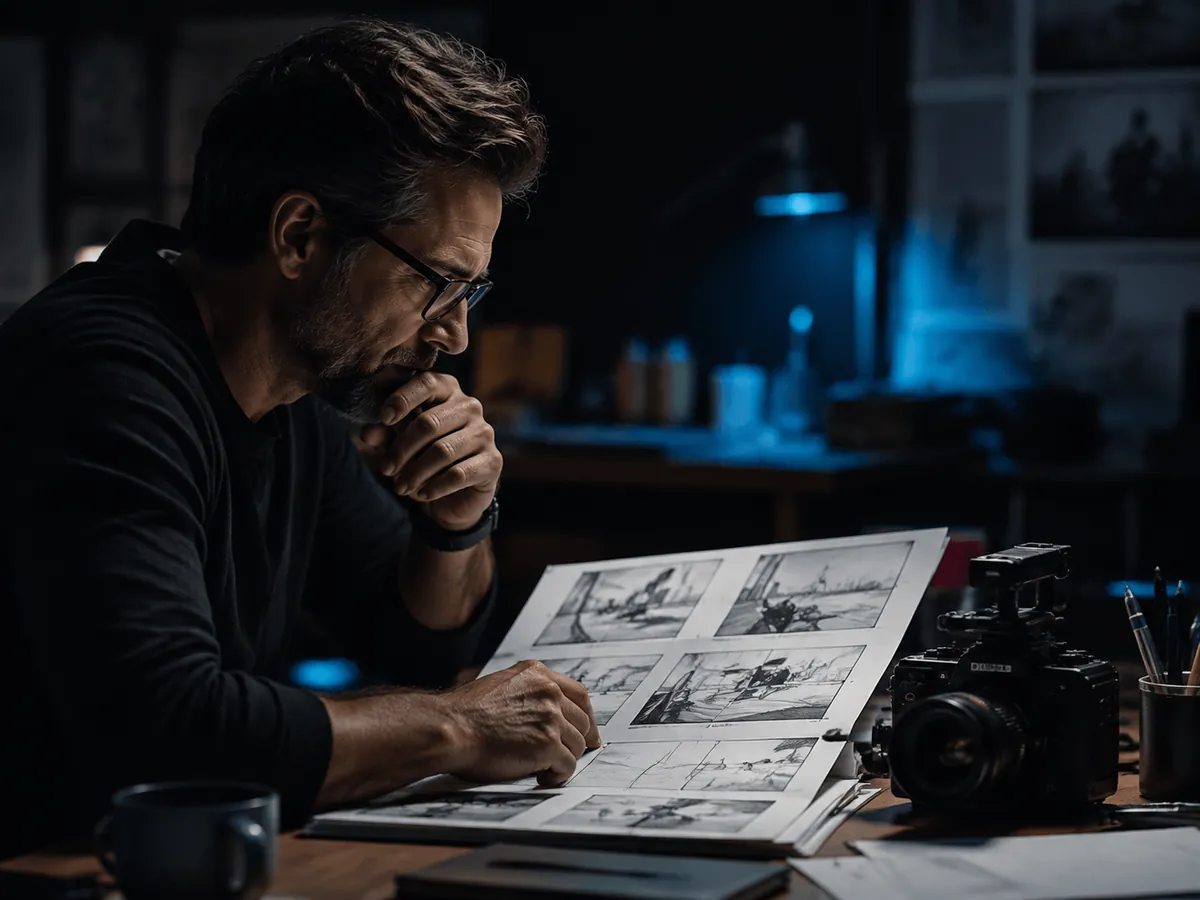
Turn a written beat or reference image into a moving draft that a team can discuss. The 360p workflow is designed for quick iteration, while first-and-last-frame control can test a specific reveal or transition. Gemini Omni 1.1 Flash helps a director, designer, or client react to timing and camera movement instead of interpreting a static board alone.

Use a product image or visual reference to explore a shot, background, camera move, or campaign variation. A marketing team can compare several directions before choosing one for a higher-resolution pass. Generated material still needs brand, rights, policy, and accuracy review before publication, especially when the scene includes people, claims, or recognizable intellectual property.

Build a compact scene for a vertical or landscape placement, then edit the visible details through prompts. Gemini Omni 1.1 Flash can support an idea-to-clip workflow when the goal is a short visual moment rather than a complex multi-track edit. Use conventional editing tools afterward for exact captions, cuts, mixes, and delivery checks.
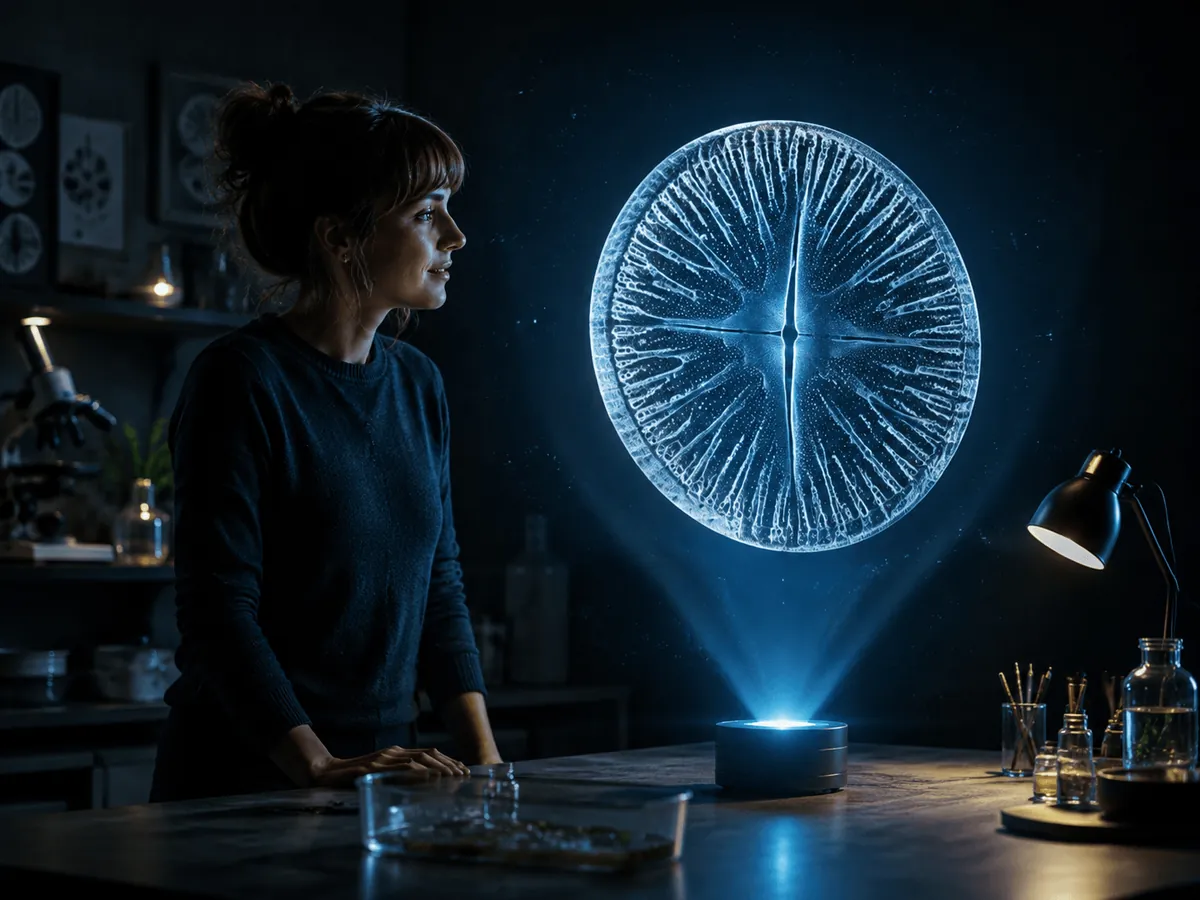
Create a motion draft for a concept that is easier to understand in sequence than in a still image. Reference media can guide the subject or action, and extensions can continue the explanation across additional beats. Review every factual detail in the output; a visually plausible generated scene is not evidence that its scientific or historical content is correct.

Developers can build focused interfaces around generation, editing, extensions, references, or draft comparison. Gemini Omni 1.1 Flash is available through Google’s developer and enterprise surfaces, allowing a product to present only the controls its audience needs. Clear mode labels and visible input requirements make a multimodal workflow easier to understand and safer to operate.
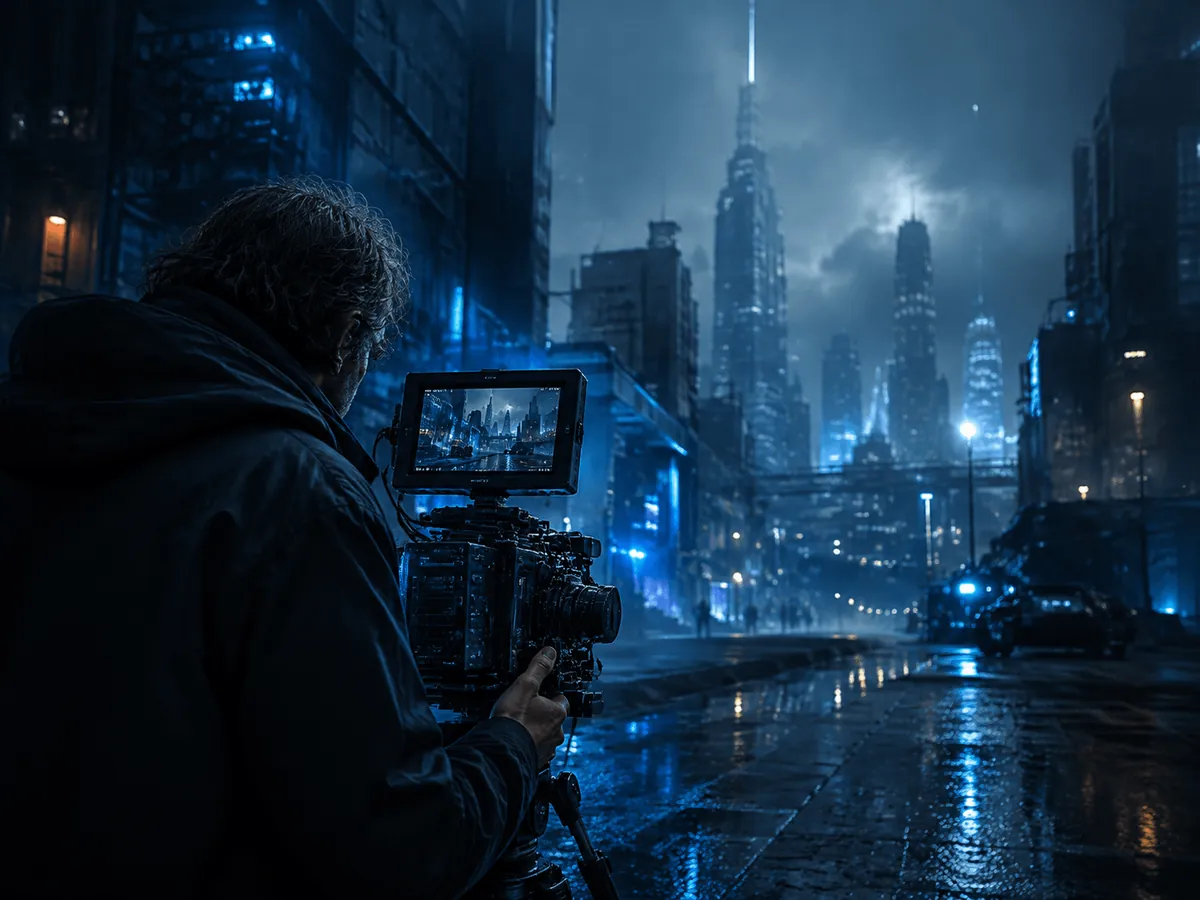
Explore lighting, locations, atmosphere, and camera language before a production commits to a final treatment. References can anchor the visual direction, while short drafts make it easier to compare scene ideas with the creative team.
Compare
The useful comparison is not whether every tool can output a video. It is how you start, how you revise the result, and how much exact finishing control the job requires.
| Workflow | Best starting point | How revisions happen | Best fit |
|---|---|---|---|
| Gemini Omni 1.1 Flash | Text, images, or a source video | Prompt-led editing, references, interpolation, or scene extension | Generation, direction changes, variations, and moving concept drafts |
| Single-prompt video generator | One text or image prompt | Rewrite the prompt and generate another result | Fast first passes when continuity across edits is not central |
| Traditional video editor | Recorded or generated footage and production assets | Timeline edits, cuts, layers, keyframes, masks, and audio mixing | Frame-accurate finishing, compliance, captions, complex sound, and delivery |
Gemini Omni 1.1 Flash does not remove the need for a traditional editor. Prompt-led generation is strong for creating material and exploring changes, while a timeline remains better for exact cuts, color decisions, subtitle timing, sound mixing, versioning, and final quality control. Many practical workflows use both: generate or revise the shot with AI, then finish and approve it in established editing software.
Compared with a generator built around one prompt, Gemini Omni 1.1 Flash places more emphasis on reference context and what happens after the first output. Scene extension, first-and-last-frame interpolation, and video editing give you more ways to direct continuity. Results still vary, so prompts, references, and human review remain part of the process.
Why this model
Choose Gemini Omni 1.1 Flash when your workflow benefits from visual references, follow-up direction, and a deliberate path from inexpensive drafts to selected high-resolution shots.
You can begin with a new shot or with existing material. That reduces the gap between “make this” and “change this,” while keeping the instruction style consistent.
Extension is designed to read more of the preceding video before generating the next segment. That gives the model more information about the scene it is continuing.
Supplying a first and last frame makes the intended destination explicit. This is useful when a transition or loop must arrive at a planned composition.
A 360p pass helps evaluate ideas early. Higher-resolution output is reserved for the versions worth carrying forward, keeping creative comparison separate from final delivery.
FAQ
Direct answers about inputs, video length, resolution, editing, examples, and where the model is available.
Gemini Omni 1.1 Flash is a multimodal model for video generation and editing. It accepts text, image, and video inputs and produces video, with documented controls for conversational editing, scene extension, first-and-last-frame interpolation, reference media, drafting, and high-resolution output.
Yes. Text-to-video is a supported Gemini Omni 1.1 Flash task. Describe the subject, action, environment, camera behavior, and important sound in one coherent prompt, then review the generated clip before refining the direction.
Yes. Image-to-video uses a still image as visual context and a prompt to describe motion. It is useful for animating a product shot, illustration, character, environment, or planned first frame.
Google documents extensions in 10-second increments up to 40 seconds in cumulative length. Gemini Omni 1.1 Flash can use up to 10 seconds of prior video context when continuing the scene. A dedicated extension control is not yet available in this page’s generator.
Yes. The generator provides 360p, 720p, 1080p, and 4K output choices. Paid generation costs 1, 3, 4, or 8 credits per second respectively, while free vouchers are limited to 360p videos shorter than 5 seconds.
First-and-last-frame interpolation generates the motion between two supplied images. Gemini Omni 1.1 Flash uses the prompt to decide how the camera and subjects travel from the starting composition to the ending composition.
Yes. Video editing is a supported task, and this page includes a source-video edit mode. Upload one supported clip, describe the visible change you want, and review the result for identity, motion, timing, sound, and unwanted scene changes.
Google lists Gemini Omni 1.1 Flash across its AI Studio, Gemini API, enterprise agent platform, Flow, and Gemini app surfaces, with capabilities and subscription requirements varying by product. This JXP page provides its own generator interface and does not represent every control offered by Google.
Yes. The six capability videos in the feature carousel come from Google’s Gemini Omni 1.1 Flash announcement. The separate real examples gallery uses additional finished clips hosted on JXP’s media CDN.
Start with a prompt, reference images, or a source clip. Generate one focused shot, inspect the result, and refine the direction from what you can see.