Multimodal AI Video

Gemini Omni Flash video editing, directed by prompt

Generate from text, guide motion with reference images, or restyle a source clip. Gemini Omni Flash turns video work into a simple loop: describe the change, preview the result, then refine again.

Reference Media *

Upload 1-4 reference images.

Gemini Omni sample output

Use prompt, images, or one video to generate your own result.

Overview

What is Gemini Omni Flash?

Gemini Omni Flash

Gemini Omni Flash is Google's fast video model for editing and generating video through prompts, reference inputs, and step-by-step conversation.

The model is built around a different editing flow. Instead of cutting clips, managing tracks, and manually adjusting every layer, you describe the change you want and keep refining the video through follow-up instructions.

Capabilities

What Gemini Omni Flash can do

Gemini Omni Flash is strongest when video work needs direction, context, and iteration instead of a single prompt that must be perfect on the first try.

01

Capability 1

Edit through natural conversation

Revise a video with plain-language direction, then keep the same scene moving through focused follow-up edits.

Edit videos through conversation

Ask for a change, review the result, then ask for another change. The workflow is closer to giving creative direction than operating a timeline.

Edit over multiple turns

Build on the current result with smaller follow-up edits so the scene direction can stay consistent across turns.

Input video

02

Capability 2

Create from prompts, references, and source clips

Start from the material that best explains the idea, then use Gemini Omni Flash to turn that context into motion.

Use many input types

Start from a text prompt, up to four reference images, or one source video, then shape the output with a clear instruction.

Work with multimodal input

Use prompts, visual references, and source footage together when words alone are not enough to explain style, subject, composition, or motion.

Input video

Gemini Omni reference for video editing

Input image

03

Capability 3

Transform scenes for practical publishing

Change objects, subjects, formats, and short-video settings while keeping the output tied to a real creator workflow.

Swap objects or characters with language

Describe what should change in the scene, such as replacing an object, character, material, or prop, without writing a technical edit plan.

Support practical output choices

Create short MP4-ready clips with publishing-friendly aspect ratios and durations that fit common social and concepting workflows.

Workflow

How Gemini Omni Flash works

Gemini Omni Flash works best as an editing loop: give it material, describe the change, review the result, and continue with a more specific instruction.

1

Start with the material you have

Begin with the input that matches the task: a prompt-only idea, image references for visual guidance, or a source video that needs to be restyled or changed.

2

Describe the edit in plain language

Write a concrete instruction such as replacing an object, changing the setting, preserving the motion, or turning a reference into a short video.

3

Review, refine, and export

Check the clip before asking for more. Multi-turn editing is most useful when each new prompt fixes one visible issue or pushes the scene in one clear direction.

Scenarios

Gemini Omni Flash use cases

Gemini Omni Flash fits creators and teams who need to test video ideas, edit existing footage, or turn reference material into short prompt-led clips.

For creators editing social clips

Create quick versions of the same idea for shorts, teasers, and posts, then ask for scene, style, or object changes without rebuilding the whole prompt.

For marketers making campaign variants

Explore product scenes, backgrounds, and early ad variations before spending time on a polished production pass.

For product teams explaining features

Turn a feature idea, interface reference, or customer scenario into a short motion draft that is easier to discuss than a static mockup.

For educators and trainers

Build lesson visuals and process explainers, then revise the scene, pacing, or style through plain-language follow-up prompts.

For developers building video workflows

Use the same input, instruction, preview, and refinement pattern when designing prompt based video editing workflows around an API.

For filmmakers exploring a scene

Test a mood, reference image, scene action, or camera idea before committing production time to a more finished sequence.

Compare

Gemini Omni Flash vs other AI video editors

Compare Gemini Omni Flash by editing flow, input flexibility, iteration style, and how much creative direction can happen through language.

Gemini Omni Flash is not a replacement for every video workflow. A traditional editor still matters for frame-perfect polish, audio mixing, subtitles, compliance review, and final delivery. A single-prompt generator is still useful when all you need is a quick concept.

Gemini Omni Flash stands out when the job needs follow-up edits that keep the same idea moving. The useful comparison question is not only "can it generate a video?" It is whether the workflow can accept references, edit an existing clip, adapt the result for a format, and continue refining after the first output.

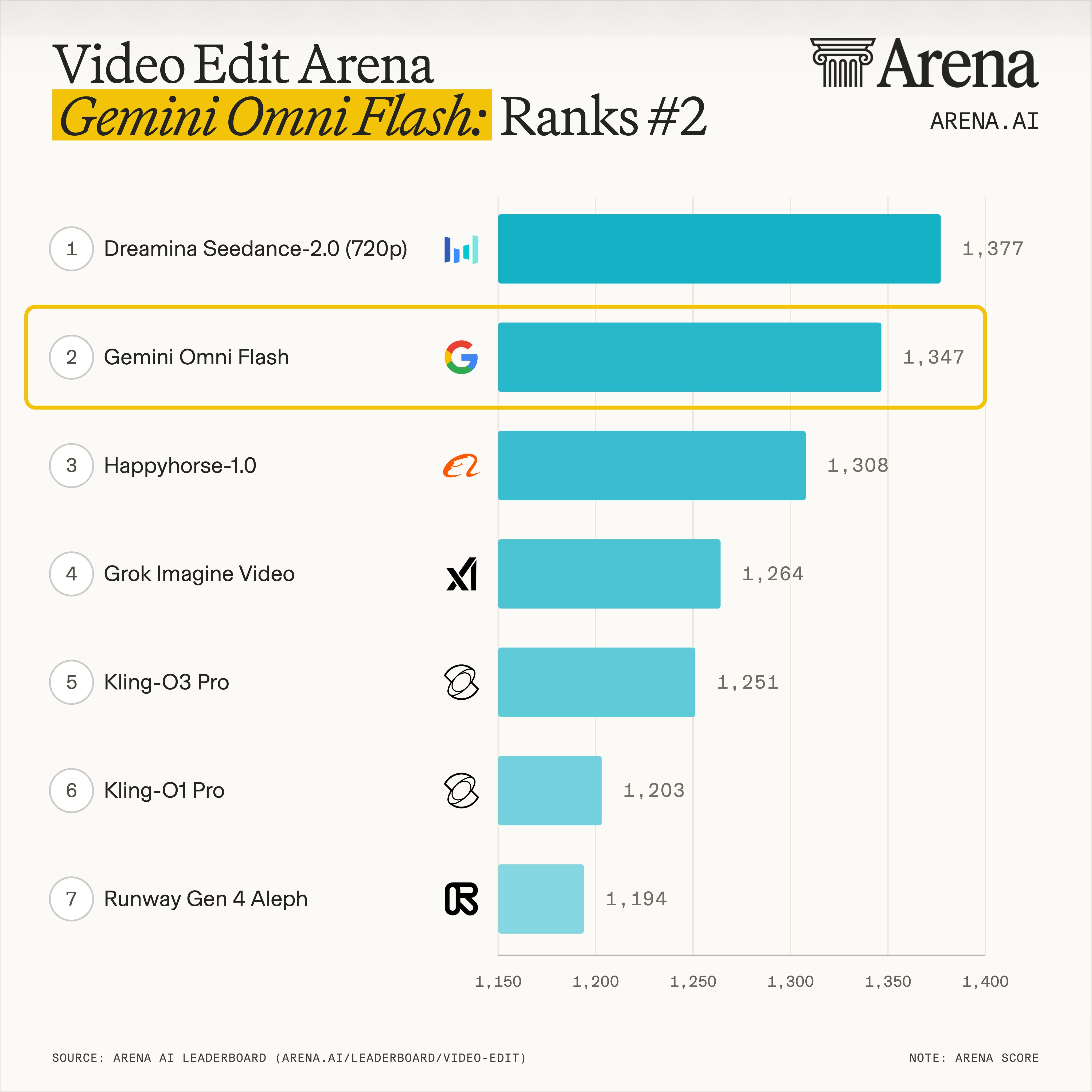
Gemini Omni Flash ranking score
Comparison pointGemini Omni FlashSingle-prompt video generatorsTraditional video editors
Main workflowPrompt, review, and keep editing through conversationWrite one prompt and regenerate when it missesCut, layer, keyframe, and adjust manually
Input stylePrompts, reference images, source videos, and combinations of inputsOften starts from text or image promptsStarts from source footage and assets
IterationMulti-turn editing with consistency through follow-up promptsIteration often means a new generationIteration is precise but manual
Best fitDirection-led editing, concepting, and prompt based video editingQuick first drafts from a text ideaFinal craft, complex timelines, and production polish

Benefits

Why choose Gemini Omni Flash?

Choose Gemini Omni Flash when the job needs video changes that can be described, checked, and refined through a conversation.

It matches how people give creative direction

Most video edits start as spoken direction: change the object, keep the motion, make the lighting softer, or try a different style. Gemini Omni Flash matches that natural instruction pattern.

It keeps editing and generation close together

A project can move from "make this idea" to "change this specific detail" without treating generation and editing as separate tasks.

It supports reference-led work

Bring visual context when a prompt alone is not specific enough. Reference images and source clips make it easier to guide style, subject, composition, and motion.

It gives products a clearer interaction pattern

The interaction pattern is easy to understand: choose an input, write an instruction, preview the result, then send the next edit.

It keeps the workflow honest

A strong Gemini Omni Flash workflow shows the input, the instruction, the generated clip, and the next possible edit instead of hiding the process behind a single output.

It supports model education and conversion

Informational visitors can learn what the model does, while ready users can move directly into a practical video generation or editing flow.

FAQ

Frequently asked questions about Gemini Omni Flash

Answers for creators, marketers, developers, and product teams evaluating Gemini Omni Flash for AI video editing.

What is Gemini Omni Flash?

Gemini Omni Flash is a Gemini video model for prompt-led video editing and generation. Google describes the Gemini Omni family around conversational editing, reference inputs, real-world knowledge, and multi-turn consistency.

Is Gemini Omni Flash an AI video editor?

Yes. Gemini Omni Flash works as an AI video editor because it focuses on editing video through natural conversation. It is also connected to video generation, so you can both create and revise clips in one workflow.

How does Gemini Omni Flash work?

Gemini Omni Flash works by taking input material and instructions, producing a video result, and allowing more changes through follow-up prompts. The key workflow is input, instruction, review, and refinement.

Can Gemini Omni Flash edit existing videos?

Yes. Gemini Omni Flash can be positioned around editing existing or referenced video material, including restyling a source clip, changing scene details, and guiding revisions with natural language.

What is the Gemini Omni Flash API?

The Gemini Omni Flash API is relevant for teams building video editing workflows around prompt based generation and revision. A useful implementation should explain input types, prompt format, review steps, limits, pricing, and task status behavior.

How is Gemini Omni Flash different from normal video editing software?

Gemini Omni Flash is prompt-led and conversation-led. Traditional editors give you manual control over clips, layers, and timelines. Gemini Omni Flash is stronger for directing changes in plain language; traditional editing software is still important for final production control.

Can Gemini Omni Flash use images or references?

Yes. Gemini Omni Flash supports reference-led work: you bring a visual idea or asset, then use prompts to guide the video. Reference images are useful when the desired style, subject, composition, or object is easier to show than describe.

Should developers build with Gemini Omni Flash?

Developers should consider Gemini Omni Flash when a product needs conversational video editing, prompt based video editing, or a review-and-refine loop. The product should make the input, instruction, generated result, and next edit easy to follow.

What inputs does Gemini Omni Flash support?

The page workflow supports text prompts, up to four reference images in reference-to-video mode, and one source video in video-edit mode.

What output formats are supported?

Generated results are delivered as MP4 video, with 16:9 or 9:16 aspect ratios and selectable durations from 3 to 10 seconds.

How many credits does Gemini Omni Flash use?

Gemini Omni Flash uses 4 credits per second. An 8-second generation requires 32 credits.

Get started with Gemini Omni Flash

Turn a video idea, source clip, image, or reference into an editable prompt-led workflow.

Start with one input and one clear instruction. Generate the first clip, review the result, and continue with the next change when the direction needs adjustment.