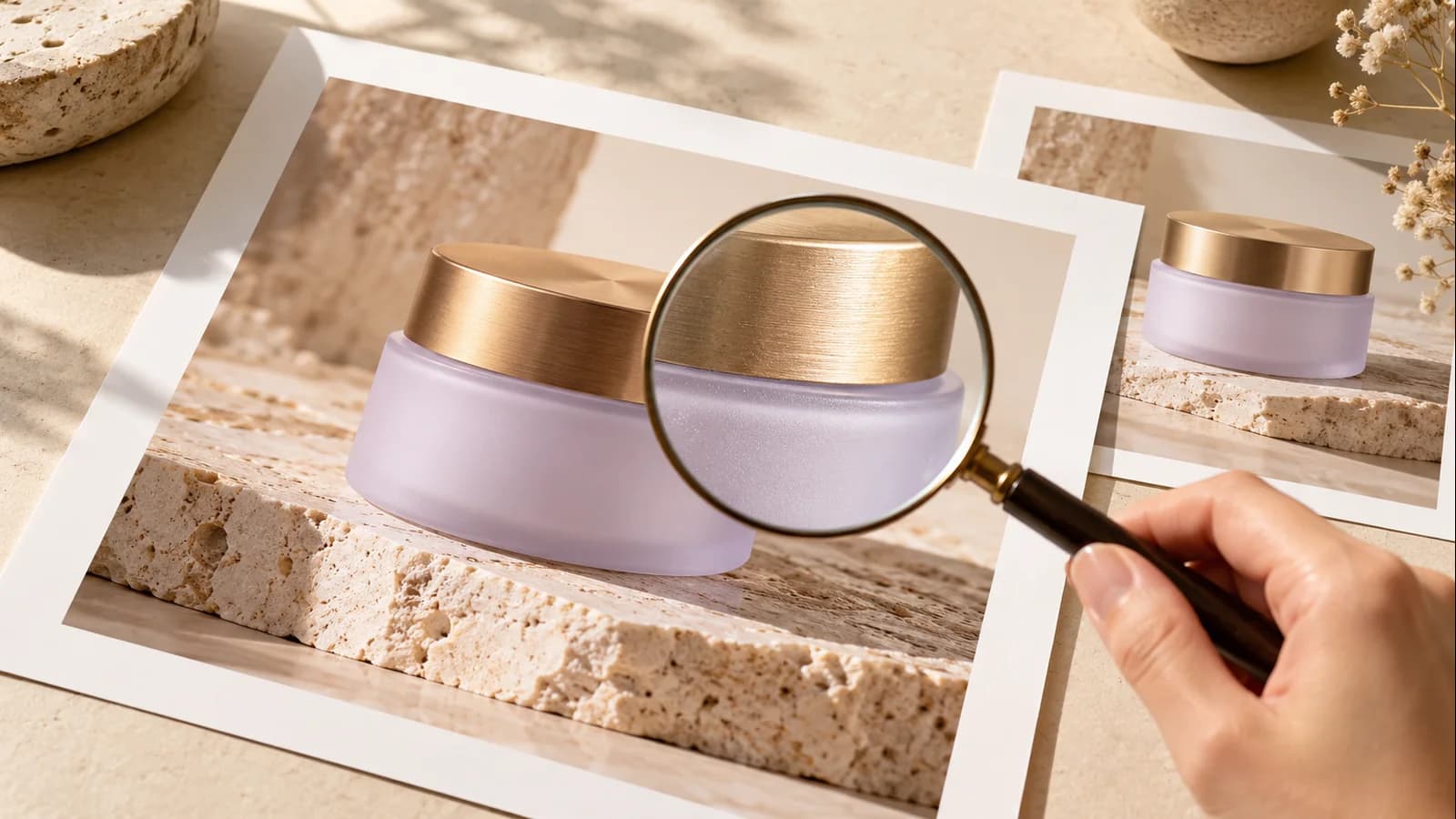
Create product visuals, text-rich layouts, and focused image edits. Prepare your next Seedream 5.5 brief and start creating with the available Seedream 5.0 Pro workspace below.
Seedream 5.5 is coming soon!
IMAGE WORKSPACE
Currently creating with Seedream 5.0 Pro
Reference Images
0/10
ModelSeedream 5.0 Pro
1024 × 1024
SEEDREAM 5.0 PRO
IMAGE INSPIRATION
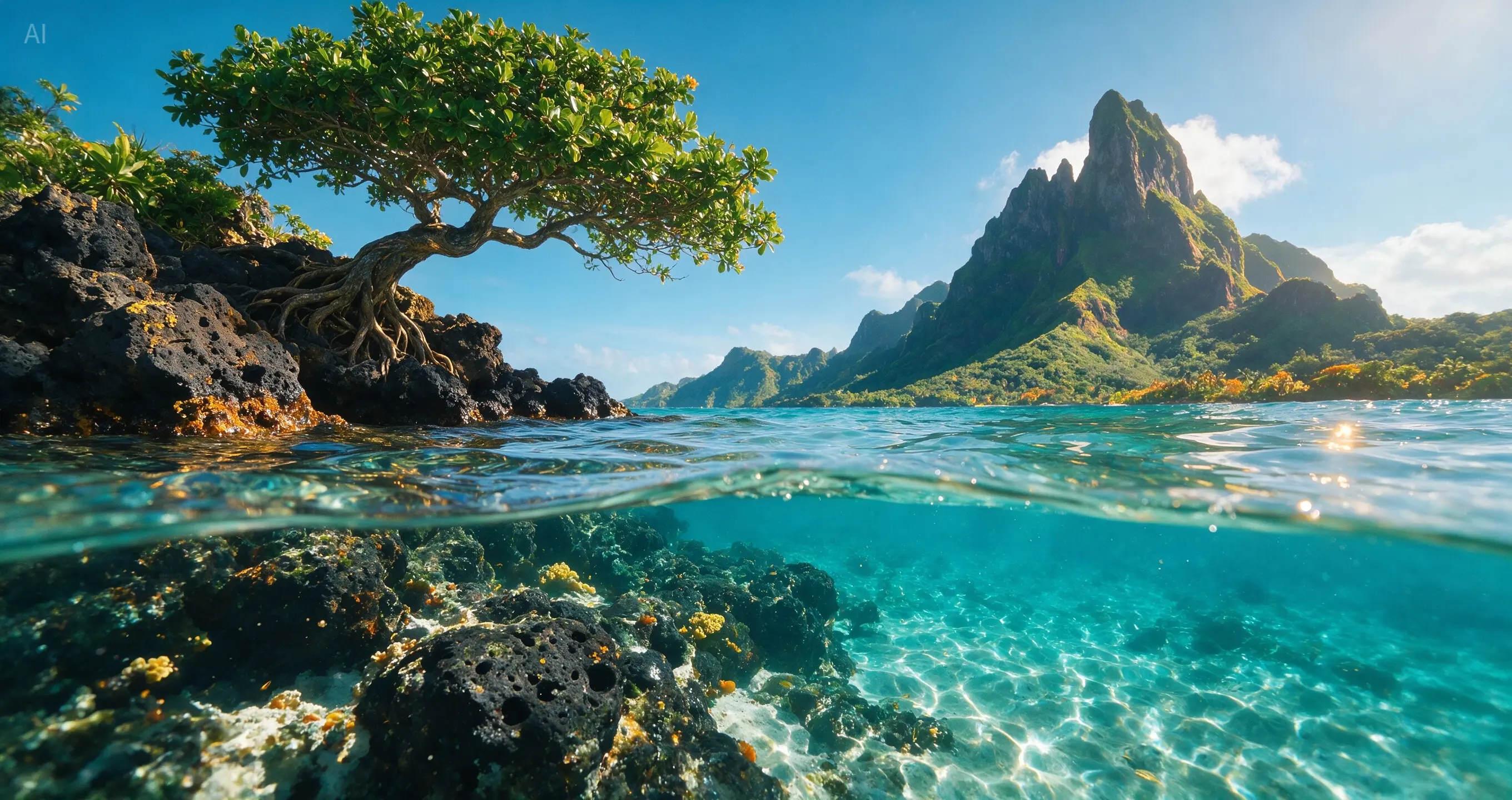
Split-level tropical lagoon
Suggested prompt · editable
A breathtaking ultra-wide 17:9 split-level tropical lagoon photograph, half above water and half underwater, captured at the edge of a pristine volcanic island coastline. The image should feel like a high-end nature photography competition entry: realistic, immersive, crisp, cinematic, and full of fresh tropical atmosphere.
01
What Is Seedream 5.5?
Seedream 5.5 is an upcoming ByteDance image generation and editing model, previewing transparent assets, targeted revisions, text layouts, and realistic portraits for practical design work.
Think about the difference between an attractive picture and a usable campaign asset. You may need room for a headline, a bottle label that stays legible, or a decorative element that works over several background colors. Those requirements belong in your brief from the start.
The Seedream image generator category brings creation and revision into the same process. For this preview, begin with a small, specific task instead of planning an entire campaign around an untested result.
Seedream 5.5 is coming soon. A preview description is useful for planning, but it does not confirm that your chosen platform has enabled the model. Check the model name before starting a job.
02
Seedream 5.5 Features for Practical Image Work
Explore transparency, focused edits, readable layouts, and deliberate lighting. Build a specific brief around each previewed capability, then review the details that matter to your finished asset.
Transparent elements for reusable compositions
RGBA generation includes partial transparency. For your first brief, choose one isolated subject and describe any see-through areas separately. A clear ornament, a colored glass rim, and an opaque ribbon need different treatment. Plan to inspect the finished asset on both light and dark backgrounds.
Focused revisions to selected details
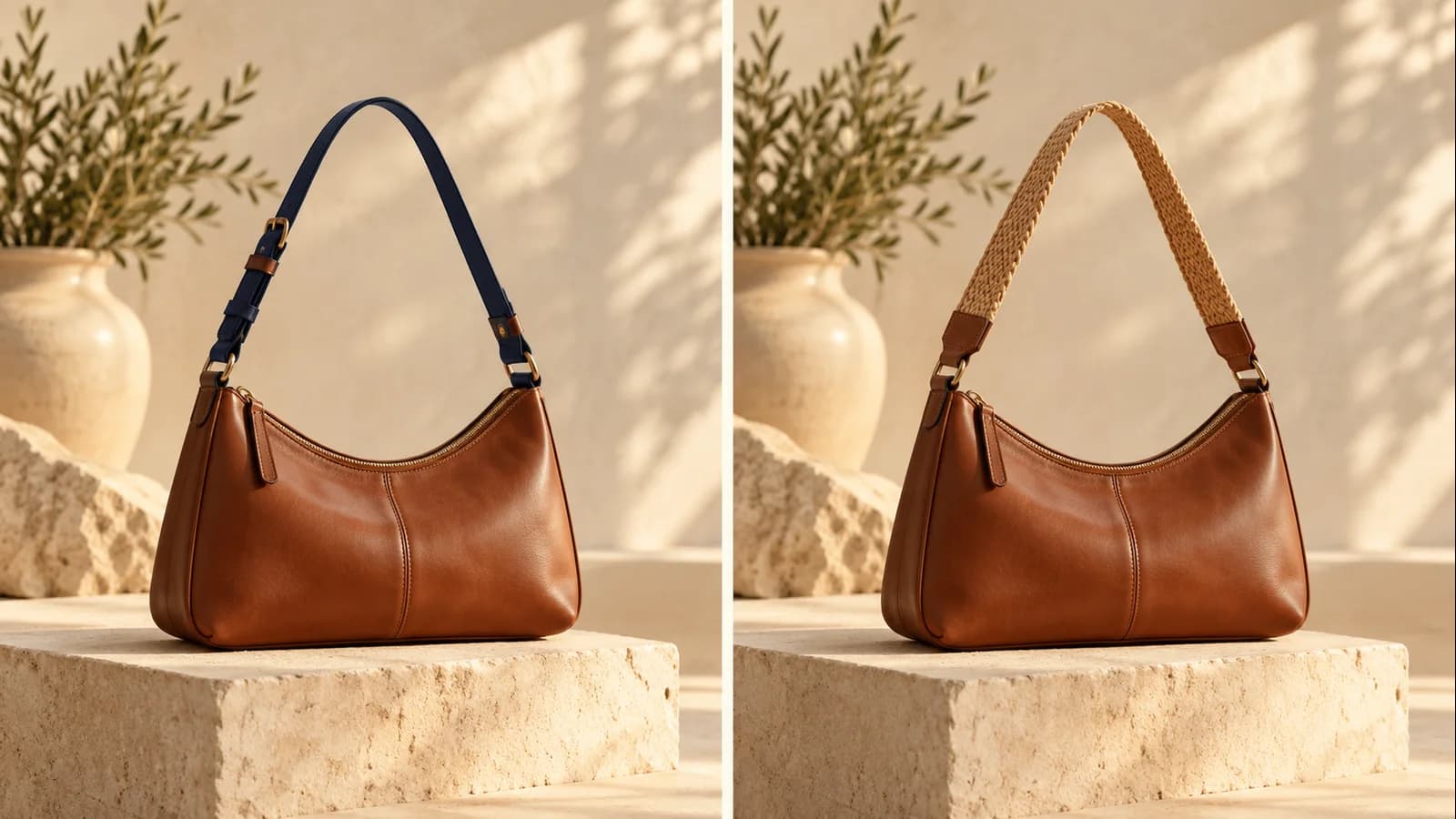
Targeted editing lets you describe a change to part of an image. Write the change and the preservation instructions as separate sentences. For example: “Replace the blue strap with a woven tan strap. Keep the bag shape, zipper, stitching, and camera angle.” Review the rest of the bag as carefully as the strap.
Text and layout in one brief
Complex text layouts are part of the preview. Treat your wording as supplied content: write out the exact headline, price, date, and smaller line. Give each a location and a relative size. Do not ask an image model to invent factual product details while also designing the composition.
Portraits and a deliberate lighting direction
Realistic portraits and lighting adjustments are also highlighted. Describe where the light should come from and which features should remain visible. For a softer portrait, specify the shadow transition you want instead of asking for flawless skin. Judge the expression, facial proportions, and texture together.
References with different responsibilities
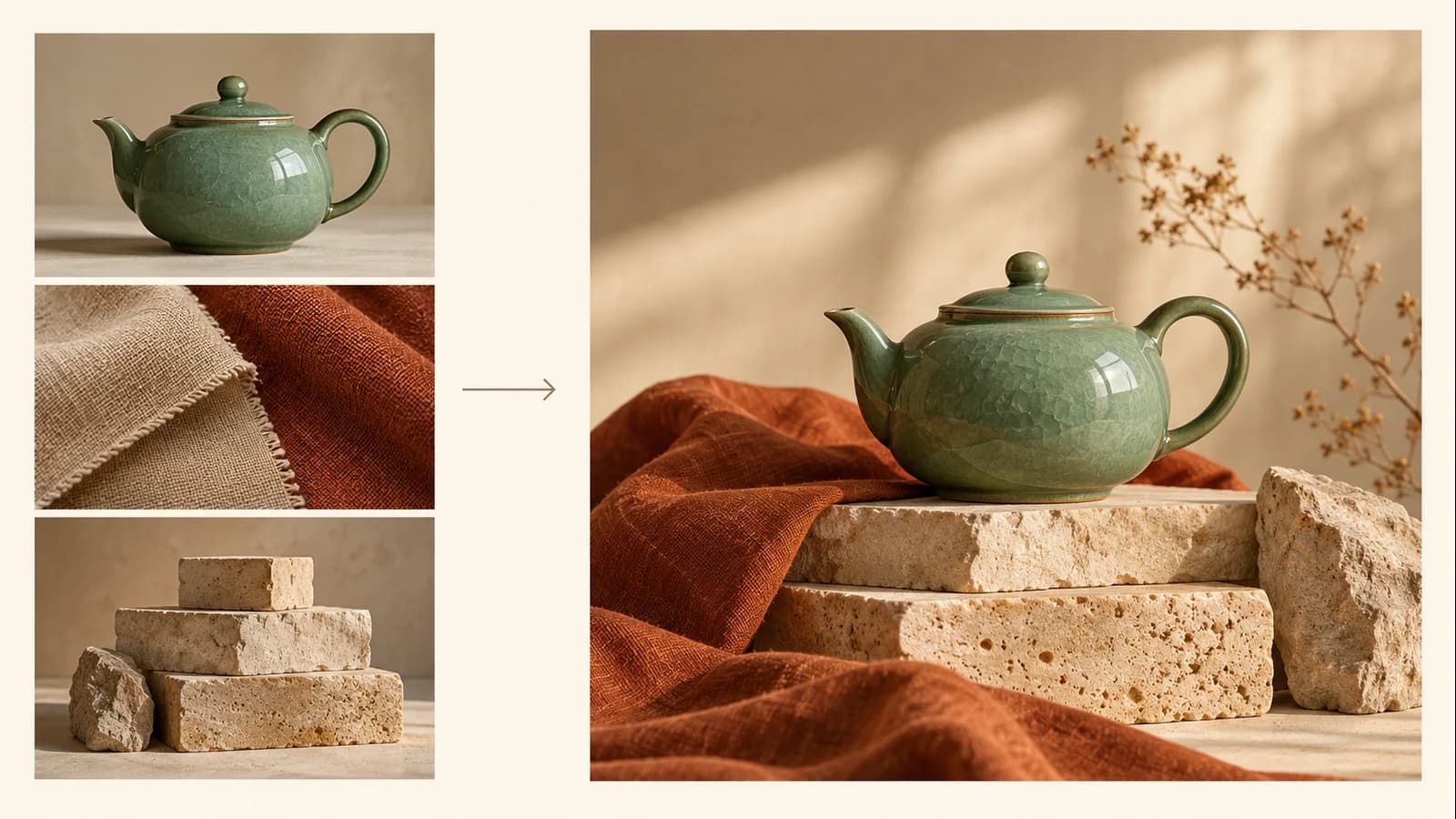
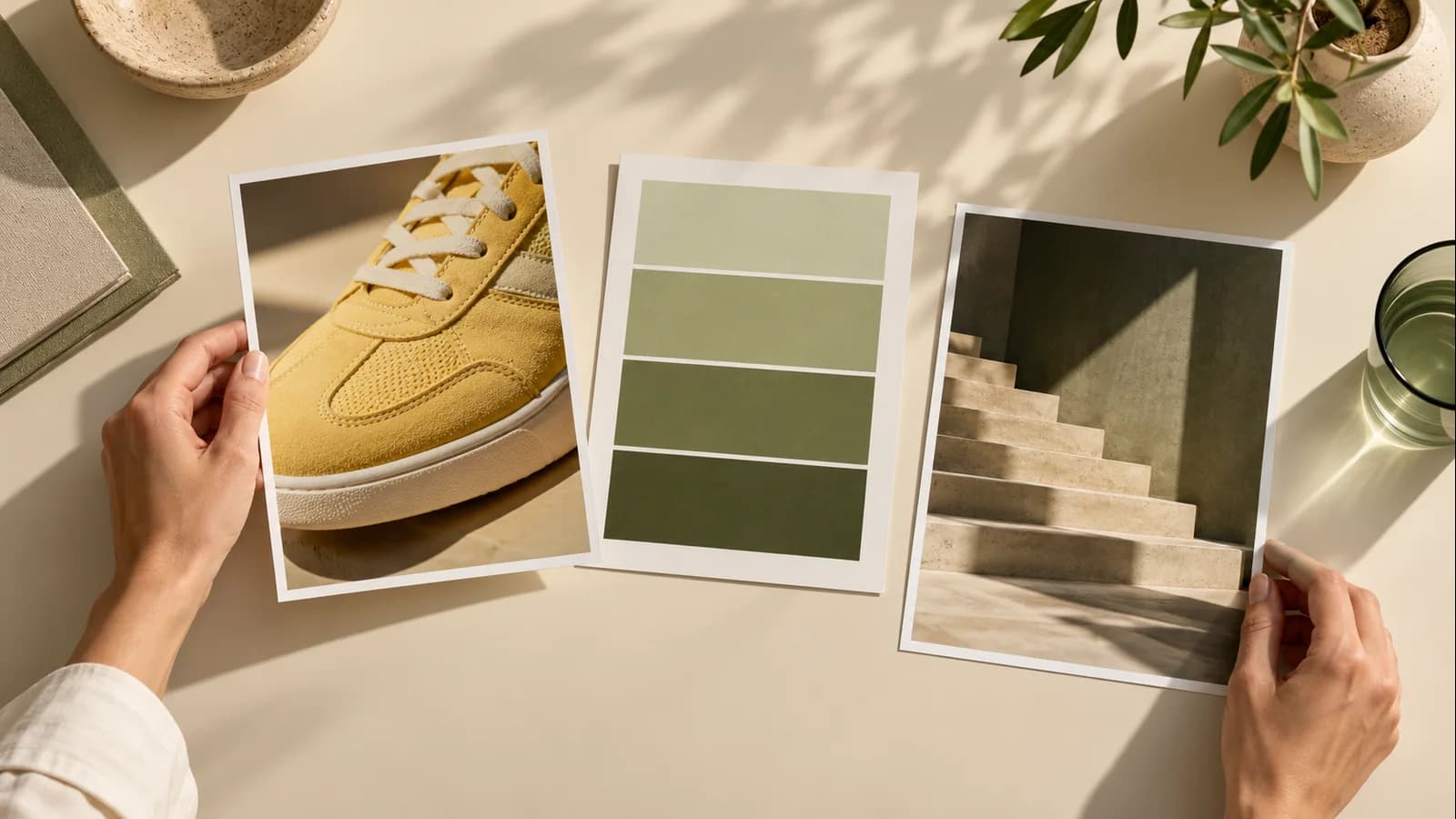
Assign references to subject, palette, and composition in your instructions. Avoid asking a layout reference to also define the person's identity unless that is intentional. Write a short priority list when two images disagree about color or framing.
03
What Can You Create with Seedream 5.5?
Choose an output and adapt these original starter prompts to your own materials. The images illustrate creative directions, rather than verified Seedream 5.5 results.
A product banner with space for your offer
Prompt: “Create a wide campaign image of a matte coral travel mug on a dark blue counter. Place the mug in the right third. Leave the left half quiet and uncluttered for a headline added later. Use a low side light that reveals the powder-coated surface. Include one folded navy cloth behind the mug. Keep the handle fully visible. No lettering or logos.”
Use this brief when your page already has editable headline text. Check whether the empty area remains usable after the banner is cropped for a phone screen. Keep essential product details away from the edge.
Prompt: “Create a single translucent amber ribbon forming a loose spiral, isolated on a transparent background with an alpha channel. Keep the entire spiral inside the canvas. Make the ribbon edges smooth and the overlapping sections visibly darker. No floor, text, border, or decorative background. Leave a little clear space around the shape.”
Place the saved result over the actual background in your design. Inspect the center of the spiral as well as the outside edge. A clean outer outline alone does not tell you whether the translucent areas work.
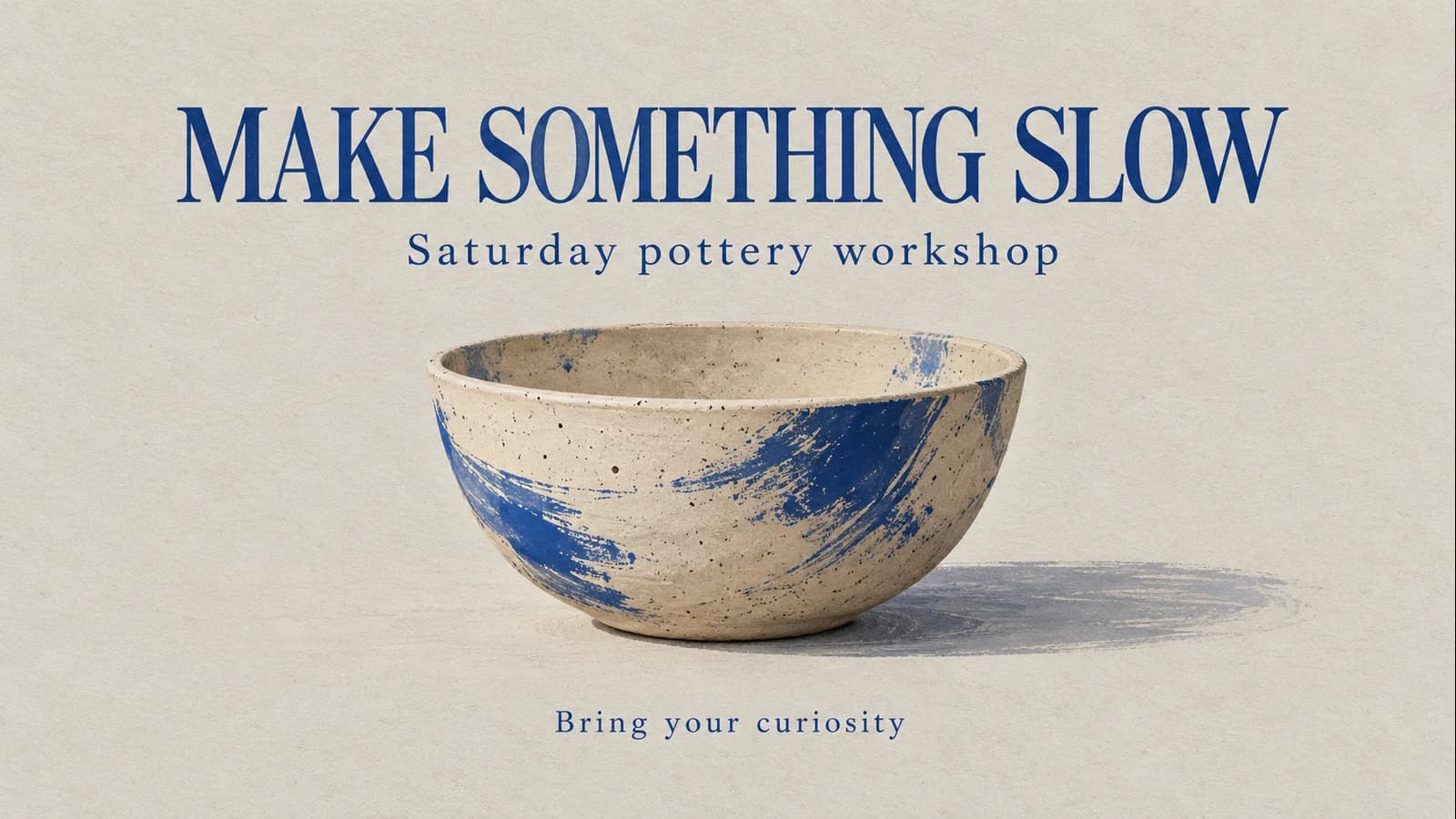
Prompt: “Design a square poster for a fictional neighborhood pottery workshop. Use warm gray paper, cobalt blue lettering, and one simple clay bowl illustration. Set the headline exactly as ‘MAKE SOMETHING SLOW’. Below it, add ‘Saturday pottery workshop’. At the bottom, add ‘Bring your curiosity’. Keep the headline largest, the subtitle medium, and the closing line small. Leave comfortable space between each line.”
Read every line at the intended display size. If your design requires an actual booking date or price, supply it explicitly and check it before publication.
Prompt: “Change only the outer surface of the desk lamp from glossy black to brushed copper. Keep the shade shape, stem, base, cord position, background, and camera angle. Match the new surface reflections to the existing window light. Do not add lettering or extra objects.”
Compare the lamp outline before reviewing its finish. Keep a revision only when both the requested change and the details you asked to preserve are acceptable.
From product campaigns to portrait revisions, choose a task with clear requirements and evaluate the finished asset at the size and format your audience will see.
Store owners preparing product visuals
Start with a product whose shape and labeling you know well. Prepare a reference photo, the intended background, and a list of details that must stay recognizable. For your first Seedream 5.5 test, a single background or material request is easier to judge than a completely new scene with many objects.
Designers assembling campaign assets
Choose a visual element that needs to appear in several layouts. Decide whether you need a complete poster, an isolated asset, or a background with space for editable type. Keep your source wording separately so revisions can be checked against the approved copy.
Social teams adapting a creative direction
Write the message before choosing the visual treatment. Note which parts of the image can change for different formats and which parts carry the campaign identity. Review the smallest intended placement, where subtle details and fine text may be difficult to read.
Creators revising portraits
Pick one change, such as clothing color or lighting mood. State the expression, framing, and recognizable facial details you want to retain. Compare the result beside the original rather than relying on memory.
05
Why Consider Seedream 5.5 for Your Next Image Project?
Start with your hardest recurring image task. Judge the first result and a realistic revision against clear acceptance criteria before changing your workflow.
Choose a task with an obvious success condition
A transparent ribbon should work over your chosen background. A revised product should retain its recognizable shape. A poster should display the exact wording you supplied. These are clearer tests than asking which model makes the most impressive picture.
Judge the revision as well as the first result
Plan one follow-up request before generating anything. You might change a garment color or replace a short headline. This lets you evaluate Seedream 5.5 against the work you do after an initial concept has already been approved.
Keep another route for deadline work
The current limitation is availability: Seedream 5.5 is still coming soon. If your asset is due today, use a workflow you can access and verify today. Keep the same brief ready for a later trial instead of making your delivery depend on an unconfirmed rollout.
06
How to Use Seedream 5.5
Describe your image, add references, then generate and refine. The workspace currently uses Seedream 5.0 Pro; select Seedream 5.5 when it becomes available.
Step 1
Describe your image.
Choose the available model and write a clear prompt: name the subject, composition, lighting, and exact wording. Select your aspect ratio and output settings, and check the displayed credit cost.
Step 2
Add your references.
Upload reference images when needed and explain the role of each one: subject, palette, or layout. Specify which details should stay unchanged and which parts you want to edit.
Step 3
Generate, refine, and save.
Review the composition, text, edges, and product details. Make one focused revision at a time, then download your chosen image and check it in the final layout.
07
Seedream 5.5 Pricing
Choose from JXP credit packs and subscriptions below. These are platform plans; Seedream 5.5 access and model-specific generation costs will be confirmed when it becomes available.
One-Time Purchase
Pay once and use credits anytime - they never expire
Credits never expire
Starter
$10one-time
100 credits one time purchase
AI Image Generator & Video Generator
Seedance 2.5 AI Video Generator
HD video quality (1080p)
Commercial use license
Download enabled
Email support
Premium
Most popular
$30one-time
330 credits one time purchase
HD video quality (1080p)
AI Image Generator & Video Generator
Seedance 2.5 AI Video Generator
Commercial use license
Priority download speed
Priority customer support
Advanced video effects
Ultimate
$99one-time
1211 credits one time purchase
AI Image Generator & Video Generator
Seedance 2.5 AI Video Generator
HD video quality (1080p)
Commercial use license
Fastest download speed
Priority email support
Advanced video effects
Early access to new features
API access (coming soon)
Monthly Subscription
Get fresh credits every month with automatic renewal. Subscription plans offer 20% more credits compared to one-time purchases.
Find practical answers about model access, prompts, transparency, editing, and pricing so you can prepare your first test with clear expectations.
Is Seedream 5.5 available now?
+
Seedream 5.5 is coming soon. A preview page does not establish that the model is available in every account or on another platform. Check the model selector in the workspace you intend to use, and confirm that the selected name matches the version you want. If you have a deadline, keep an available workflow ready. You can still prepare a prompt and reference set while waiting for access. Reuse that same brief later so your evaluation starts from a task you already understand.
What is the Seedream 5.5 release date?
+
An exact Seedream 5.5 release date was not confirmed in the official sources reviewed for this page. Treat a forecast or third-party launch label as something to verify before planning production around it. Look for an announcement that identifies the version and explains where it is available. A model announcement and access through your preferred tool are separate questions. Keep your planned output format and reference materials ready in the meantime. Once access appears, begin with a small test rather than moving an entire campaign at once.
Can Seedream 5.5 create transparent PNG assets?
+
Transparent RGBA imagery, including partially transparent areas, is described in the Seedream 5.5 preview. The file options exposed by your chosen tool still need to be checked. In your brief, name the isolated subject and specify which parts should remain translucent. After saving, place the asset over a light background and a dark one in your editor. Inspect holes, fine edges, and overlapping translucent areas rather than checking only the outside contour. Keep a copy of the original export so you can distinguish generation issues from changes introduced during later editing.
How should I write a prompt for Seedream 5.5?
+
Start with the finished asset, then describe its subject, composition, lighting, and exact wording. For Seedream 5.5, a useful first test is a brief whose success you can judge without guessing what you originally meant. Name the most important constraint early, such as keeping a product fully visible or leaving room for a headline. If you use references, explain the purpose of each one. Avoid combining unrelated style requests in the same sentence. Finish with the details that must not change, and keep the prompt beside the result when reviewing it.
Can I change one detail with Seedream 5.5?
+
Targeted revisions are part of the Seedream 5.5 preview, but each result still needs review. Write the requested change separately from the details you want preserved. A useful instruction might replace a jacket color while retaining its cut, buttons, pose, and background. Compare the result with the previous image before asking for another revision. Keep earlier versions so you can return to an acceptable starting point when a change causes a new problem. Do not assume that repeated editing guarantees identical untouched areas or an unlimited number of reliable revisions.
Is Seedream 5.5 suitable for posters with small text?
+
Text layouts are a relevant preview use case, but small copy still needs proofreading at its final size. Supply the words yourself instead of asking Seedream 5.5 to invent prices, dates, or product specifications. Define the reading order and the space allocated to each text block. Review similar-looking letters, punctuation, and line breaks before approving the image. If exact wording is essential, consider keeping critical text editable in your design file. That also gives you a practical way to update an offer without depending on another image-generation result.
Is Seedream 5.5 free to use?
+
A verified free allowance for this tool has not been supplied. Do not assume that a platform's general trial credits include Seedream 5.5 or every output option. Read the terms attached to the selected model before starting a job, especially if a subscription is required. Check whether revisions and larger outputs affect the amount you pay. If you are comparing offers, use the same sample task and count acceptable saved results rather than initial attempts alone. Keep the final output requirements consistent so the cost comparison remains useful.
Should I switch my current workflow to Seedream 5.5?
+
Test a representative task before changing a workflow that already meets your needs. Choose a brief with known references, exact wording, and a specific output format, then evaluate Seedream 5.5 when access is available. Include one realistic revision so you assess the whole job rather than just the first image. Compare the saved results at the size where your audience will see them. Keep your current process if the new result creates more correction work or lacks a required export option. A switch should follow a clear benefit for your own projects.
09
Prepare Your First Seedream 5.5 Brief
Choose one product image, poster, or isolated element. Collect your references, specify the finished format, and keep a short list of details that must survive each revision.
 SEEDREAM 5.0 PRO