
Grok Imagine Image

Shape an idea into aclear visual direction

Grok Imagine Image turns natural-language direction into visual concepts you can review and refine for product, marketing, and content projects.

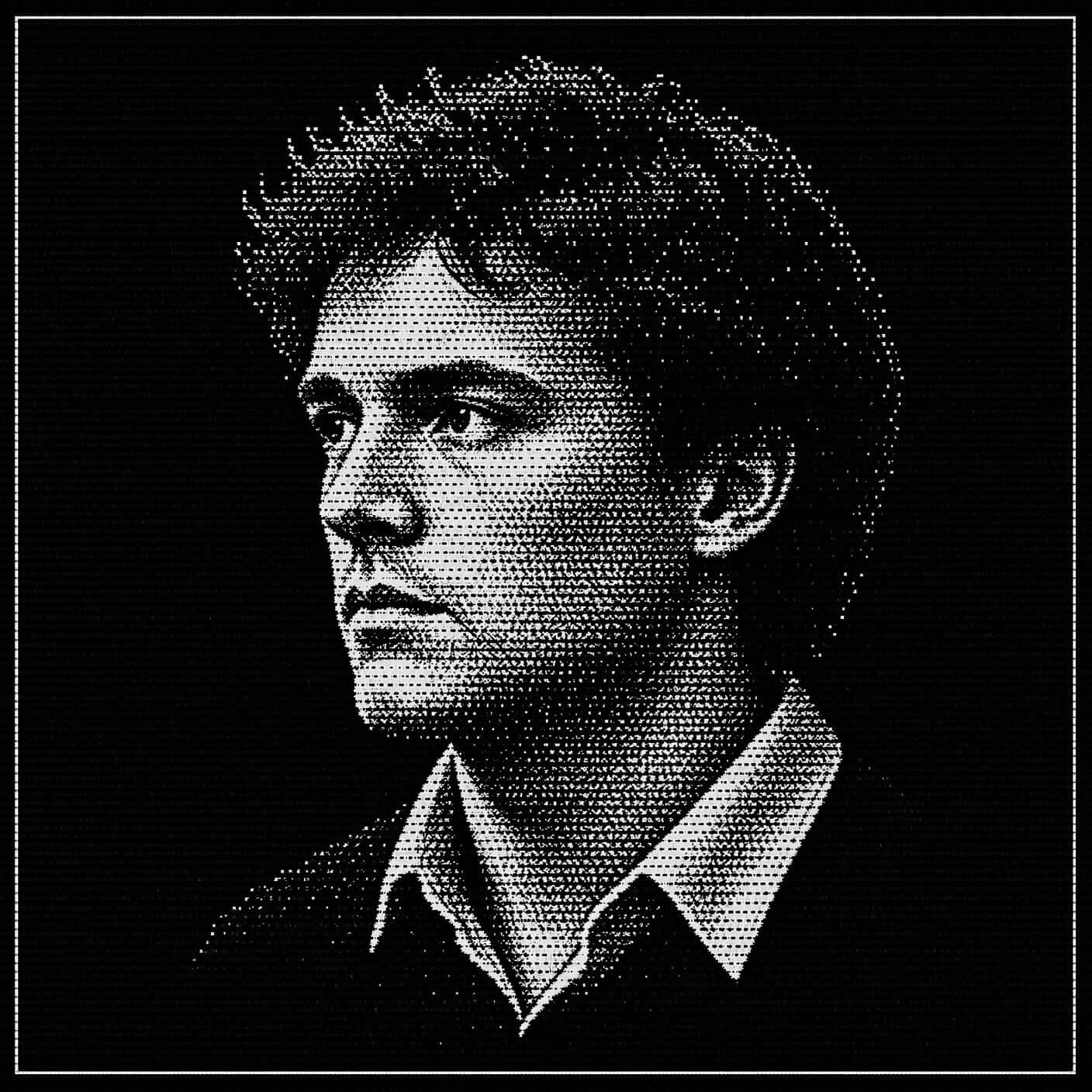
High-contrast halftone portrait of a young man rendered entirely in fine white dots on black
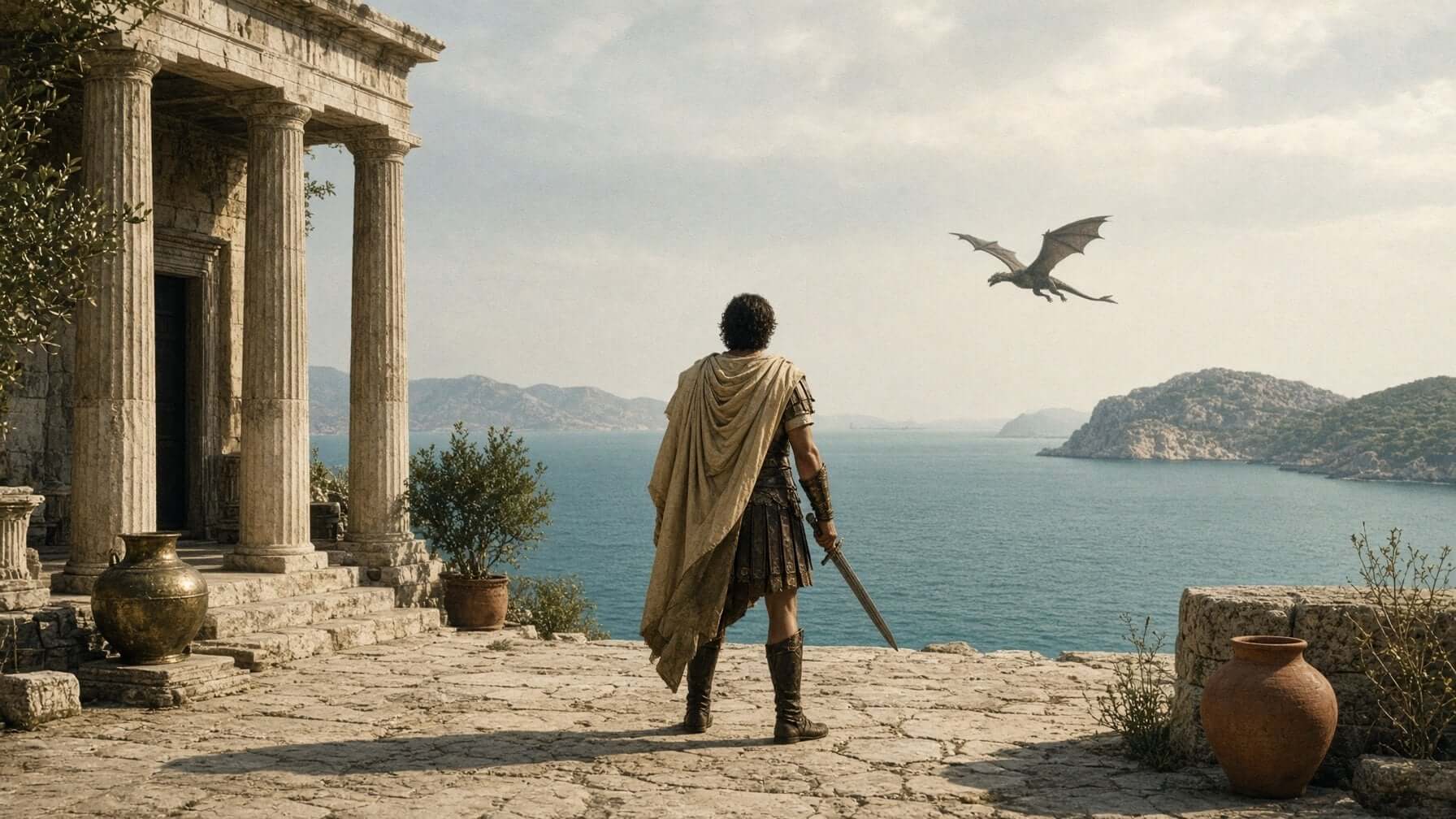
Caped swordsman on a clifftop temple terrace watching a dragon glide over an Aegean bay
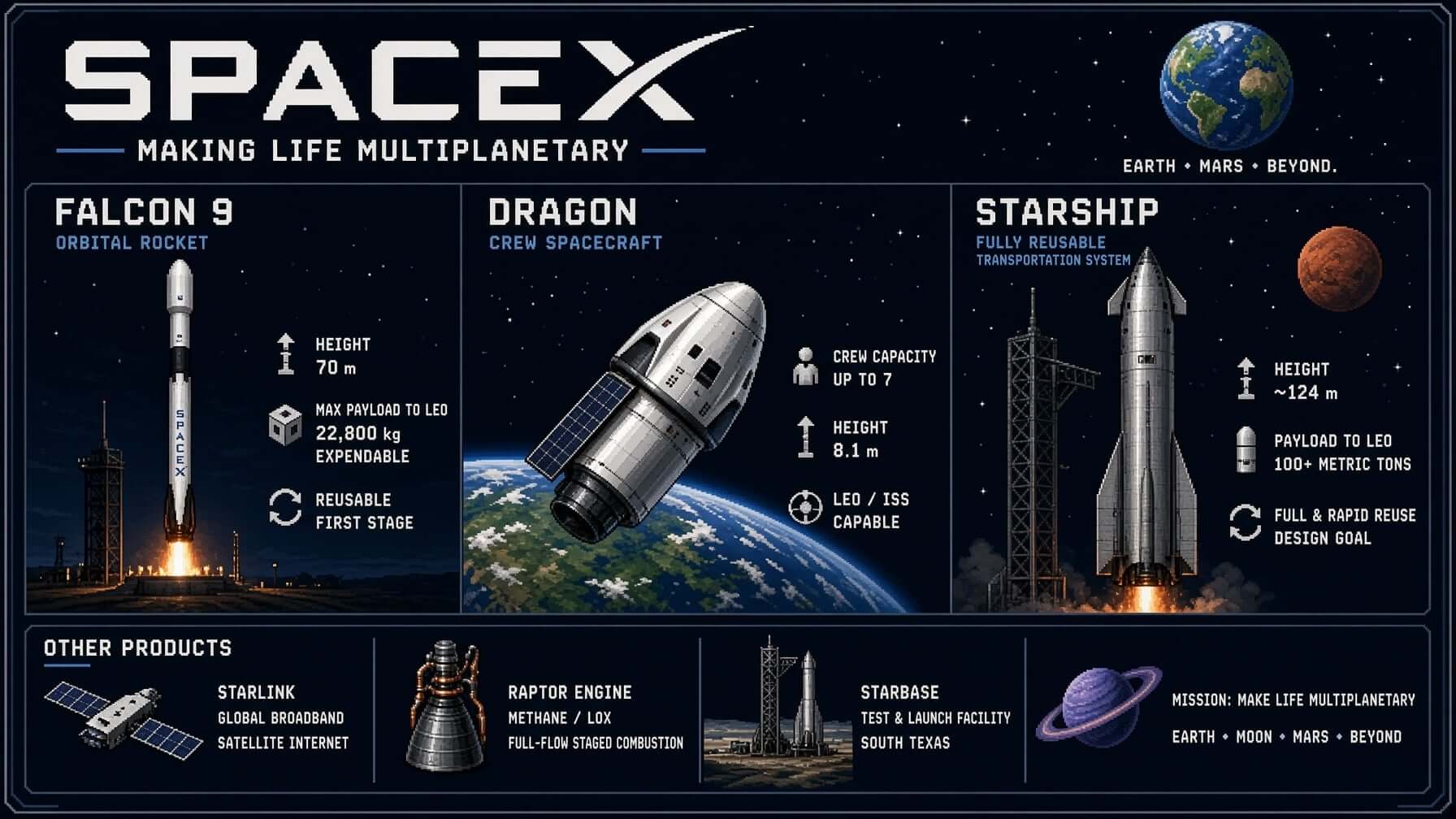
Pixel-art SpaceX infographic charting Falcon 9, Dragon, and Starship
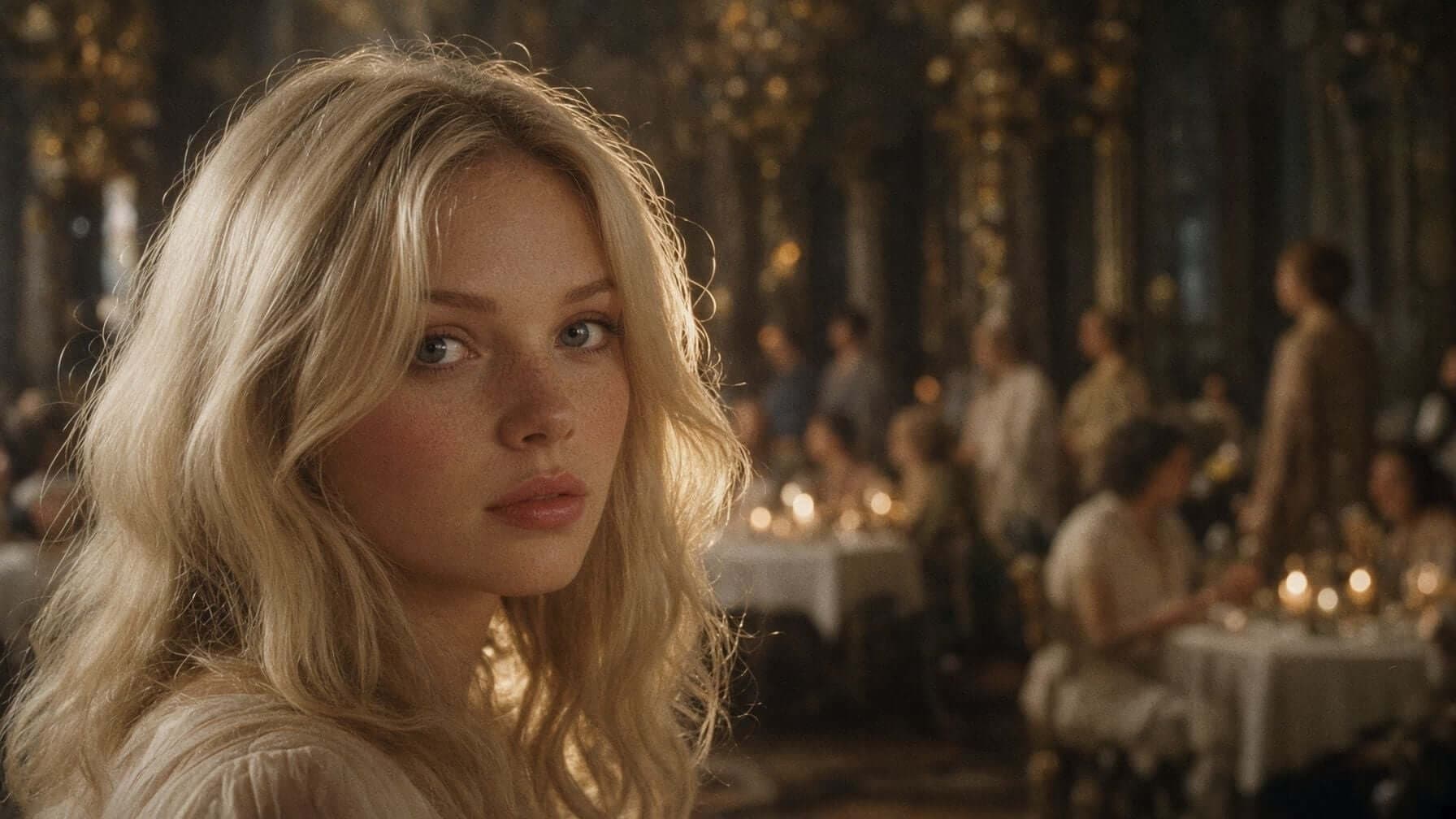
Cinematic close-up of a blonde woman glancing back across a candlelit ballroom
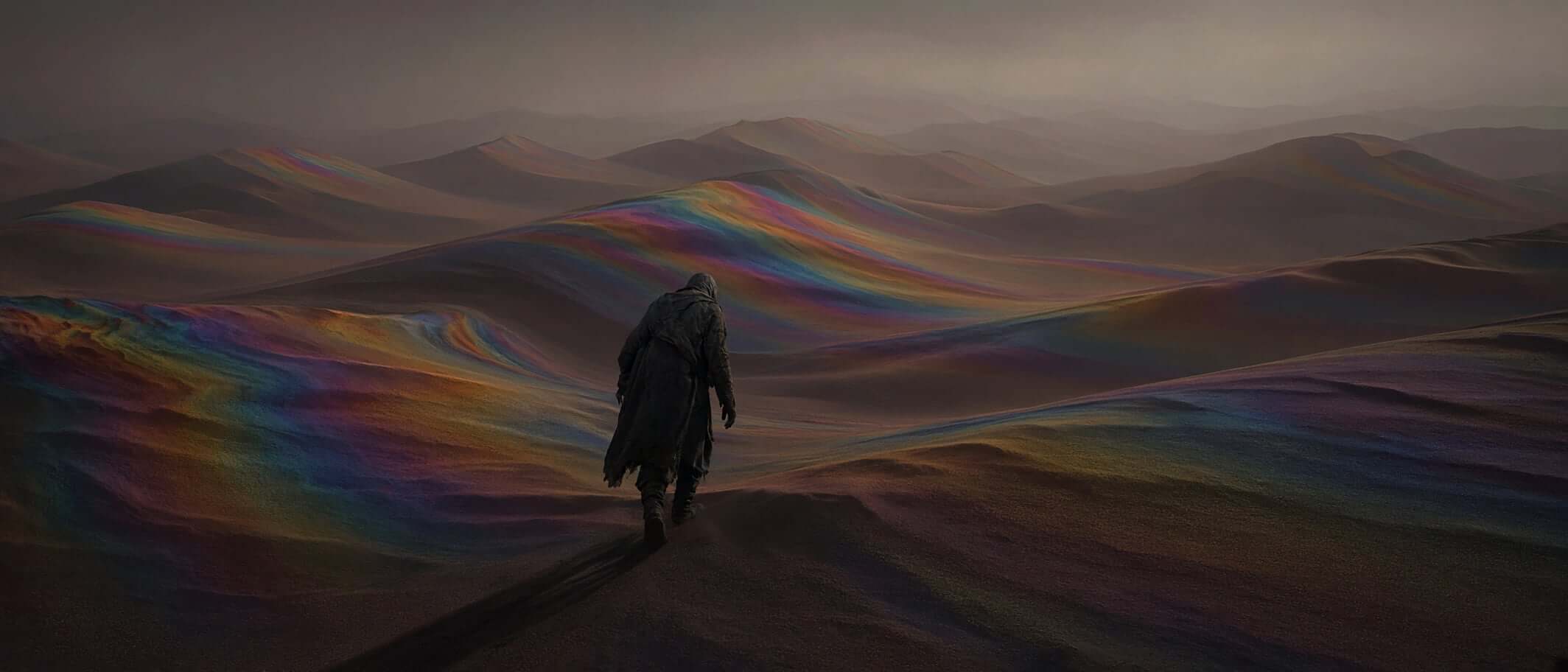
Cloaked figure crossing dunes streaked with iridescent color
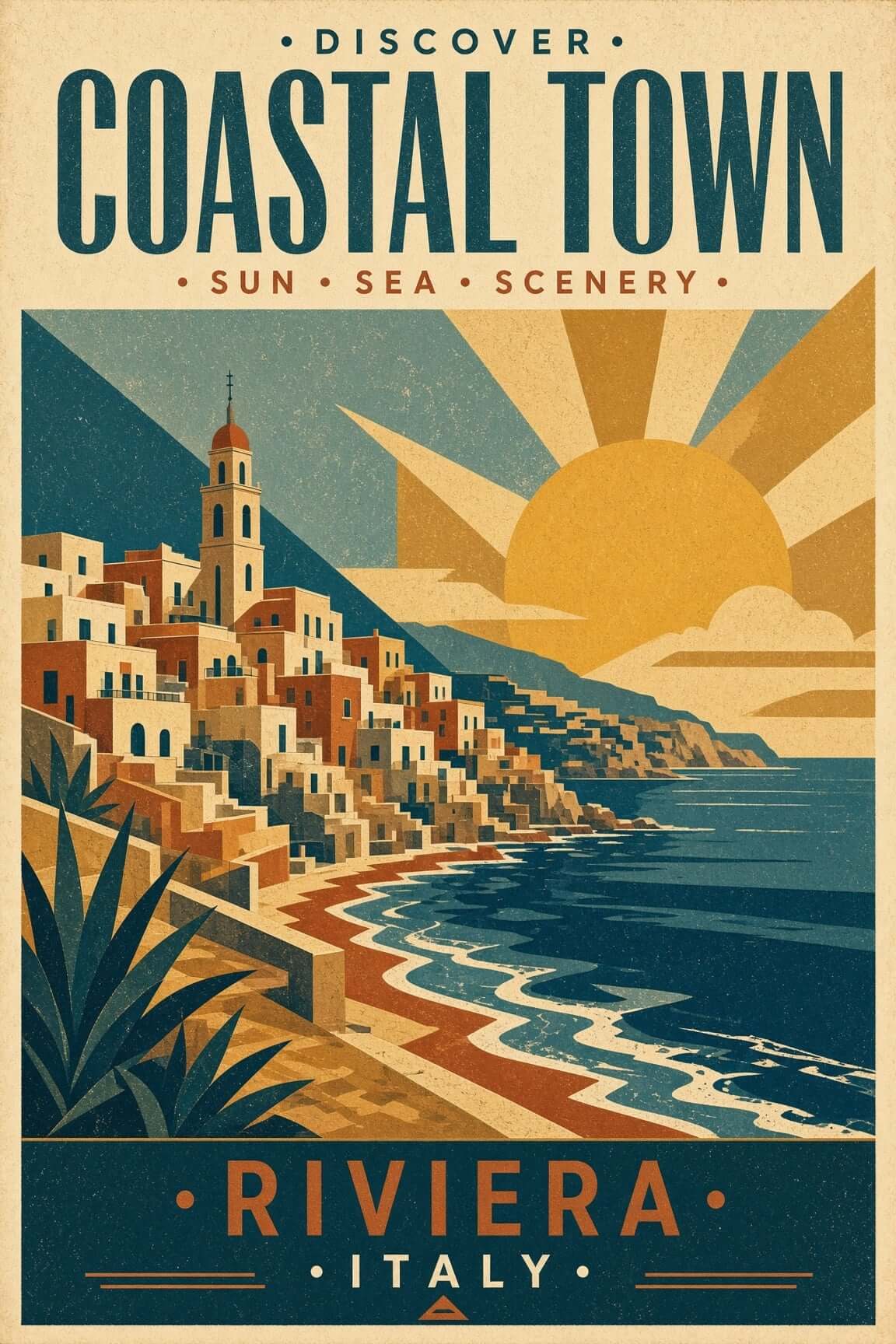
Vintage travel poster of an Italian Riviera coastal town
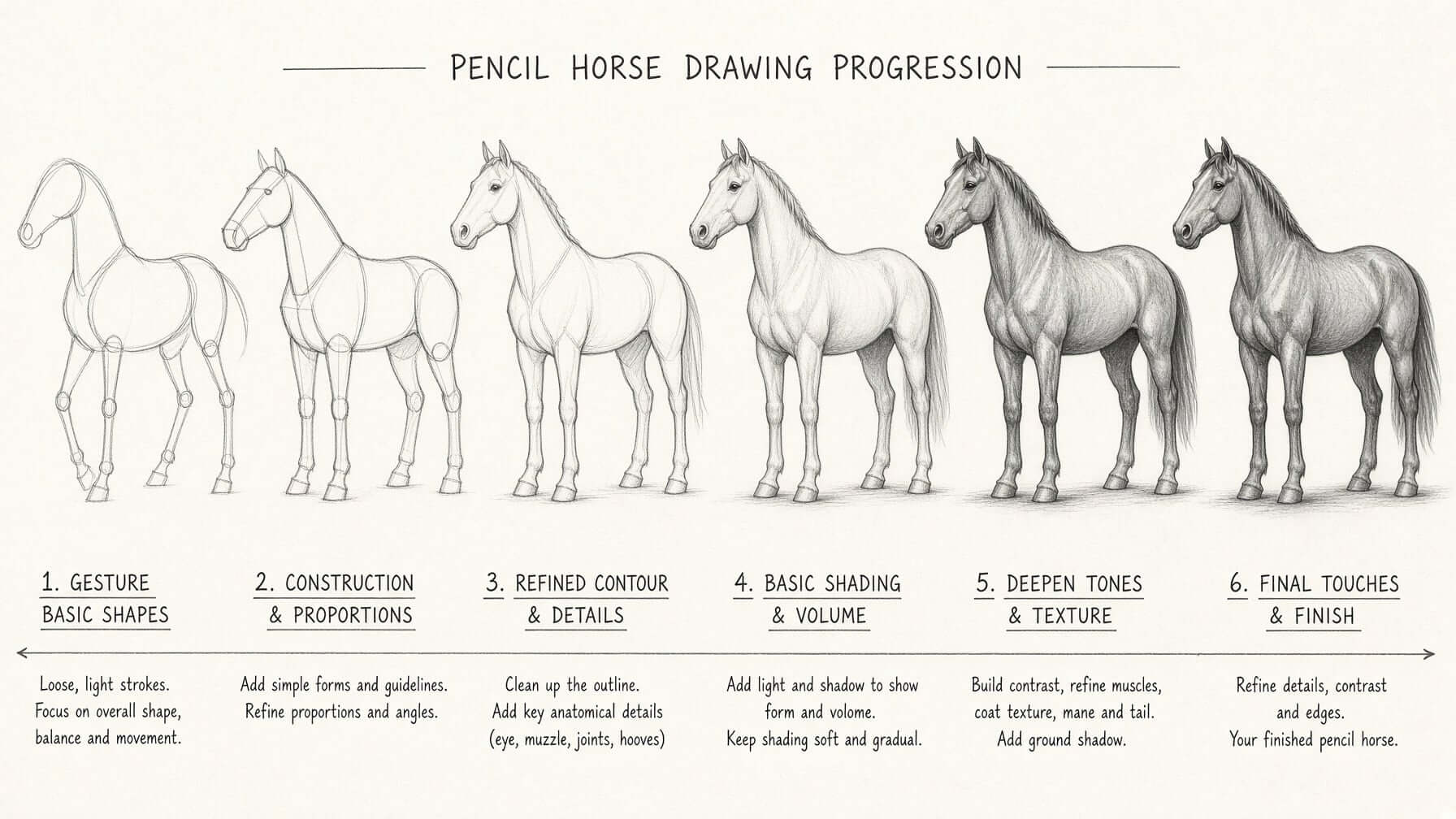
Step-by-step pencil horse drawing tutorial sheet
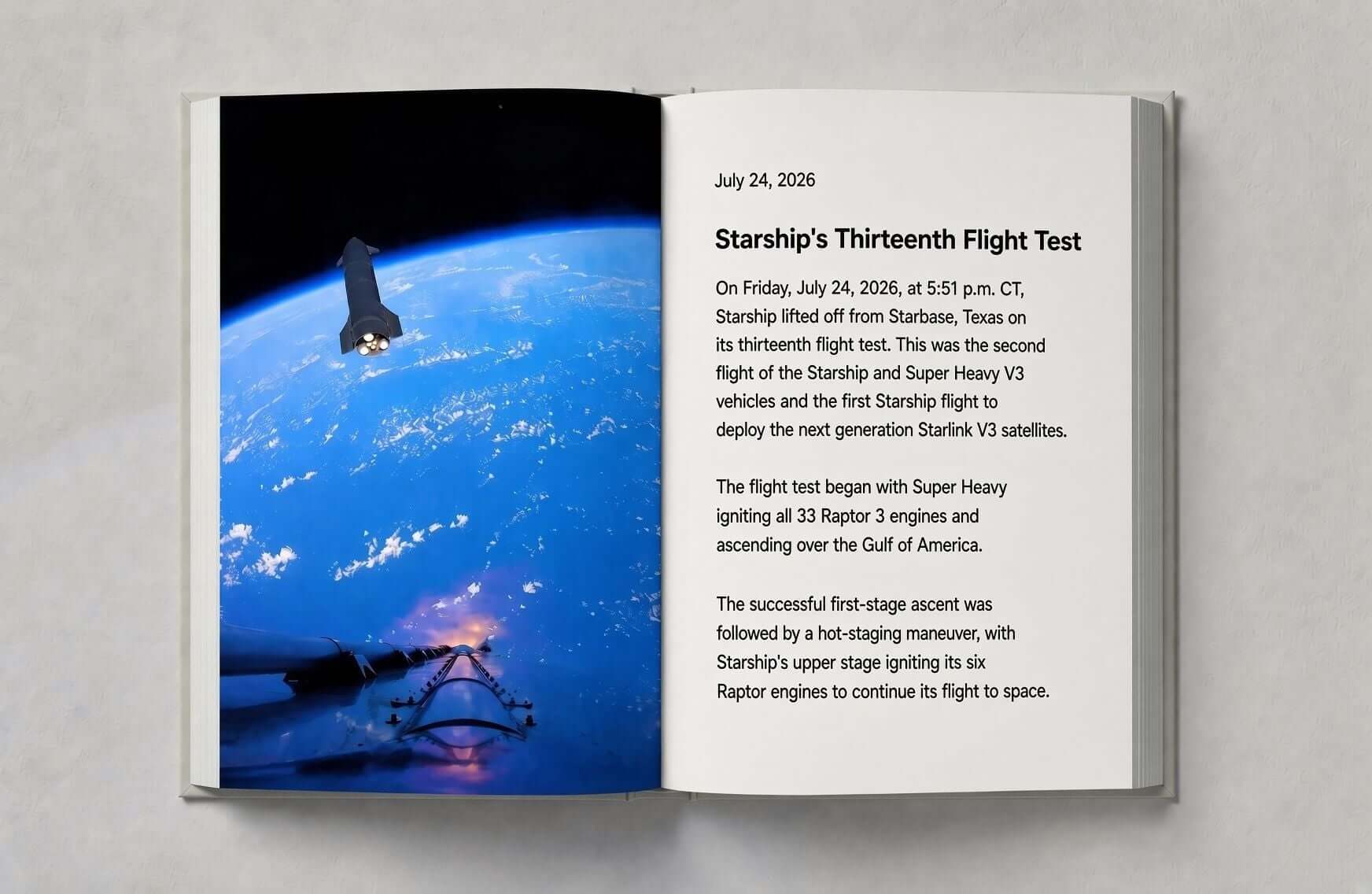
Open photo book spread on the thirteenth Starship flight test
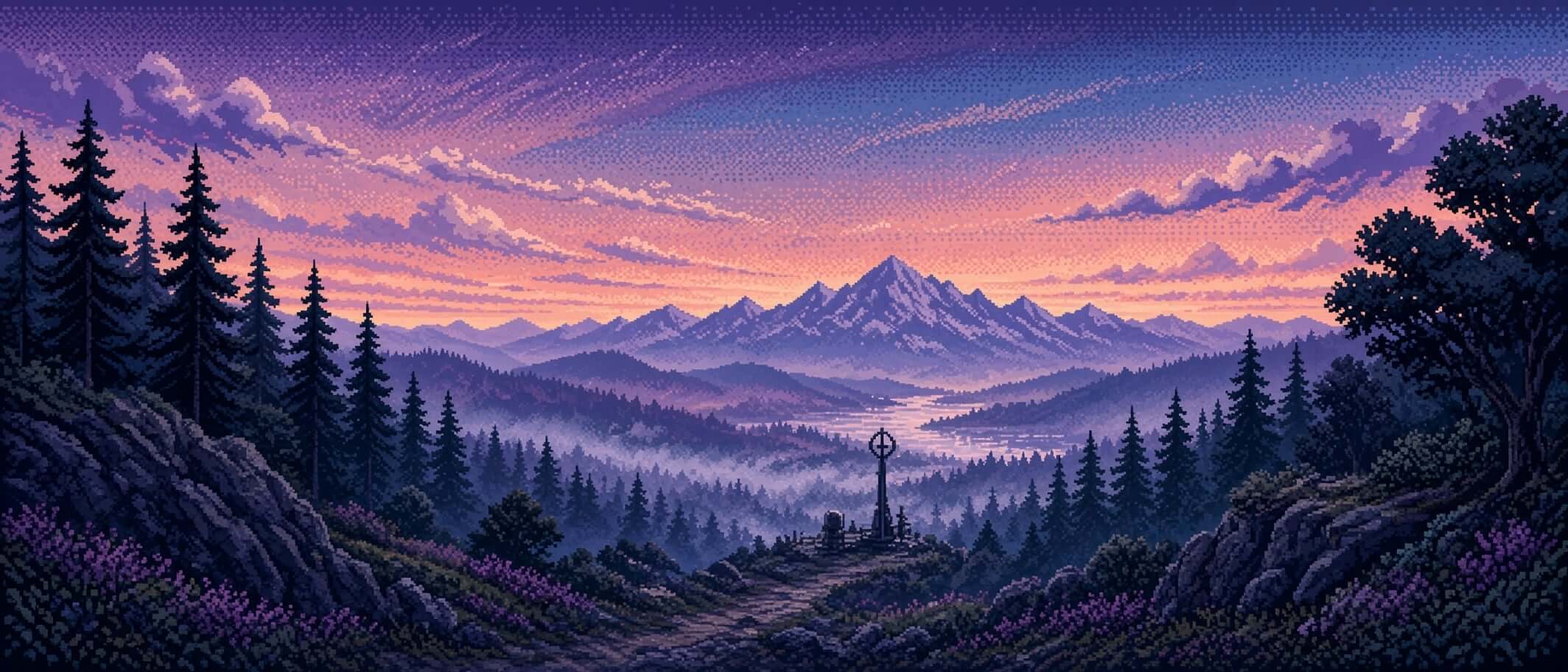
Pixel-art twilight valley with pine forests and a distant mountain
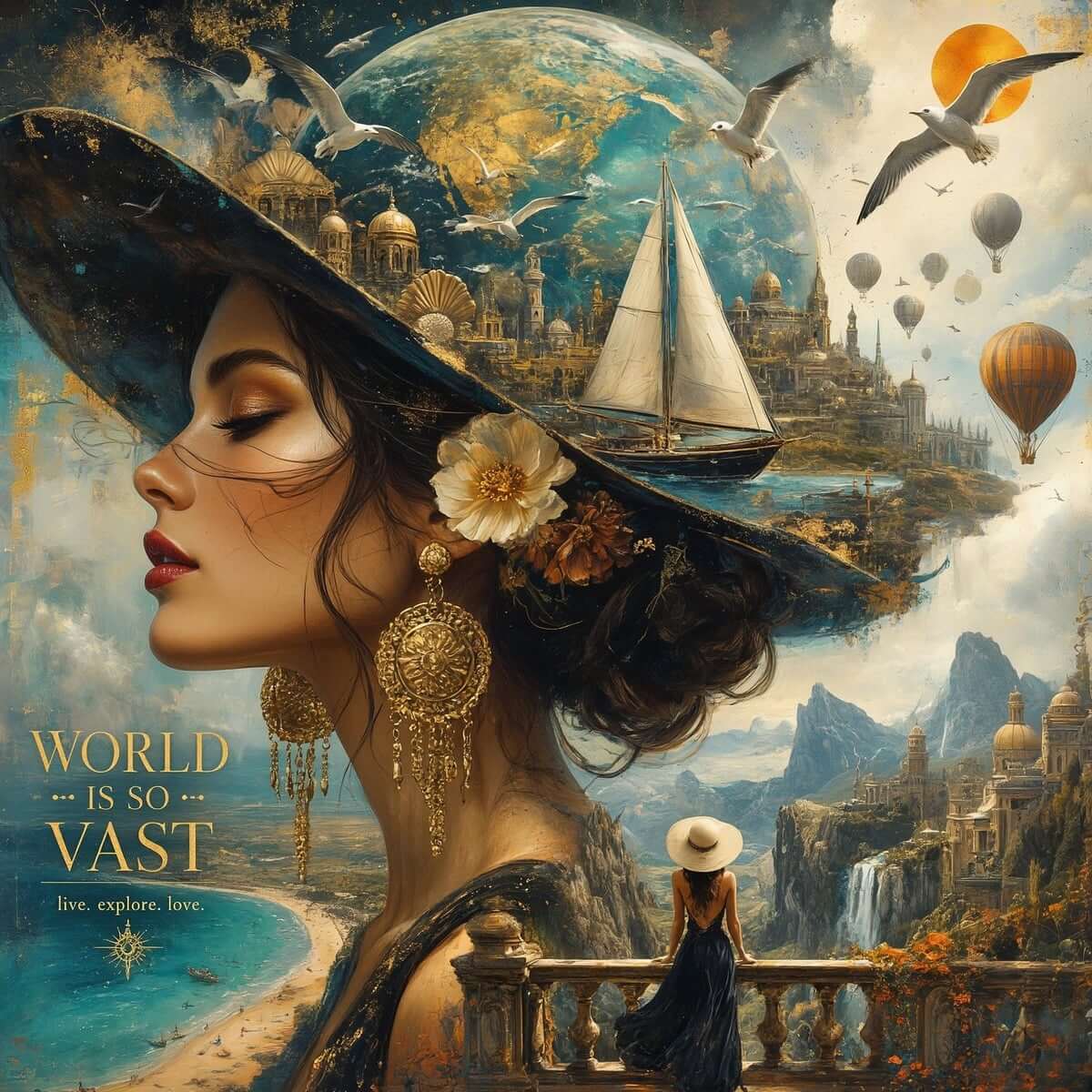
Surreal travel poster of a woman with a world of ships and cities in her hat
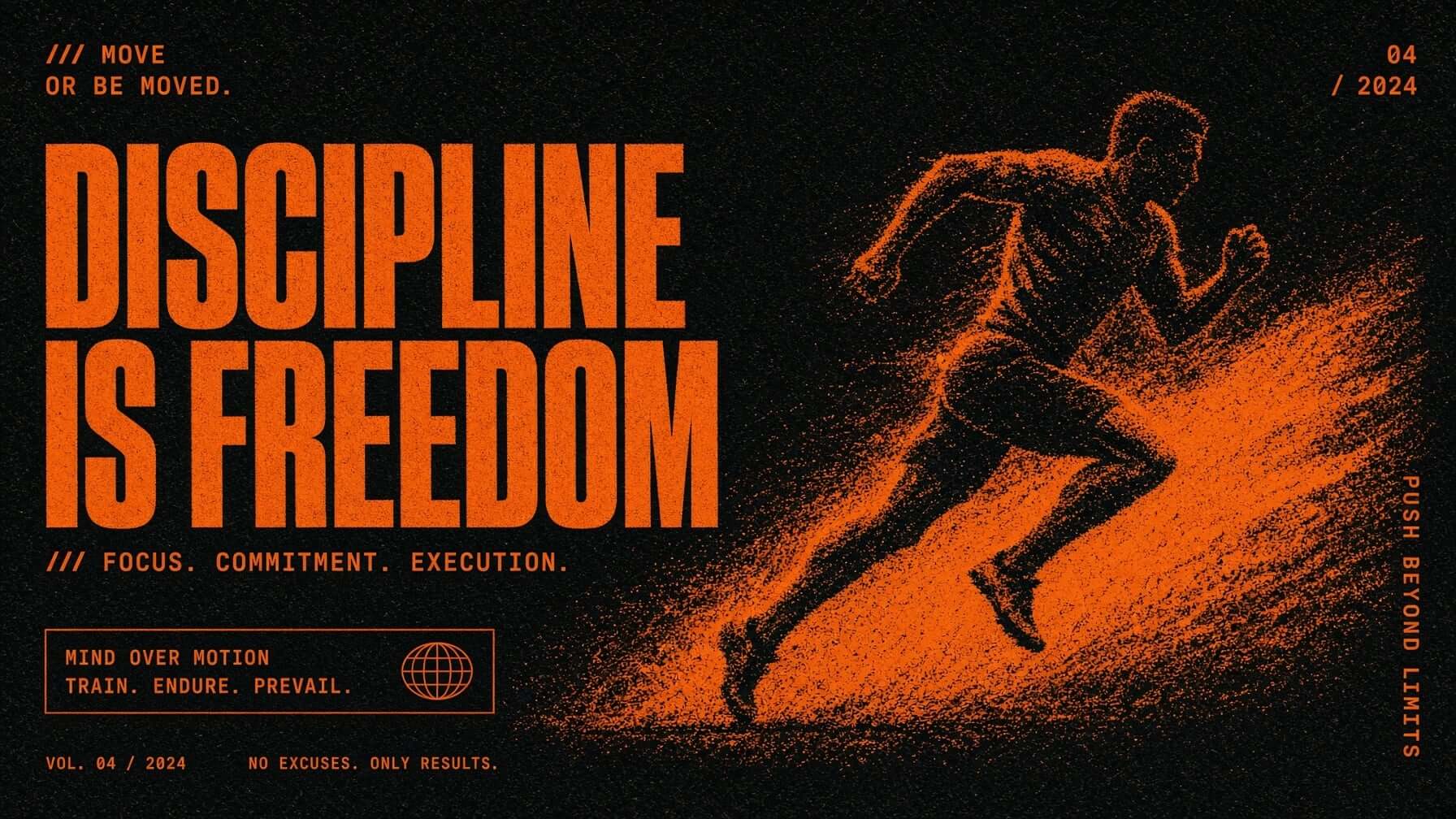
Gritty motivational poster of a sprinting runner in orange and black
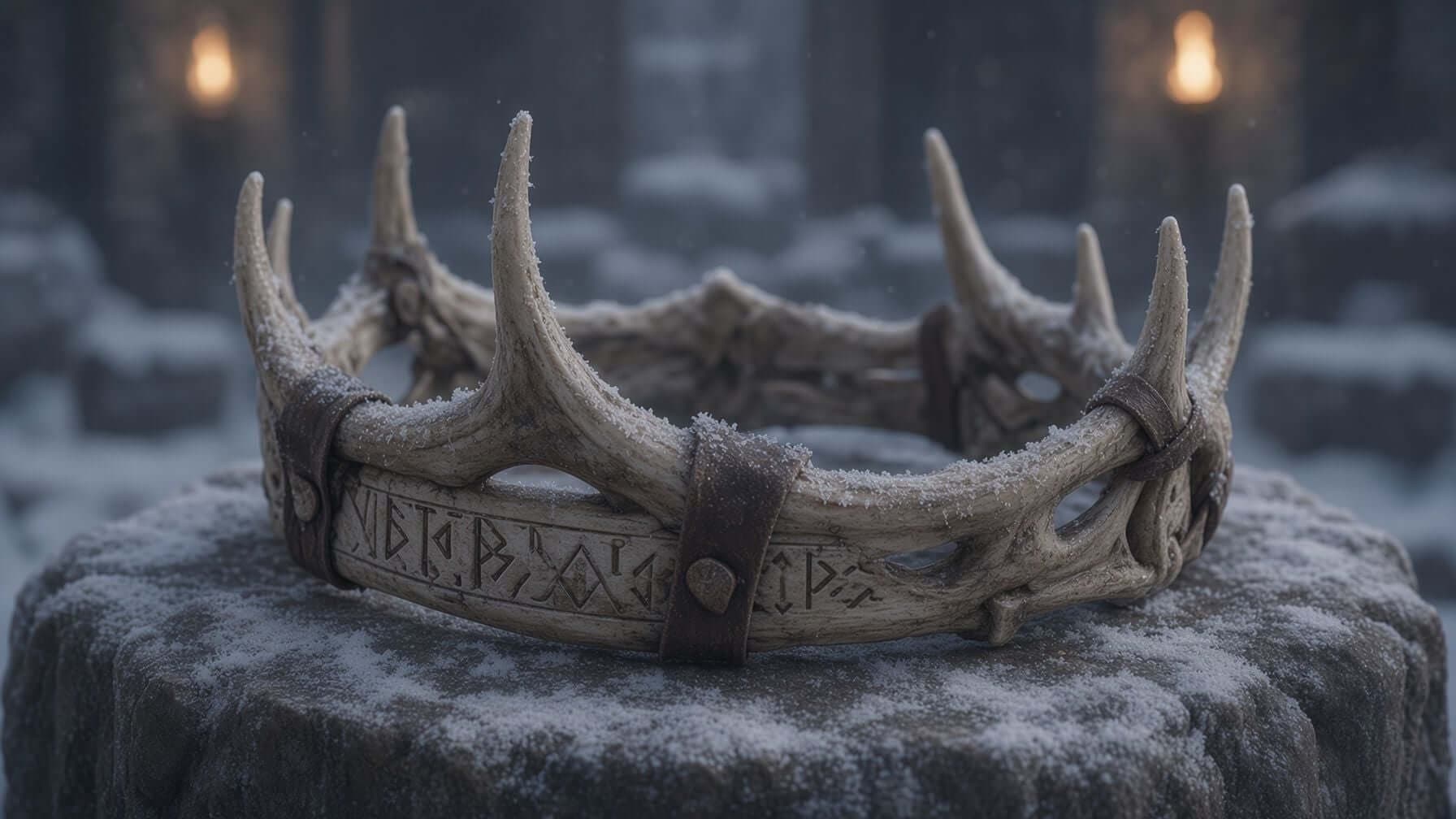
Rune-carved antler crown resting on a snow-dusted stone plinth
Product photo of handwoven textiles stacked on a wooden table
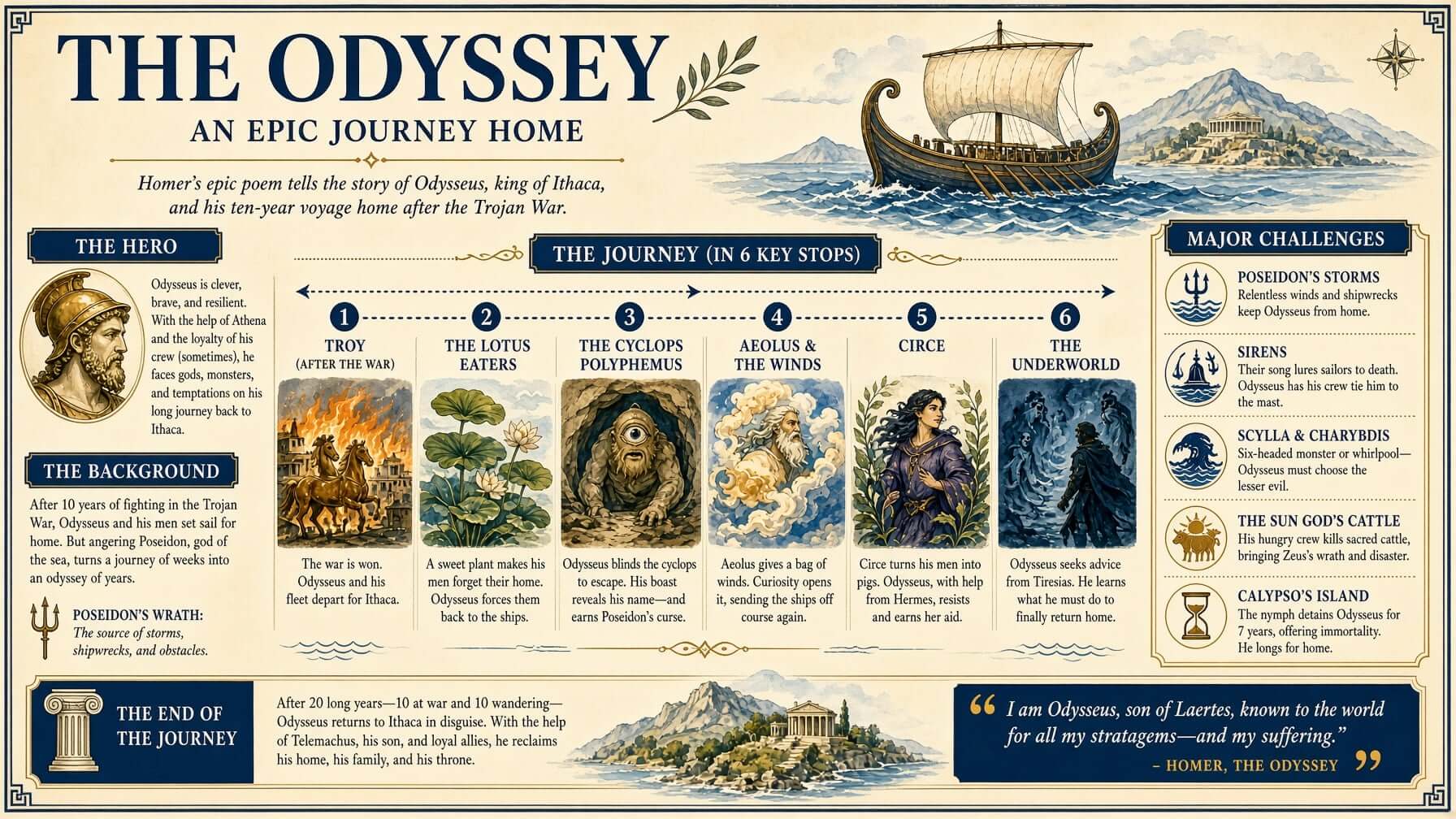
Illustrated Odyssey infographic mapping the voyage of Odysseus
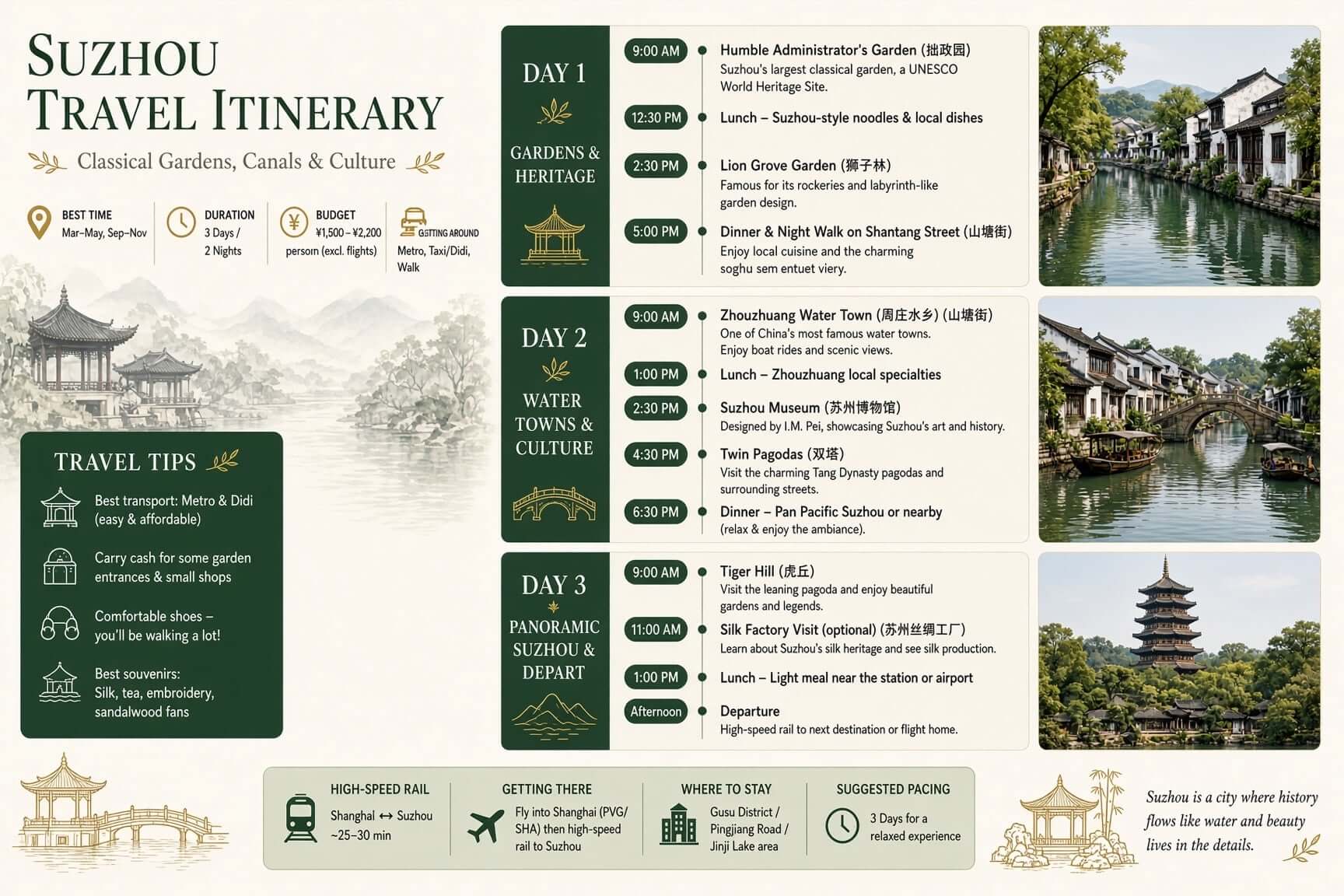
Illustrated Suzhou travel itinerary infographic with a three-day schedule
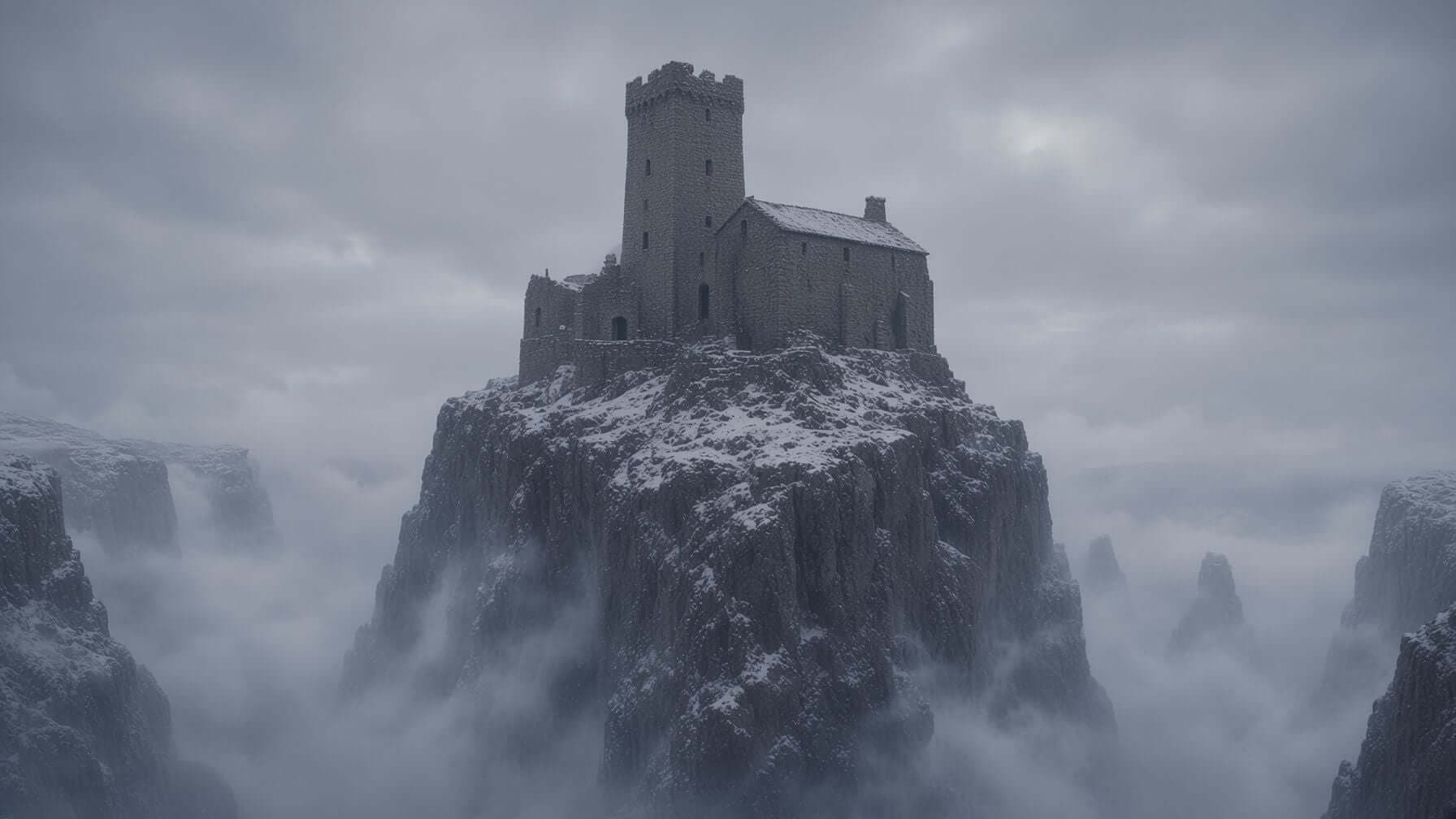
Fog-wrapped stone keep perched on a snowy clifftop spire
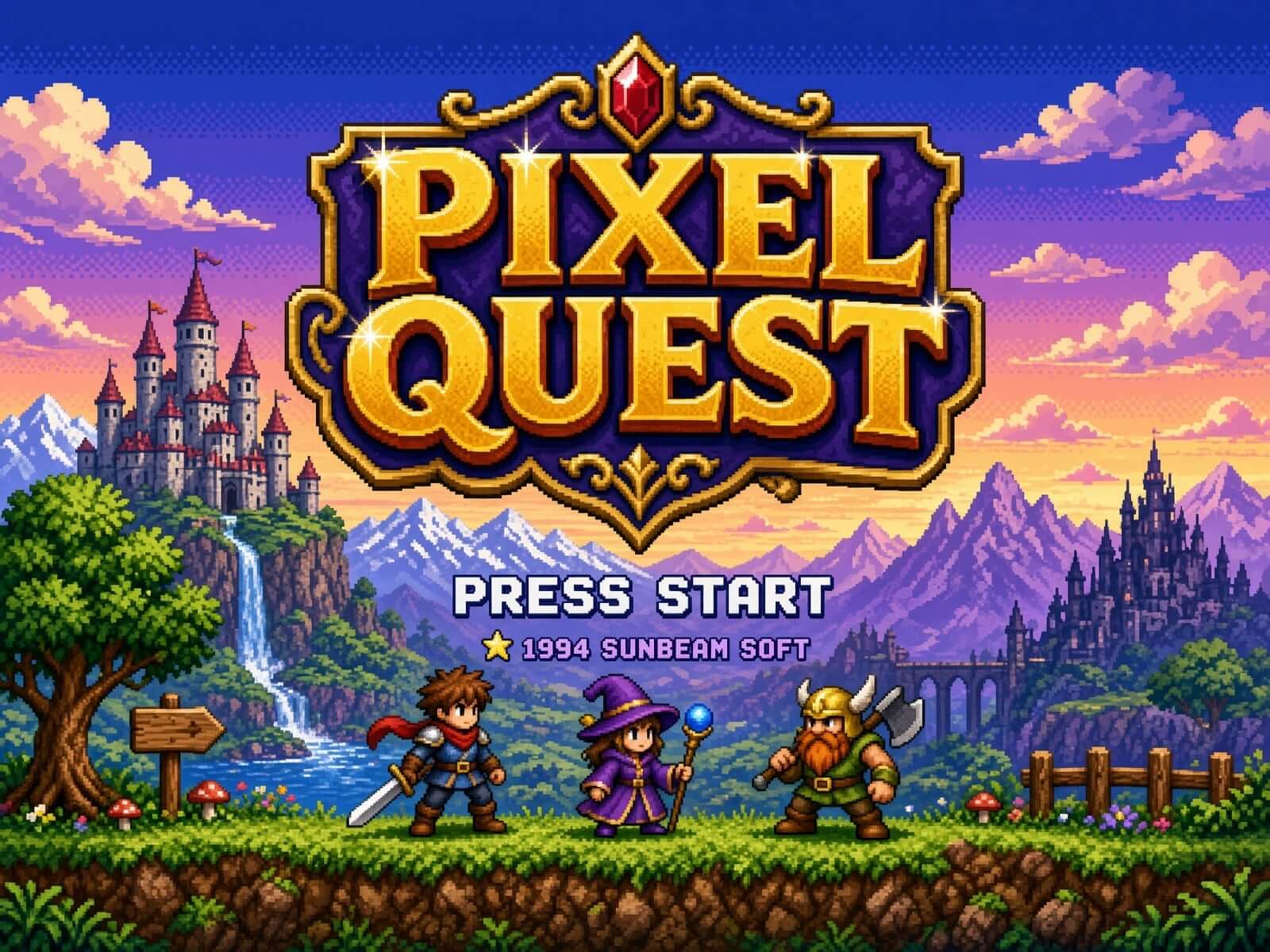
Retro pixel-art RPG title screen with a castle and adventurers
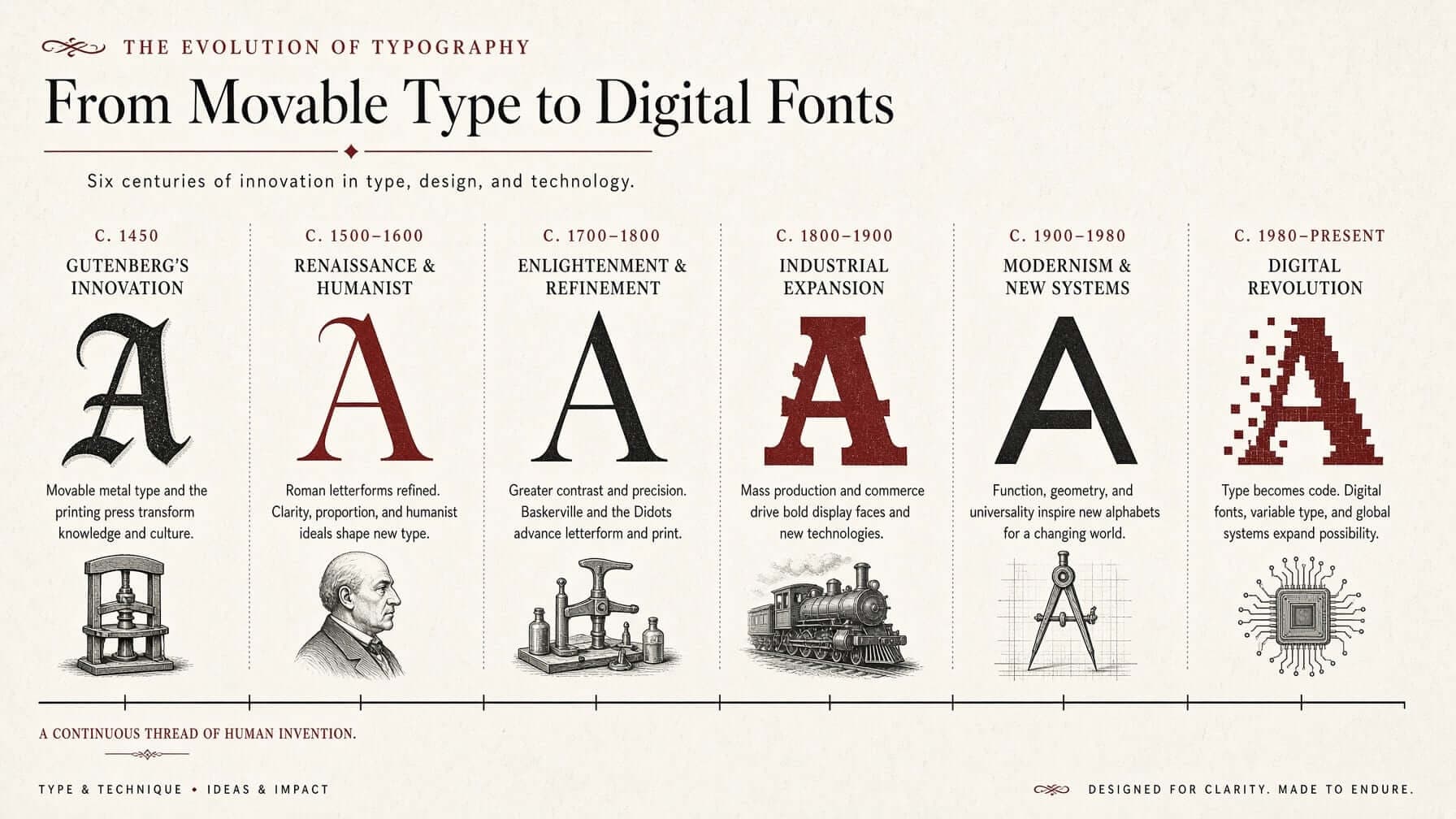
Typography-history infographic tracing letterforms from movable type to digital fonts
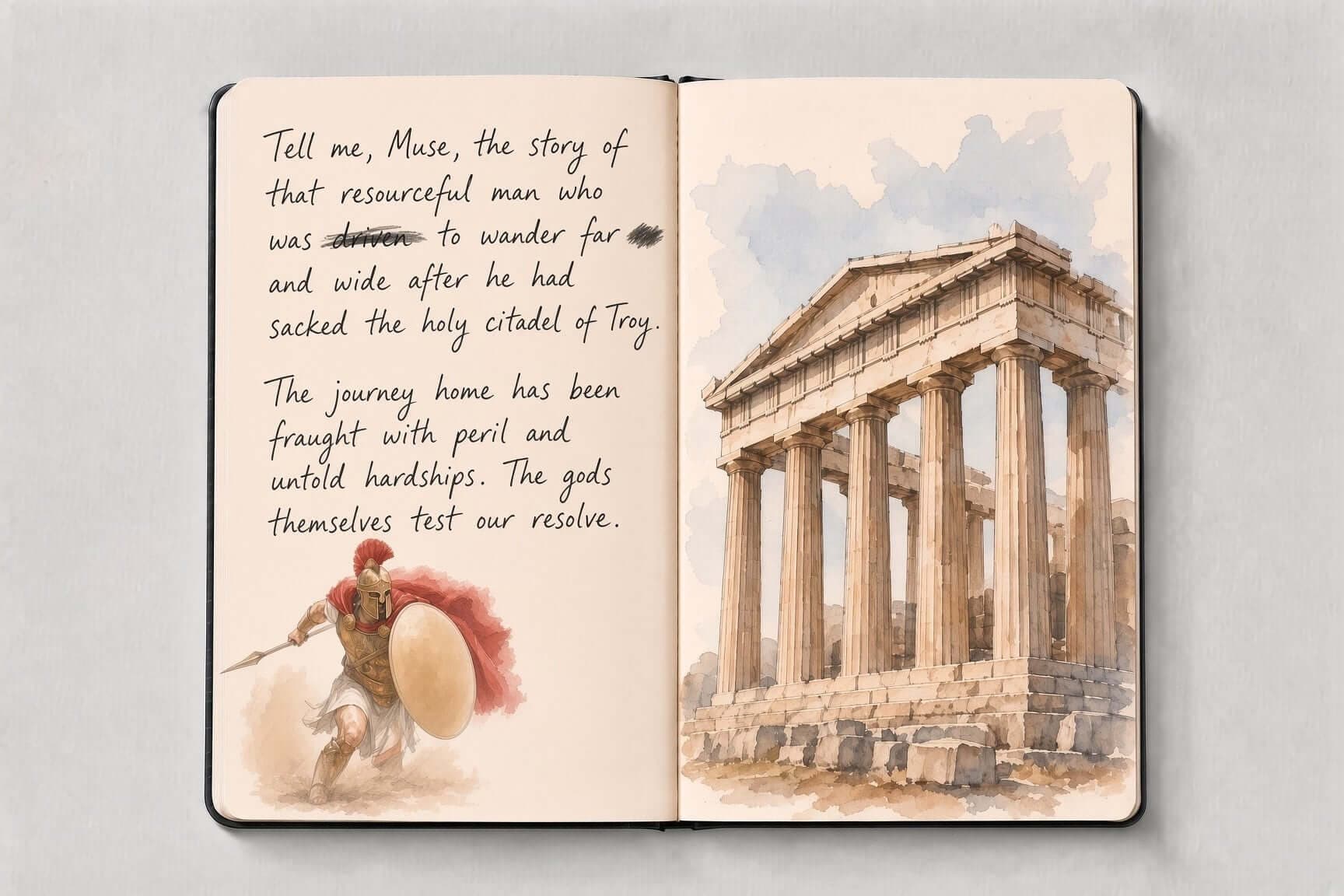
Handwritten Odyssey journal spread with a watercolor hoplite facing a painted Greek temple
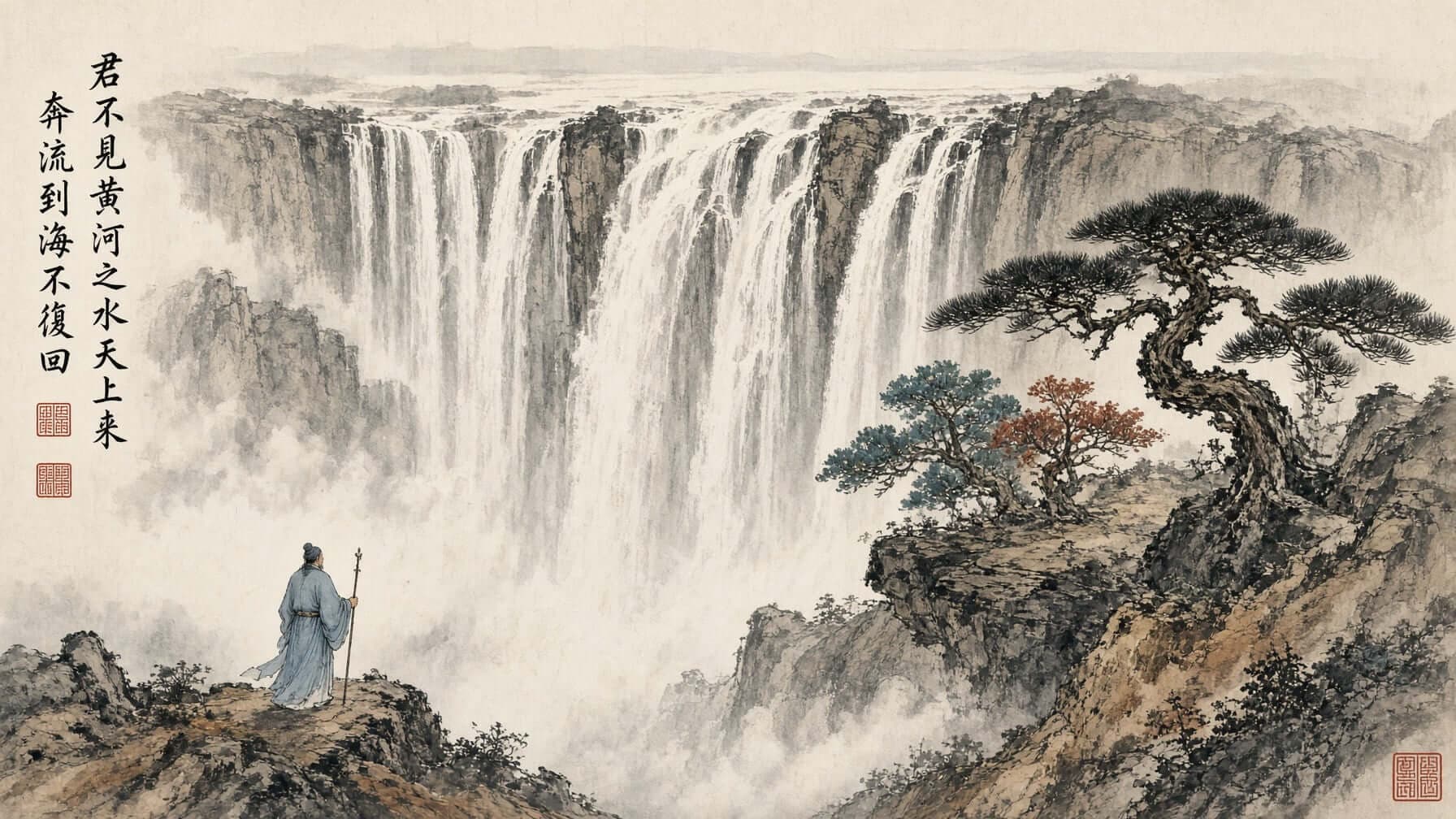
Classical Chinese ink painting of a waterfall with a robed figure
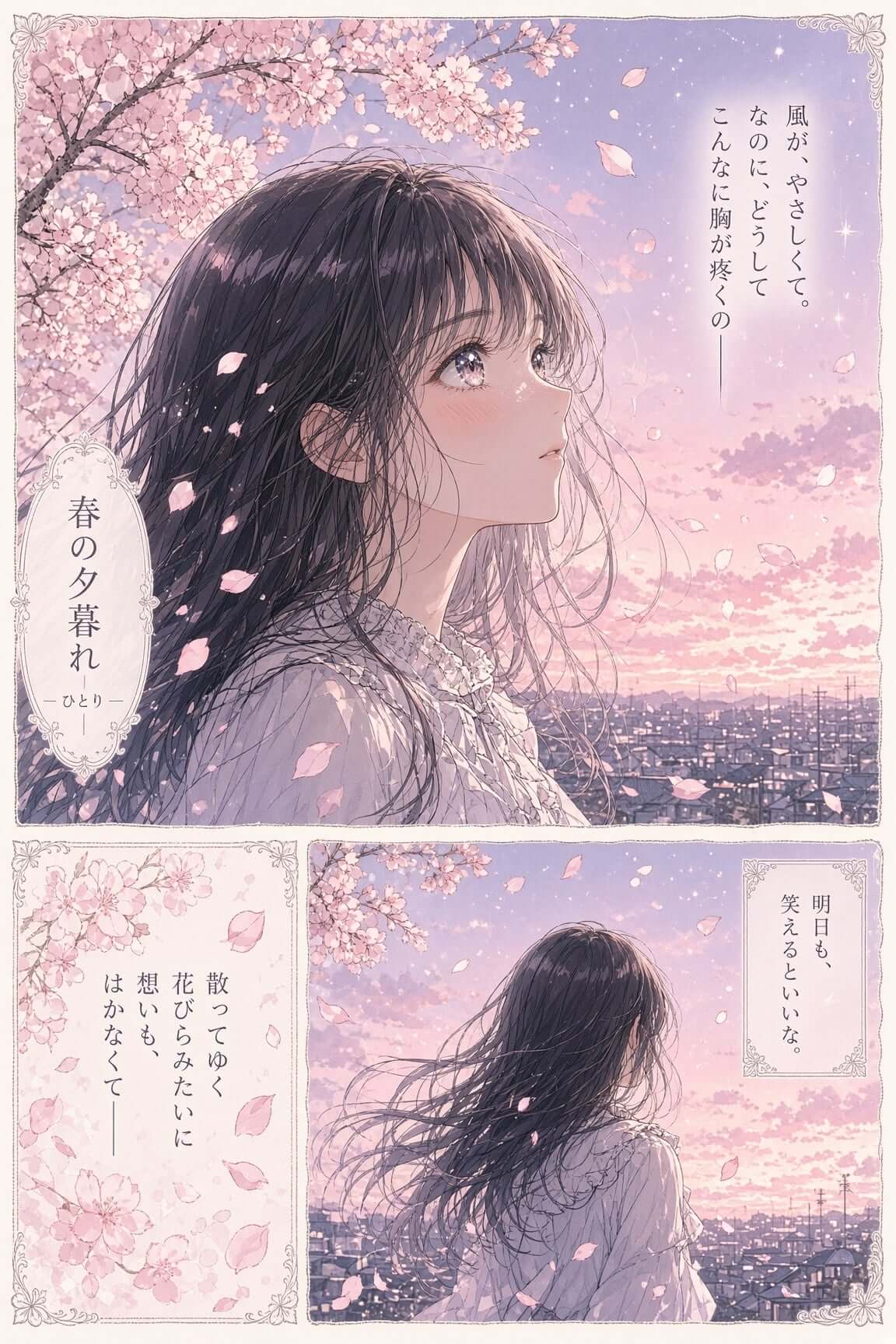
Soft anime manga page of a girl among drifting cherry blossoms at dusk

Overview

What is Grok Imagine Image 2.0?

Grok Imagine Image 2.0 is an AI image-generation model that turns natural-language descriptions into visual concepts you can review, revise, and use across product, marketing, and content projects.

Describe the subject, environment, style, lighting, composition, color palette, and mood. Treat the first result as a starting point, then ask for focused changes until the image fits its final placement.

Read the Image 2.0 guide

Latest model

Grok Imagine Image 2.0

Move from a written idea to a controlled visual direction, compare variations, and refine composition, color, camera angle, and style around a real project.

Explore Image 2.0
Caped swordsman watching a dragon glide over an Aegean bay

Creative control

Features built for real creative work

Start with a written direction, then shape the result around the composition, mood, and placement your project actually needs.

Natural-language image generation

Start with the words you already use to explain an idea to a designer. Name the subject, setting, visual style, lighting, camera position, and atmosphere. Clear purpose works better than a stack of decorative adjectives.
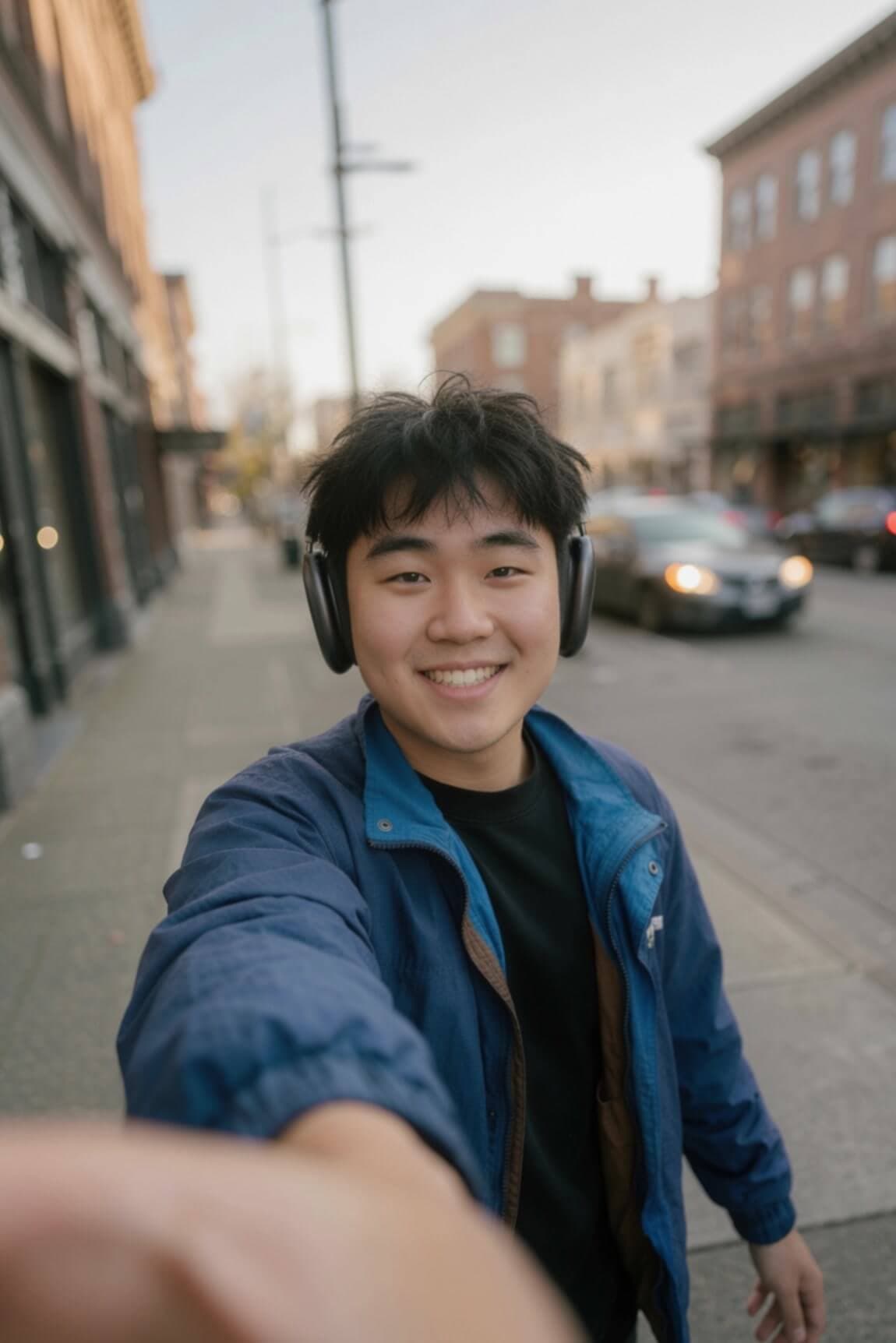
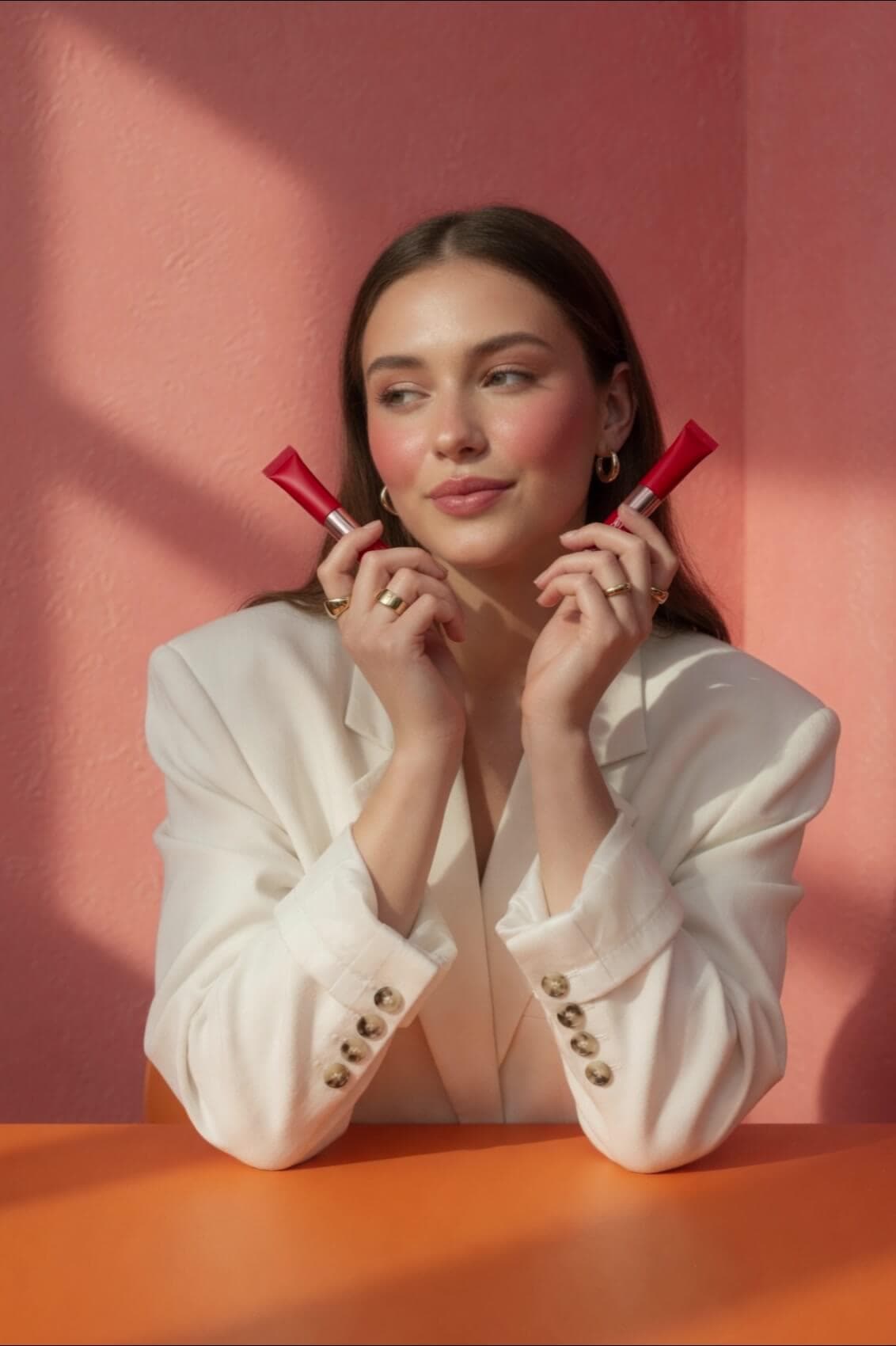
Composition and mood control

Place the subject, reserve space for a headline, choose a wide or close crop, and describe the mood. Support the direction with a concrete palette and lighting choice.

Guided image refinement

Keep the strongest parts of a result and change the rest. Adjust colors, camera angle, background details, visual style, and scene elements with focused instructions.

Examples

One model, different visual jobs

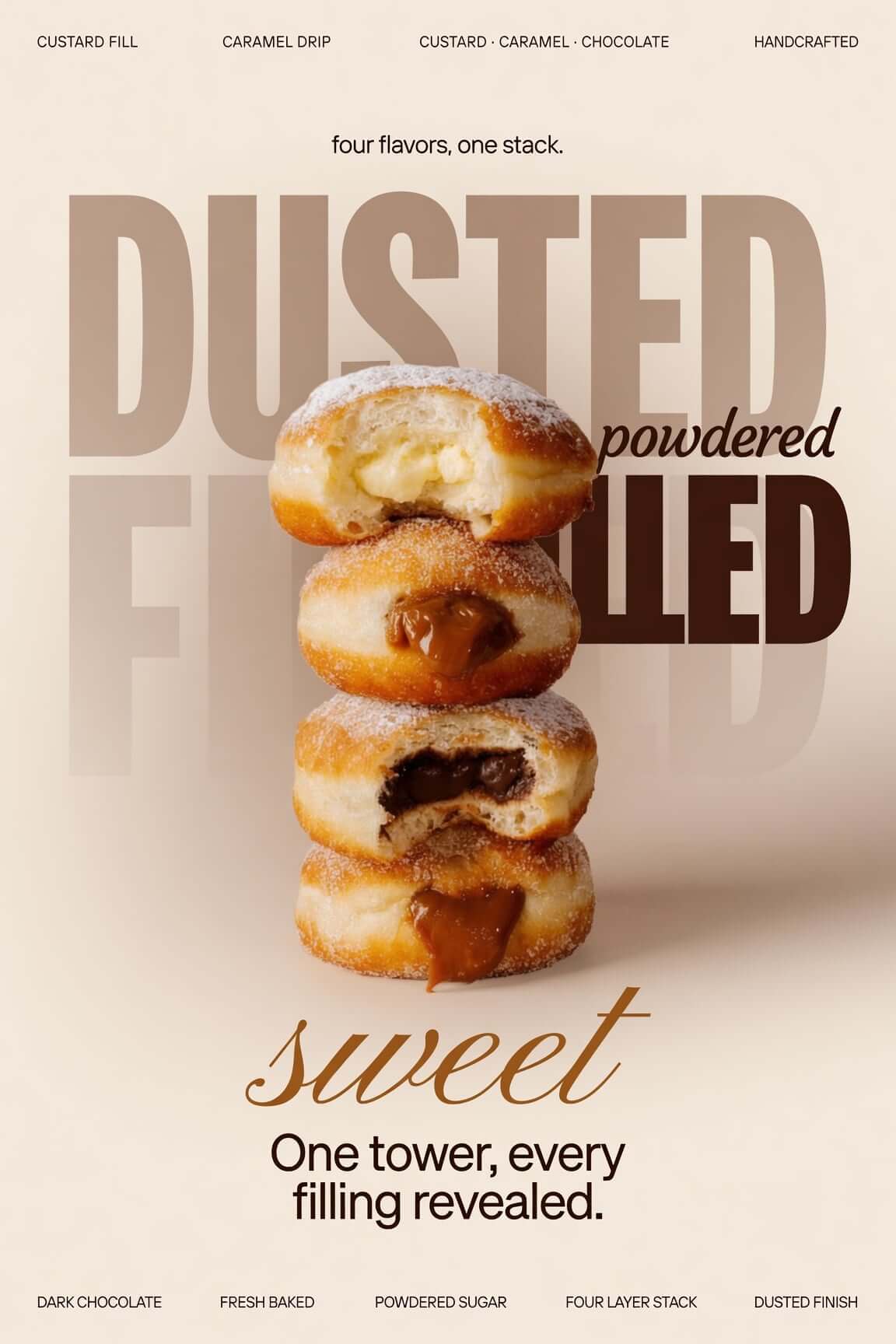
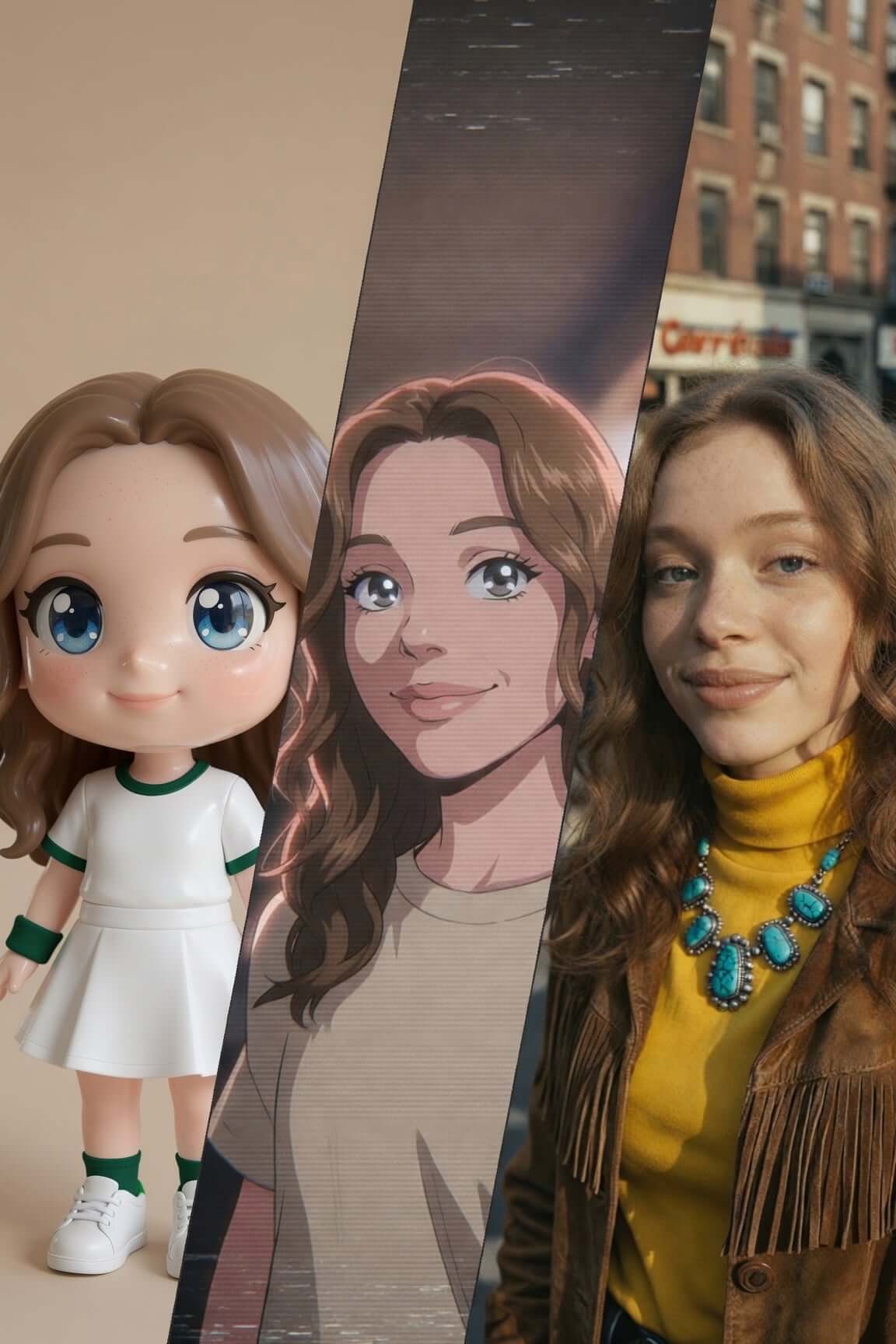
Photo Edit template cover
Product Color Change template cover
Editorial Product Poster template cover
Reimagine template cover
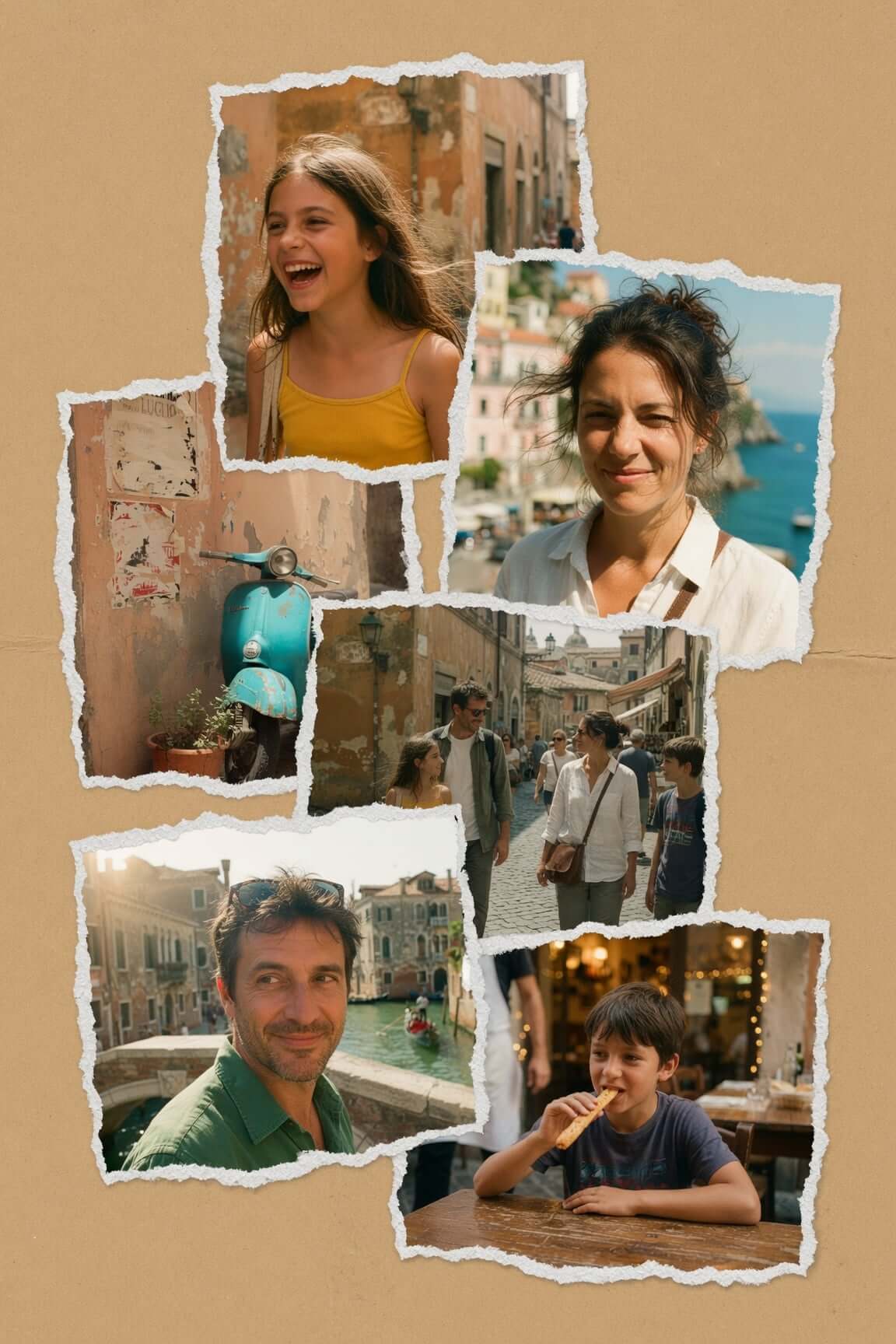
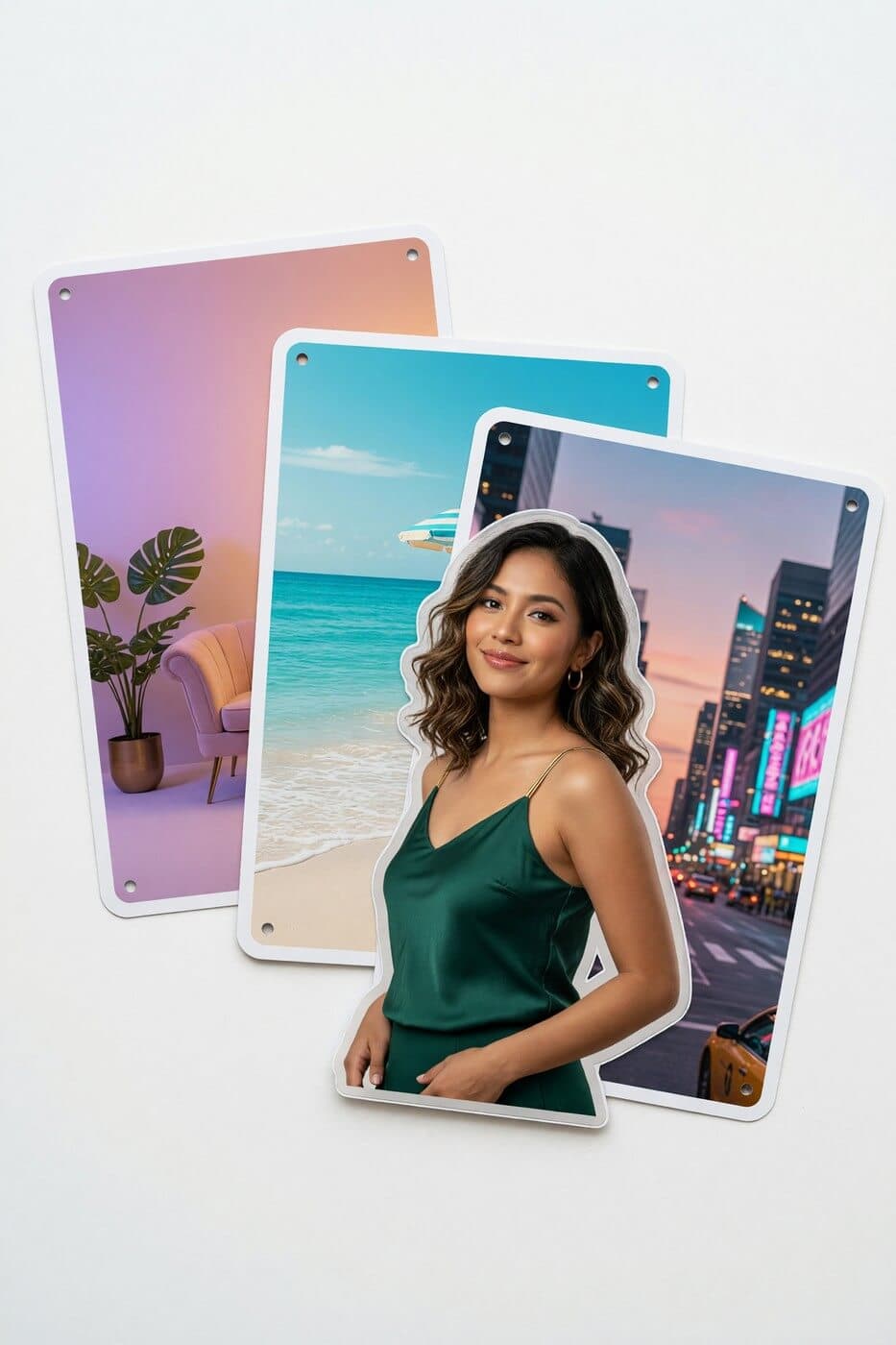
Photo Collage template cover
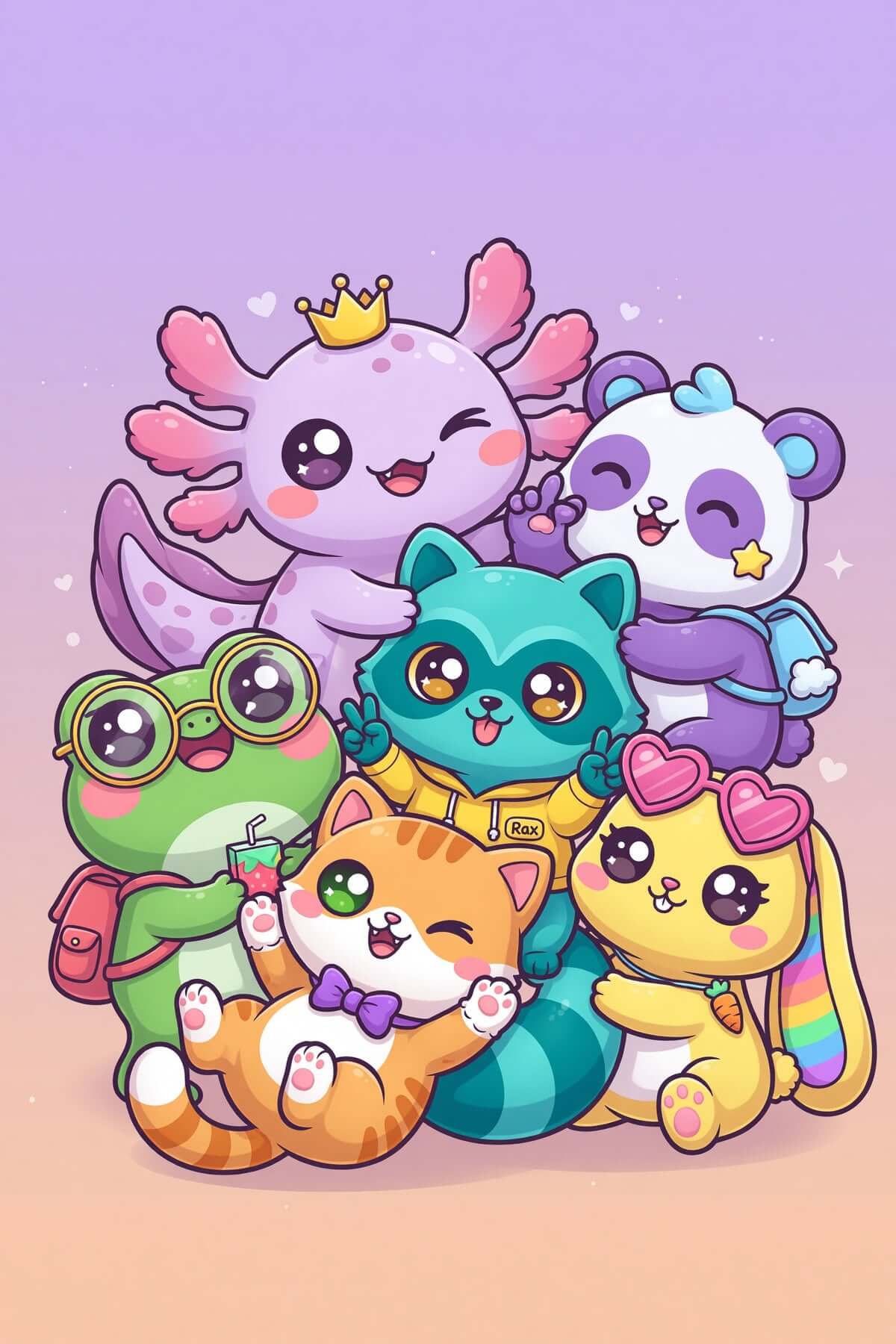
Mascot Maker template cover
BG Removal & Change template cover
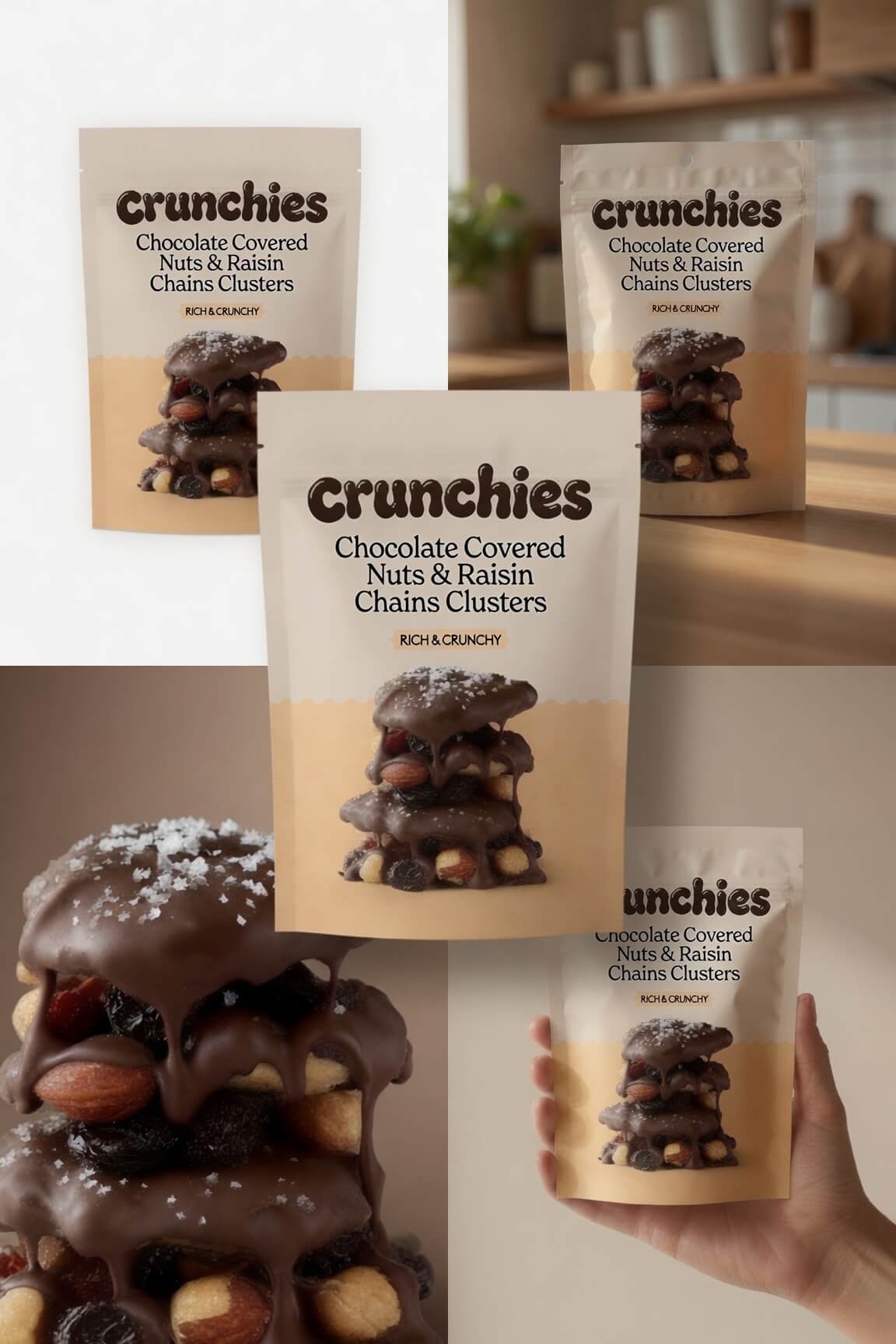
E-Commerce Photos template cover
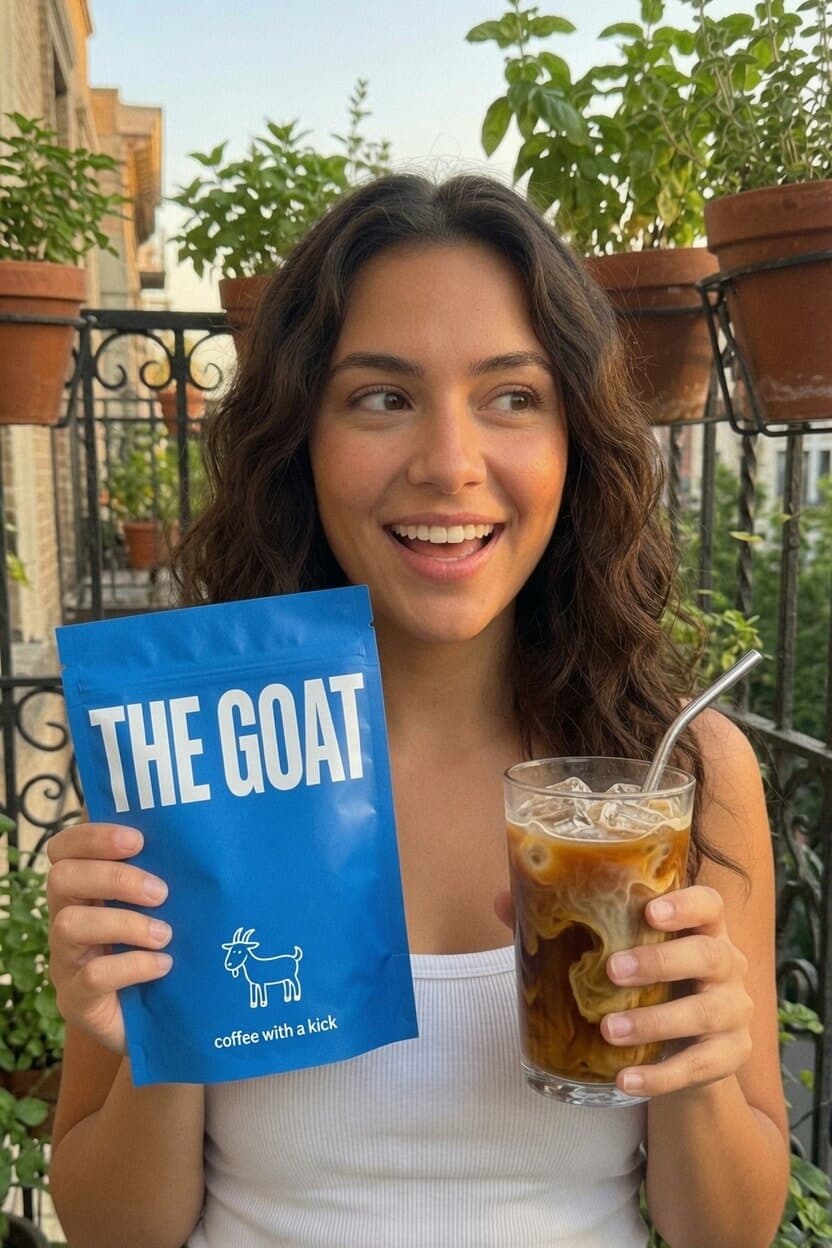
UGC Photos template cover
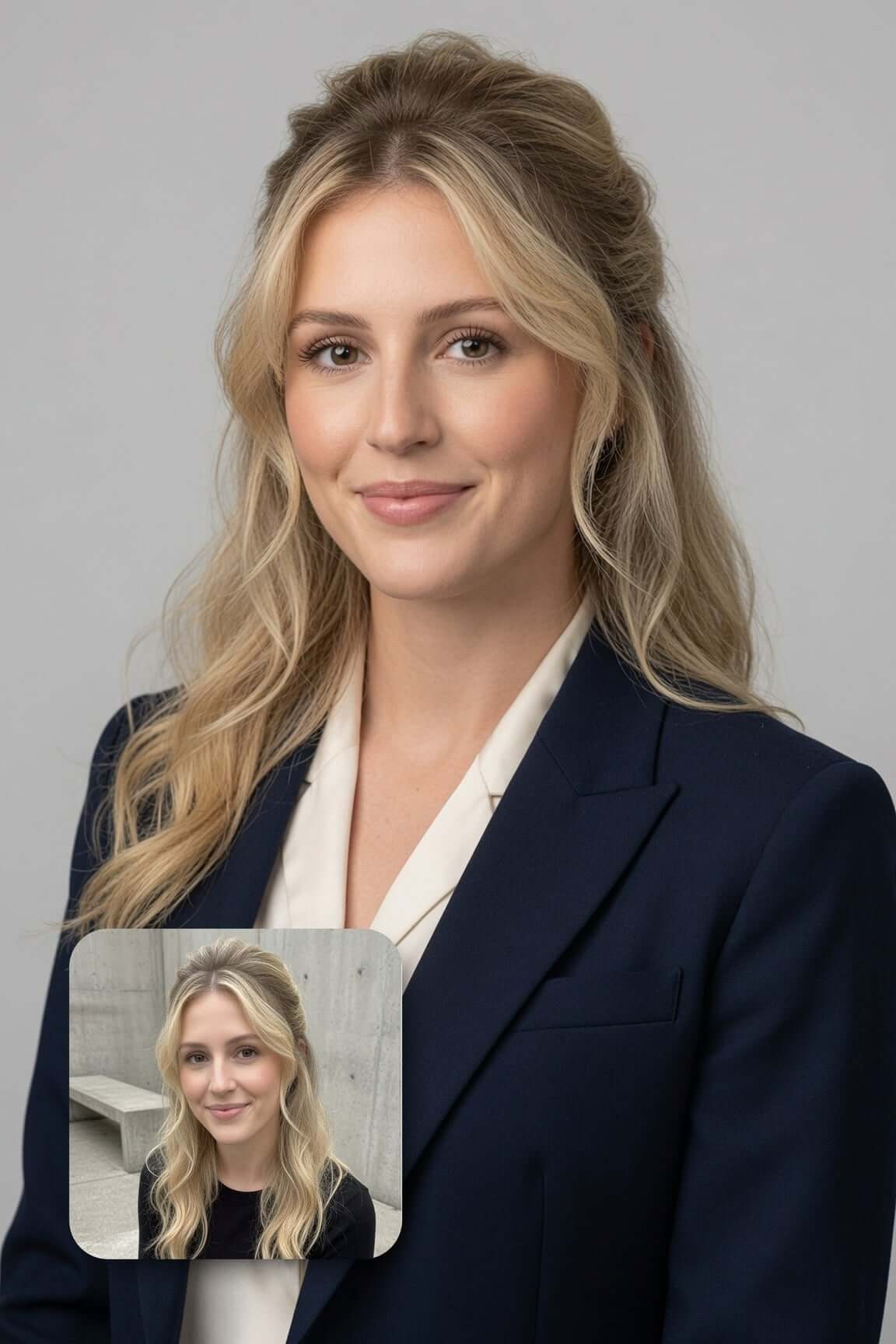
Professional Headshot template cover
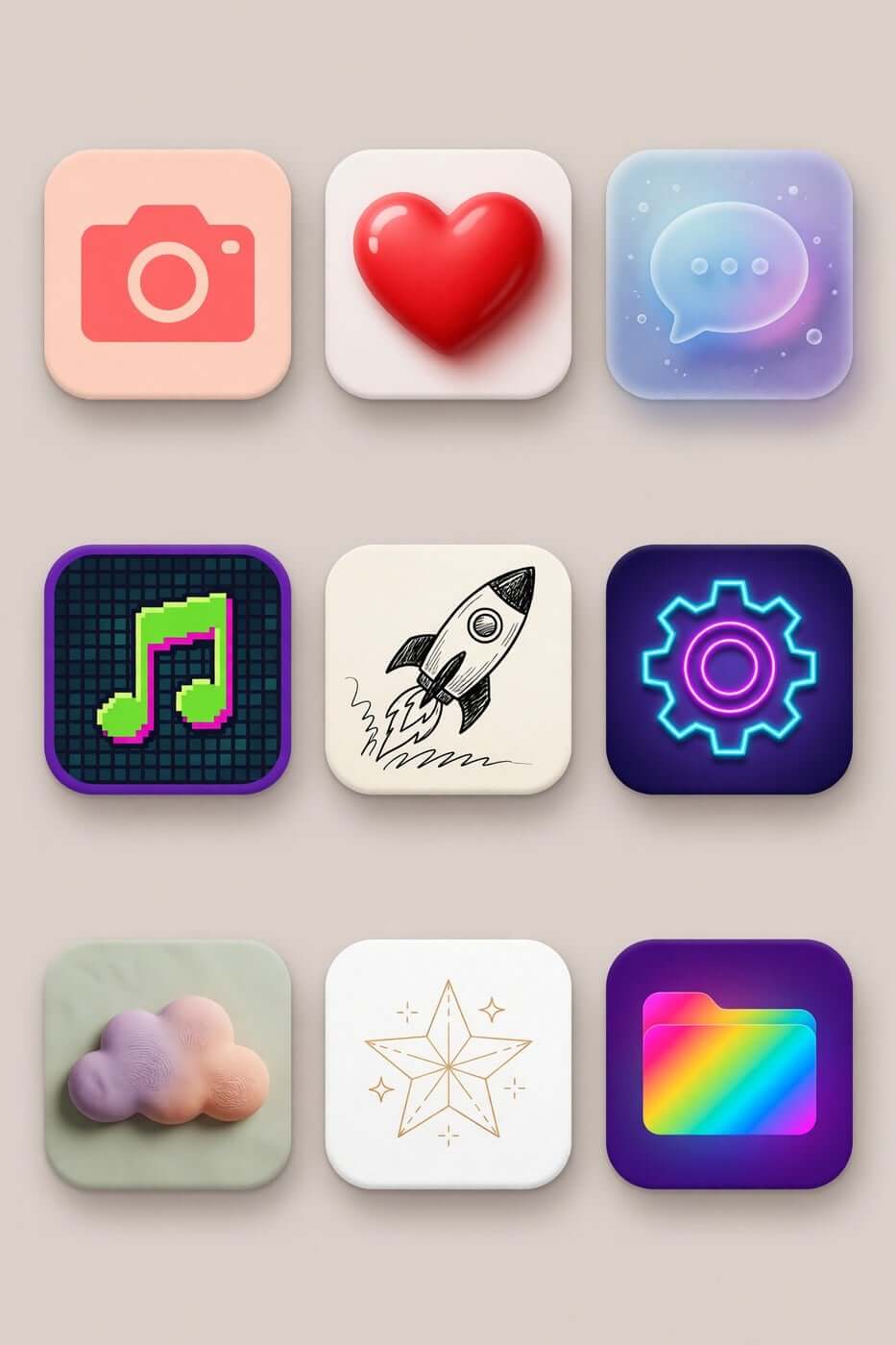
Icon Maker template cover
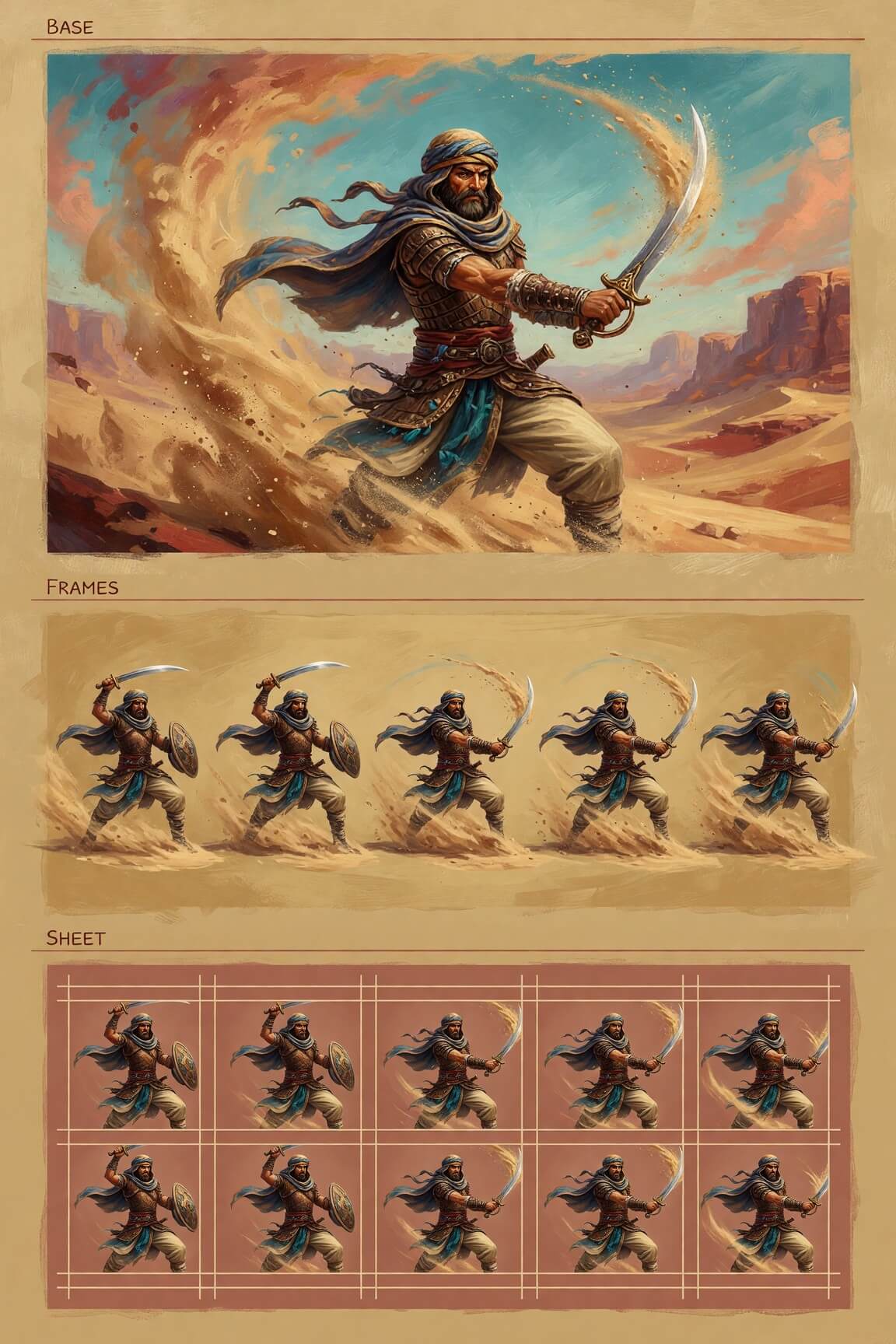
Character Sprite template cover
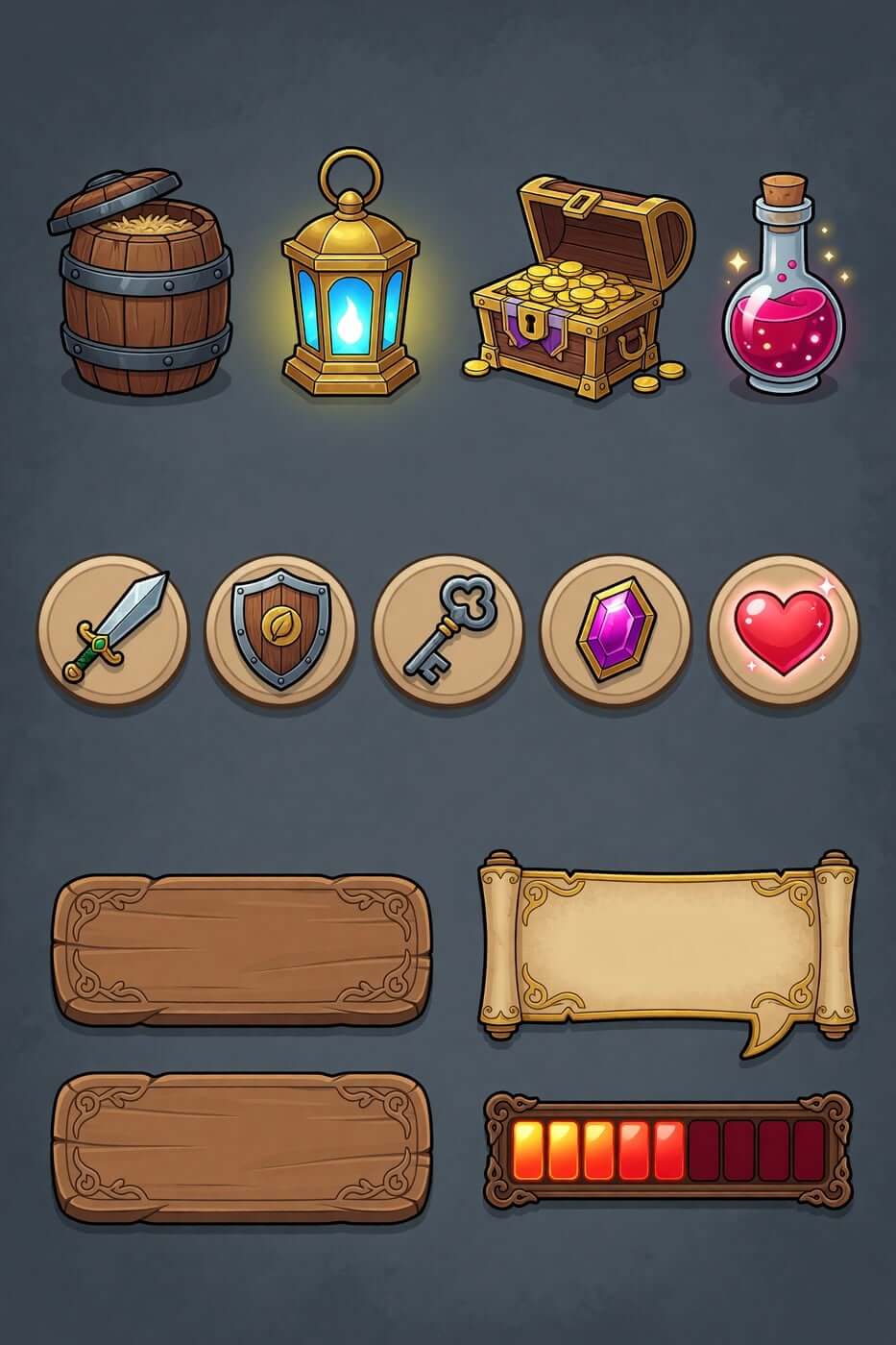
Props & UI Kit template cover
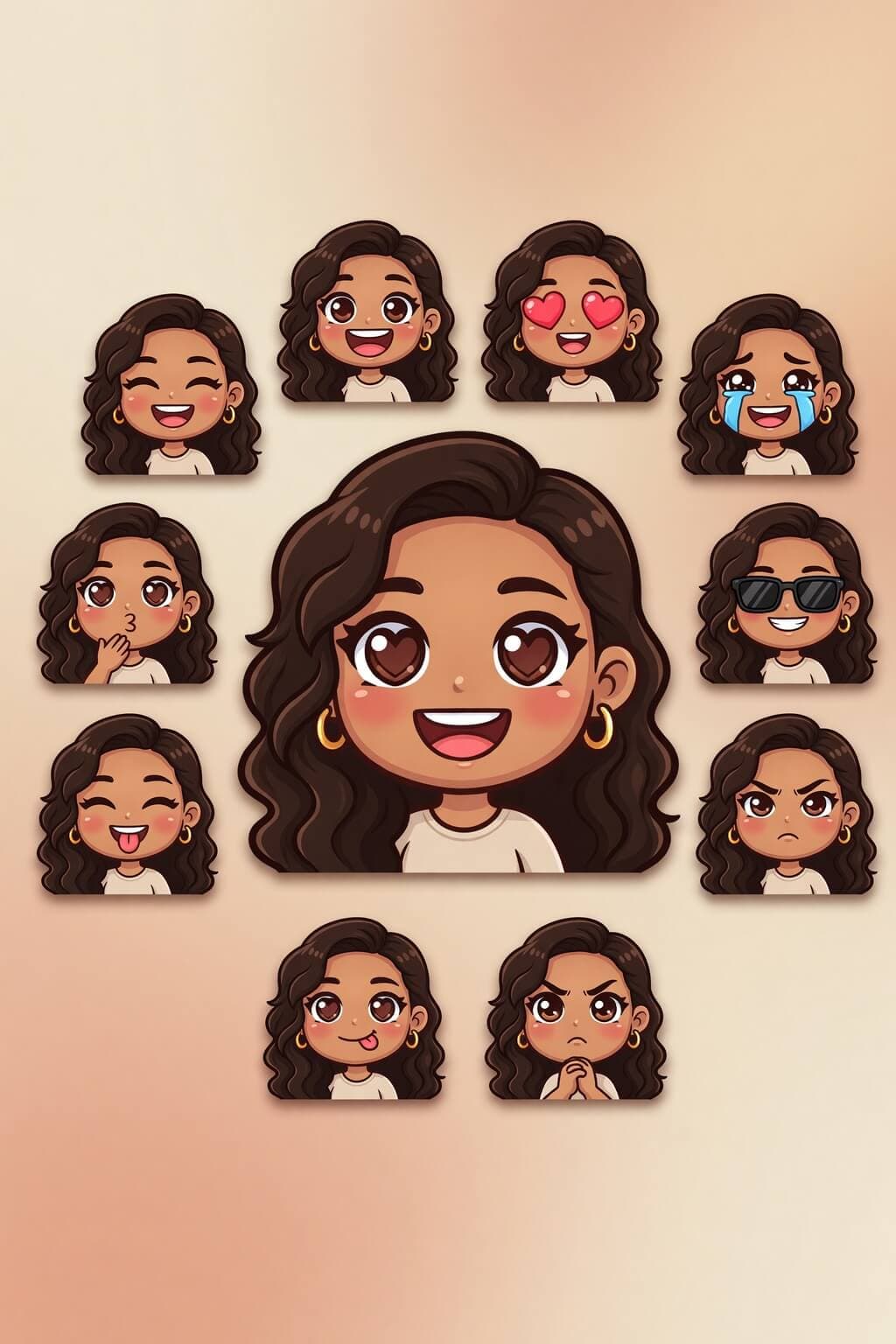
Emoji Creator template cover
Merch Maker template cover

Workflow

How to Use Grok Imagine Image 2.0

Go from idea to a usable visual direction in four clear steps. Start with one sentence, then add detail and revise as the image takes shape.

01

Describe the outcome

Begin with the image’s job. State the main subject, whether it is a landing-page hero, product mockup, campaign post, editorial illustration, or early concept, and where it will appear.

02

Add visual direction

Describe the environment, style, lighting, color palette, camera angle, and mood. Put the most important information first so the composition has a clear purpose.

03

Generate and review

Treat the first image as a draft. Check the subject, proportions, layout, lighting, unwanted details, and whether the result fits its intended placement.

04

Refine the strongest direction

Keep what works and name the next change. Make one or two meaningful adjustments per revision so you can see what improved the result.

Ready to create

Start with one idea and one intended placement, then refine until the image fits the job.

Start with Grok Imagine Image 2.0

FAQ

Grok Imagine Image 2.0 questions, answered

Is Grok Imagine Image 2.0 available on this platform?

Yes. Grok Imagine Image 2.0 is available on our platform. Choose the model, enter an image prompt, and generate your first visual direction.

What can I create with Grok Imagine Image 2.0?

You can create product mockups, illustrations, social media graphics, concept art, and marketing visuals. Start with the final placement in mind so the image has the right shape, spacing, and level of detail.

How should I write Grok Imagine Image 2.0 prompts?

Write the subject first, then add the setting, style, lighting, composition, palette, and mood. Include the intended placement when composition matters.

Can I refine an image after it is generated?

Yes. Ask for focused changes such as a different color, camera angle, background, object, or visual style. Keep the parts that work and describe only what should change.

Explore the latest Grok Imagine Image 2.0

See the complete feature guide, examples, workflow, use cases, comparison, and practical prompt advice.

Open Image 2.0