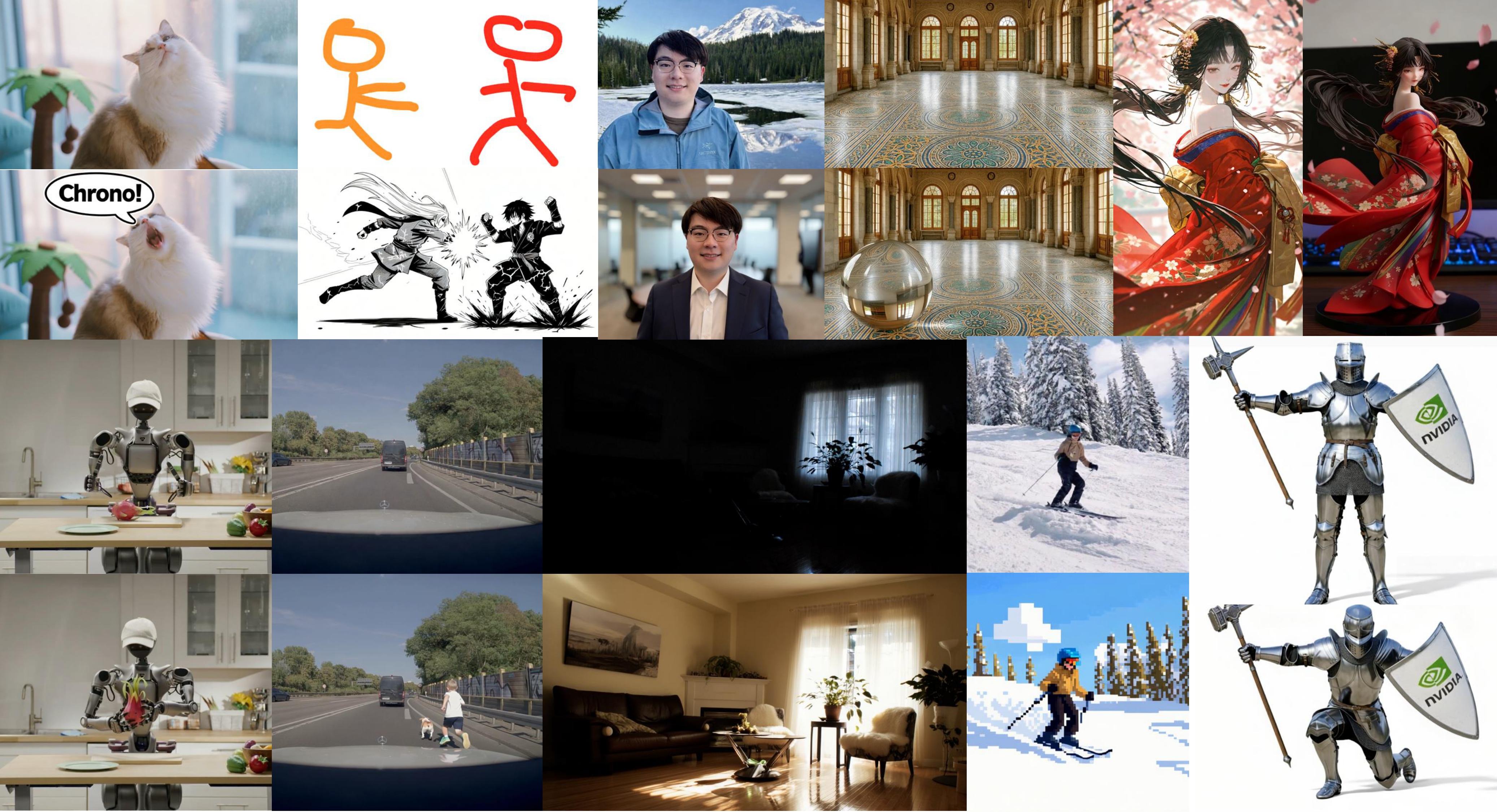
Artificial intelligence is transforming creative workflows, and ChronoEdit stands out as one of the most advanced AI photo editors available today.
By combining temporal reasoning with intelligent lighting control, ChronoEdit delivers realistic, physically consistent results for every edit.
If you’re wondering how to use ChronoEdit for image editing, this tutorial will walk you through everything — from setup to refinement — so you can achieve cinematic and professional visuals with ease.
👉 Try it here: ChronoEdit
What Is ChronoEdit
ChronoEdit is an AI image editing model that treats every edit as a time-based evolution.
Instead of instantly modifying pixels, it “reasons through time,” understanding how the image should transform naturally.
When you learn how to use ChronoEdit for image editing, you’re teaching the system what to change, what to keep, and how to make those transitions physically believable.
What Makes ChronoEdit Different from Other Editors
Most AI tools apply diffusion directly to an image, often breaking lighting or perspective. ChronoEdit introduces temporal consistency editing — maintaining lighting, geometry, and texture continuity even after complex edits.
Key Advantages
Realistic Lighting and Shadows – Preserves illumination direction and shadow flow.
Accurate Geometry – Keeps camera perspective and proportions intact.
Texture Continuity – Maintains fabric, metal, and surface consistency.
Natural Transitions – Produces edits that evolve smoothly and logically.
Step-by-Step: How to Use ChronoEdit for Image Editing
Follow these five steps to master ChronoEdit and create edits that feel real.
Step 1 — Start with a Clean, Well-Lit Image
ChronoEdit performs best with clear, detailed photos. Avoid low-resolution or overexposed inputs — clarity helps its reasoning system analyze depth, light, and surface accurately.
Step 2 — Write a Clear, Logical Prompt
ChronoEdit understands precise intent.
Separate what you want to change from what you want to preserve.
✅ Example Prompts:
“Add morning fog in the background, keep same lighting and reflection.”
“Replace the red mug with a glass cup, maintain camera angle.”
“Turn the jacket blue, keep the shadow direction unchanged.”
The clearer your instructions, the more accurate ChronoEdit becomes.
Step 3 — Generate the Edit
Upload your image and prompt on the ChronoEdit editor.
ChronoEdit internally simulates several short temporal frames, reasoning how your image would naturally evolve from input to result.
This is what makes ChronoEdit unique — it doesn’t repaint your image, it develops it over time.
Step 4 — Check Temporal Consistency
When reviewing the output:
Do the shadows match the light source?
Are reflections and highlights preserved?
Does the geometry remain balanced?
If something feels off, adjust your prompt slightly.
ChronoEdit is stable enough for multiple iterations without losing coherence.
Step 5 — Refine for Realism
ChronoEdit responds to physical language more than aesthetic adjectives.
Use real-world terms like:
“Increase sunlight from left window.”
“Keep metal reflection on car hood.”
“Preserve glass transparency and texture.”
These natural cues strengthen temporal reasoning and improve realism.
Advanced Tips for Realistic Results
Be Physically Accurate – Think of how the change would happen in reality.
Edit Step by Step – Complex tasks are best done progressively.
Lock Camera Framing – Mention “keep same angle” if needed.
Check Global Lighting – Make sure all objects share the same light tone.
Refine Iteratively – Small prompt tweaks often lead to perfect balance.
Common Use Cases
Product Visuals – Adjust color or materials without altering lighting.
Portrait Retouching – Modify clothing, mood, or tone naturally.
Scene Adjustments – Change time of day, weather, or atmosphere while keeping realism.
Creative Storytelling – Add or remove elements logically within the same frame.
Each of these scenarios shows why creators are searching how to use ChronoEdit for image editing to produce stunning, consistent images.
How ChronoEdit Achieves Realism
ChronoEdit achieves realism through time-aware logic.
Before rendering the final output, it predicts a sequence of intermediate transitions — adjusting lighting, reflections, and texture cohesion.
This eliminates AI artifacts like broken shadows or warped reflections.
Every ChronoEdit result feels coherent, as if the change genuinely happened in real time.
Best Practices
When using ChronoEdit for image editing, remember:
Write descriptive prompts — clarity beats creativity.
Use high-quality, well-lit sources.
Maintain physical realism — light, depth, and motion must make sense.
Iterate for balance — small adjustments refine perfection.
Save versions — compare progress for consistent style.
Conclusion
ChronoEdit redefines how AI handles visual transformation.
By integrating temporal reasoning into image editing, it ensures lighting, geometry, and realism remain intact through every change.
Learning how to use ChronoEdit for image editing empowers you to produce edits that are natural, cinematic, and believable.
Each frame feels like part of the same visual story — not a patchwork of filters.
Whether for photography, design, or concept art, ChronoEdit delivers unmatched realism and creative freedom.
👉 Experience the next generation of image editing today: ChronoEdit