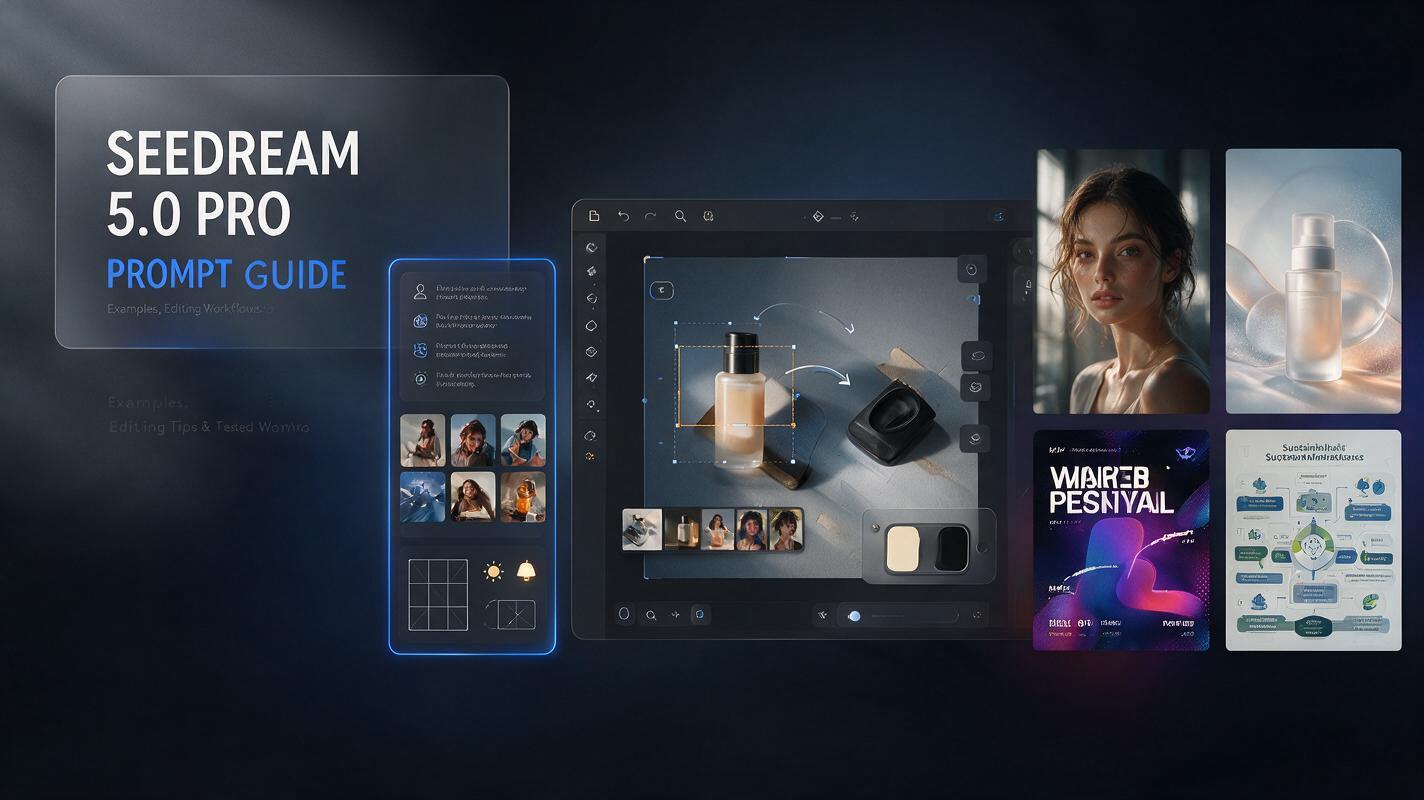
A useful Seedream 5.0 Pro prompt guide should do more than list attractive keywords: it should show you how to control the subject, composition, lighting, on-image text, reference images, and local edits so every generation has a purpose — the model is built for structured layouts, prompt-guided precise editing, realistic photographic detail, and multilingual image text.
The most reliable Seedream 5.0 Pro prompts read like compact creative briefs: instead of stacking words such as “cinematic” and “premium,” explain what you are making, where the subject appears, how the scene is lit, which style applies, and what must remain unchanged. This guide gives you a reusable formula, copy-ready examples, editing instructions, multilingual tips, and a workflow for fixing weak results without restarting.
One practical note first: in the JXP workspace, Seedream 5.0 Pro runs in two modes — text to image and image to image — with up to 10 reference images per generation, 1K, 2K, or 4K output, JPEG or PNG format, and eight aspect ratios from 1:1 to 21:9. In our own test runs, a 1K generation took roughly one to two minutes and returned 864×1152 for 3:4 or 1024×1024 for square output. Every pattern below maps directly onto those controls.
What Makes a Good Seedream 5.0 Pro Prompt?
A good Seedream 5.0 Pro prompt is specific without becoming chaotic, organized from the most important decision to the least important detail.
Prompt element | What to describe | Example |
|---|---|---|
Output goal | The job the image must perform | Ecommerce product hero |
Main subject | Person, product, object, or scene | A matte-black espresso machine |
Environment | Background and surrounding context | A warm modern kitchen |
Composition | Framing, angle, and placement | Three-quarter view, centered |
Lighting | Direction, softness, and contrast | Soft window light from the left |
Materials | Surfaces and textures | Brushed metal and clear glass |
Style | Photography or design language | Premium commercial photography |
Text | Exact copy and position | “BREW BETTER” in the upper-left |
Constraints | What must remain or disappear | Keep the logo unchanged |
Format | Aspect ratio and resolution | Vertical 4:5, 2K |
You do not need every element in every Seedream 5.0 Pro prompt. A portrait may only need the subject, setting, light, and mood; a product advertisement or infographic may require all ten.
Reusable Seedream 5.0 Pro Prompt Formula
For text-to-image generation:
Create a [type of image] featuring [main subject] in [environment]. Use [composition and camera angle], with [lighting], [color palette], and [materials]. The style should feel [style and mood]. Include “[exact text]” at [location] using [typography direction]. Keep [important details] consistent. Avoid [unwanted elements]. Format it for [aspect ratio and resolution].
For image editing:
Edit the [specific object or region] located [position]. Change [current attribute] to [desired attribute]. Preserve [identity, pose, background, shadows, text, or layout]. Match the existing [lighting, perspective, texture, and depth of field]. Do not alter any other area.
These formulas keep Seedream 5.0 Pro prompts readable and reduce instruction conflicts.
Want to test the formula on a live canvas?
Try Seedream 5.0 Pro free online
How to Write Better Seedream 5.0 Pro Prompts
1. Start With the Image’s Purpose
Tell the model what the image is for before describing its style. “Create a product launch banner” gives more context than “create a futuristic picture,” because purpose shapes composition and hierarchy. Useful openers: “ecommerce product hero,” “technical infographic,” “packaging mockup,” “event poster.”
2. Describe One Clear Main Subject
Place the main subject near the beginning and describe visible characteristics rather than vague quality words.
Weak: “A beautiful, elegant watch.”
Better: “A brushed titanium automatic watch with a deep-green dial, slim hour markers, and a dark-brown leather strap.”
The second Seedream 5.0 Pro prompt creates a clearer target because it replaces abstract praise with specific materials, colors, and design features.
3. Control Composition With Spatial Language
Use phrases such as “centered with symmetrical balance,” “subject in the lower-right third,” “overhead flat lay,” or “negative space on the left for copy.” For multiple objects, state the relationship: “The red bottle stands in front of the blue box; the silver cap lies to the right.” Spatial instructions matter most in structured prompts for layouts, posters, and infographics.
4. Describe Lighting and Materials Like a Photographer
“Cinematic lighting” is broad. Define the source, direction, softness, and color temperature: “soft morning window light from the left,” “hard midday sun with crisp shadows.” Then name the materials — frosted glass, polished chrome, wet stone, matte ceramic. Seedream 5.0 Pro emphasizes physical lighting, shadow behavior, and realistic portrait texture, so concrete material words do more work than quality adjectives. For portraits, request “realistic skin texture, subtle pores, natural catchlights.”
5. Put Exact Text in Quotation Marks
When an image requires a headline, label, or package name, place the exact copy in quotation marks and explain where it belongs:
Prompt: Design a vertical conference poster. Place “MAKE IDEAS VISIBLE” in the upper third, “OCTOBER 18” directly beneath it, and “LOS ANGELES” near the bottom. Use bold geometric sans-serif typography with a black, cream, and electric-orange palette. Keep every word exactly as written.
Seedream 5.0 Pro supports multilingual image text across ten-plus languages, but every final output should still be proofread before publication.
6. Separate Requirements From Preferences
Mark critical requirements with “must include” and “do not change”; place style preferences later:
Prompt: Create a square ecommerce image of a white running shoe. The shoe must retain the original logo shape, white mesh upper, and red heel tab. Place it on a pale-gray platform with soft directional studio light. Prefer a clean editorial style. Do not add text, people, or extra shoes.
Copy-Ready Seedream 5.0 Pro Prompts
Use these Seedream 5.0 Pro prompt examples as starting points, replacing the subject, colors, text, and format to fit your project.
Portrait Prompts
1. Editorial architect portrait
Create an editorial waist-up portrait of a confident architect in her forties inside a concrete-and-glass studio. Eye-level perspective, soft daylight from tall windows, realistic skin texture, neutral-gray clothing, restrained warm highlights. Design-magazine photography, vertical 3:4, 2K.
2. Cinematic night portrait
Create a cinematic close-up of a young musician outside a theater at night: red marquee light on one side of the face, cool street light on the other. Natural skin detail, shallow depth of field, light rain, thoughtful expression. No heavy retouching.
Product Photography Prompts
3. Skincare product hero
Create a premium ecommerce hero image of a frosted-glass skincare bottle with a brushed-silver pump on pale limestone beside a shallow pool of water. Soft sunrise backlight, realistic refraction, delicate condensation, cream-and-sage palette. Keep the label readable and leave negative space on the right for copy.
4. Beverage advertisement
Create a vertical advertisement featuring a clear bottle of sparkling citrus water rising through a splash, with suspended lemon peel and mint leaves. Crisp high-speed photography, bright backlight, realistic droplets, pale-yellow background. Leave the upper-left corner open for a headline.
Poster and Social Prompts
5. Music festival poster
Design a vertical poster with a violet-to-coral gradient. Place “MIDNIGHT SIGNALS” at the top in bold condensed type, “LIVE ELECTRONIC MUSIC” beneath it, and “AUGUST 22 / RIVER DISTRICT” near the bottom. Add abstract light trails and a small crowd silhouette. Keep all text exactly spelled.
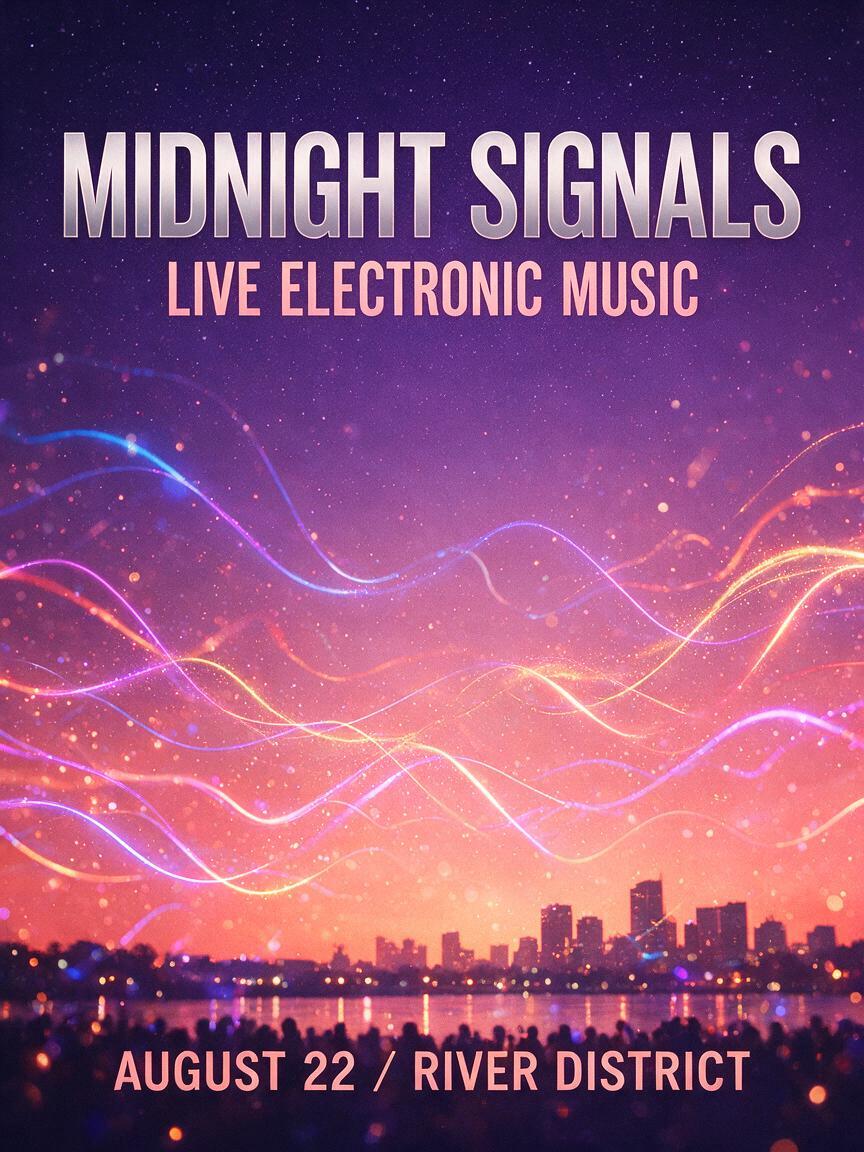
We ran this exact Seedream 5.0 Pro prompt on JXP: all three quoted lines — headline, subheading, and date strip — rendered word-for-word.
6. Minimal furniture sale banner
Create a horizontal 16:9 banner for a modern furniture store: one sculptural lounge chair on a warm off-white background. Add “SUMMER EDIT” on the left and “UP TO 30% OFF” below it. Elegant sans-serif typography, generous spacing, soft natural shadows. Do not add extra products.
Infographic and Layout Prompts
Structured information design is one of the strongest Seedream 5.0 Pro use cases:
7. Sustainability infographic
Create a vertical infographic titled “5 WAYS TO LOWER YOUR DAILY CARBON FOOTPRINT,” divided into five clearly separated sections for transportation, food, home energy, shopping, and waste. Muted green, cream, and ocean-blue palette, consistent icons, short labels, clean educational layout.
8. Four-step process diagram
Create a horizontal process diagram titled “FROM IDEA TO LAUNCH.” The stages “RESEARCH,” “DESIGN,” “TEST,” and “RELEASE” connect with a clear directional line. White background, dark-navy text, one accent color, generous spacing.
Multilingual Design Prompt
9. Localized product launch poster
Create a minimalist technology launch poster with a dark charcoal background and one silver device in the center. Place the Chinese headline “新品上市” in the upper-left corner and the subheading “7月8日正式发售” beneath it. Use bold modern Chinese typography and restrained silver highlights. Keep every character exactly as written.

In our test of this prompt, both the headline and the smaller date line rendered character-for-character — and it still pays to proofread small CJK text.
When localizing, keep the composition description stable and replace only the quoted text. For a right-to-left language, explicitly request a right-to-left layout.
Seedream 5.0 Pro Prompt Guide for Image Editing
Editing in Seedream 5.0 Pro is prompt-guided: switch to image-to-image mode, upload the picture, and describe the exact region and change in words — the prompt is the selection tool. Every editing prompt should identify the exact target, the requested change, the protected details, and the qualities the edit must match.
“Make it better” is too broad. “Change the green jacket to navy while preserving the face, pose, background, and lighting” is actionable. Review results for changes outside the intended region.
Local Object Replacement
Prompt: Replace the ceramic vase on the left side of the table with a clear ribbed-glass vase holding three white tulips. Match the original perspective, contact shadow, and depth of field. Preserve the table, books, wall, and lighting.
Exact Color Change
Prompt: Change only the sofa upholstery from mustard yellow to the exact color #264653. Preserve the fabric weave, highlights, folds, shadows, cushions, and room lighting. Do not alter the wall or rug colors.

We tested this pattern by recoloring a cream ceramic cup to matte black: the cup body changed completely while the white background shifted under 2% and the latte art stayed intact — the preservation sentence did its job.
Background Replacement
Prompt: Replace the plain studio background with a softly blurred modern office. Keep the face, hair, clothing, pose, and edge detail unchanged. Match the original light direction.
Packaging Text Revision
Prompt: Update the center label from “ORIGINAL BLEND” to “DARK ROAST.” Keep the label size, typography, gold border, bottle shape, and reflections unchanged.
Sketch-Guided Edits With an Annotated Reference
Because the workspace accepts up to 10 reference images, you can mark up a copy of your image — an arrow, a circled region, a rough sketch — upload it alongside the original, and reference it: “Follow the red arrow in Image 2: move the product to that position. Use Image 1 for everything else.” This is the practical way to give Seedream 5.0 Pro spatial guidance beyond words.
Open Seedream 5.0 Pro and test a precise local edit on your own image
Generating Isolated Assets and Clean Cutouts
The underlying model is reported to support layer-aware generation, and the practical version of that workflow in the JXP workspace is generating isolated assets directly: select PNG output, then prompt for a single element on a clean, uniform background.
Prompt: A ceramic coffee cup with latte art, centered on a pure white background, soft even lighting, no props, no shadows beyond a subtle contact shadow, product-catalog style.

When we ran this prompt, the delivered catalog shot came back on a near-pure-white background — corner pixels within four points of pure white — ready for one-click background removal.
Ask Seedream 5.0 Pro for one element per generation — subject, decorative object, or text block — and assemble banners, listings, and localized variants in any design tool, reusing the same prompt structure. Keep edges simple for the cleanest cutouts.
How to Use Reference Images Effectively
Seedream 5.0 Pro accepts up to 10 reference images per generation, so assign a role to each one: “Use Image 1 only for facial identity. Use Image 2 for the jacket design and fabric. Use Image 3 for the pose. Ignore the backgrounds from all references.”
A strong Seedream 5.0 Pro reference prompt explains what to borrow and what not to borrow. For style guidance: “Use the muted palette, soft grain, and diffused highlights of Image 2, but do not copy its subject or composition.” For a repeated campaign, keep one stable identity block and change only the scene-specific portion.
Common Seedream 5.0 Pro Prompt Mistakes
Writing a keyword pile. “Cinematic, 8K, masterpiece, premium, dramatic” does not describe a usable image. Replace quality words with camera angle, light direction, material, and purpose.
Giving conflicting instructions. “Minimalist” conflicts with “packed with detailed objects”; “soft flat light” conflicts with “deep hard shadows.” Remove directions that compete.
Hiding the main requirement. If a label must be accurate or a face must remain unchanged, state that early — before decorative effects.
Editing without preservation rules. Local edits can affect nearby areas unless the prompt says what to protect: identity, composition, background, lighting, product geometry.
Leaving image text unquoted. Unquoted headlines and labels may be shortened, paraphrased, or treated as a general concept.
Changing too many variables at once. Refine one category at a time — composition, lighting, materials, typography — so you can tell which instruction helped.
A Simple Seedream 5.0 Pro Workflow
Write the first prompt as a clear creative brief.
Generate several directions and choose the best composition.
Identify the single largest problem.
Revise only the relevant instruction.
Use a prompt-guided local edit for small corrections instead of restarting.
Save the successful structure as a reusable template.
Do not rewrite an entire product prompt because one cap is wrong: switch to image-to-image, upload the strongest result, and request “Replace only the cap with a brushed-silver cap; preserve the bottle, label, reflections, and lighting.” The best Seedream 5.0 Pro prompts are built through controlled revision — protect successful details while correcting one weakness at a time.
Seedream 5.0 Pro vs Seedream 5.0 Lite Prompting
The two tiers suit different complexity levels. Seedream 5.0 Lite is positioned for faster, lighter generation, where short prompts handle simple scenes well. Seedream 5.0 Pro is better suited to detailed layouts, prompt-guided local changes, infographics, and multilingual image text, so it rewards prompts that define relationships, protected details, and editing goals explicitly. A practical rule: short prompt for a quick one-off visual; structured Pro-style prompt when the output will be edited, localized, or reused.
Frequently Asked Questions
What is the best Seedream 5.0 Pro prompt structure?
Start with the intended output, then describe the subject, environment, composition, lighting, materials, style, exact text, and constraints. For editing: target region, requested change, protected details, and the qualities that must match.
How long should a Seedream 5.0 Pro prompt be?
Two or three focused sentences for a simple single-subject image; several short instruction blocks for a poster, infographic, or multi-reference edit. Length only helps when each sentence adds information.
How do I generate accurate text inside an image?
Put the exact copy in quotation marks and state its location and hierarchy. Seedream 5.0 Pro supports multilingual image text, and you can mix languages — an English description with a quoted Chinese headline. Proofread before publishing.
How do I edit only one part of an image?
Use image-to-image mode, name the target object and its location, describe the change, and add “Do not alter any other area; match the original lighting and perspective.” For complex spatial changes, upload an annotated copy as an extra reference.
How do I get a clean-background asset?
Choose PNG output and prompt for the subject as an isolated element on a plain, uniform background with minimal shadow, then remove the background in your design tool. One element per generation gives the easiest cutouts.
How do I keep a face or product consistent?
Use a clear reference image, state what it controls — facial structure, product geometry, logo placement, colors — and protect those details in a dedicated preservation sentence.
Which aspect ratio and resolution should I choose?
Match the channel: 1:1 for square posts, 3:4 or 9:16 for vertical feeds, 16:9 or 21:9 for banners. The workspace offers eight ratios and 1K, 2K, or 4K output — state the format in your prompt and set the matching controls.
Why does Seedream 5.0 Pro ignore some details?
The Seedream 5.0 Pro prompt likely contains competing instructions or unclear priorities. Move critical details earlier, group related directions, remove conflicts, and revise one variable at a time.
Can I use these prompts for commercial projects?
Yes — the structures support advertising, ecommerce, branding, and social workflows. Before publishing, review the platform’s terms, trademarks, and identity-sensitive content.
Final Seedream 5.0 Pro Prompt Checklist
Before generating, confirm your Seedream 5.0 Pro prompt answers these questions: What is the image for? What is the main subject and where is it placed? What are the lighting and key materials? Is exact text in quotation marks? Which details must remain unchanged? Which ratio, resolution, and format fit the final channel?
A reliable Seedream 5.0 Pro prompt guide is not one magical sentence — it is a system for communicating visual intent: start with purpose, organize the composition, quote important copy, protect successful details, and refine one problem at a time. With that method, Seedream 5.0 Pro prompts become easy to reuse across portraits, product images, posters, infographics, localized campaigns, and precise edits.