JXP 2.0 AI Video Generator

Turn one source image or two keyframes into a directed video sequence. Describe the motion, choose the format and frame count, then generate without building a manual animation timeline.

Source image *

JPG · PNG · WebP · 10 MB
Duration10s
5s15s

JXP 2.0 sample output

Upload a frame, describe the motion, and generate your own result.

Overview

What Is JXP 2.0?

JXP 2.0 is an AI video model that turns image references and written instructions into moving visual sequences — in single-image mode or with start-and-end keyframes.

How JXP 2.0 fits into your workflow

Instead of placing animation points on a timeline, you describe subject movement, camera behavior, pacing, and lighting in a prompt — then JXP 2.0 builds the sequence from your uploaded frame.

Use it to create a shot, motion study, transition, or visual draft from prepared images, then review, revise, and bring the result into your production workflow.

Explore

Explore JXP 2.0 Creations

Browse sample outputs across cinematic motion, storytelling, and social-ready formats. Hover a tile to preview the clip.

Capabilities

JXP 2.0 Features You Can Control

Each control corresponds to a practical decision: where the shot begins, where it ends, how it moves, how long it runs, and where the final format will be used.

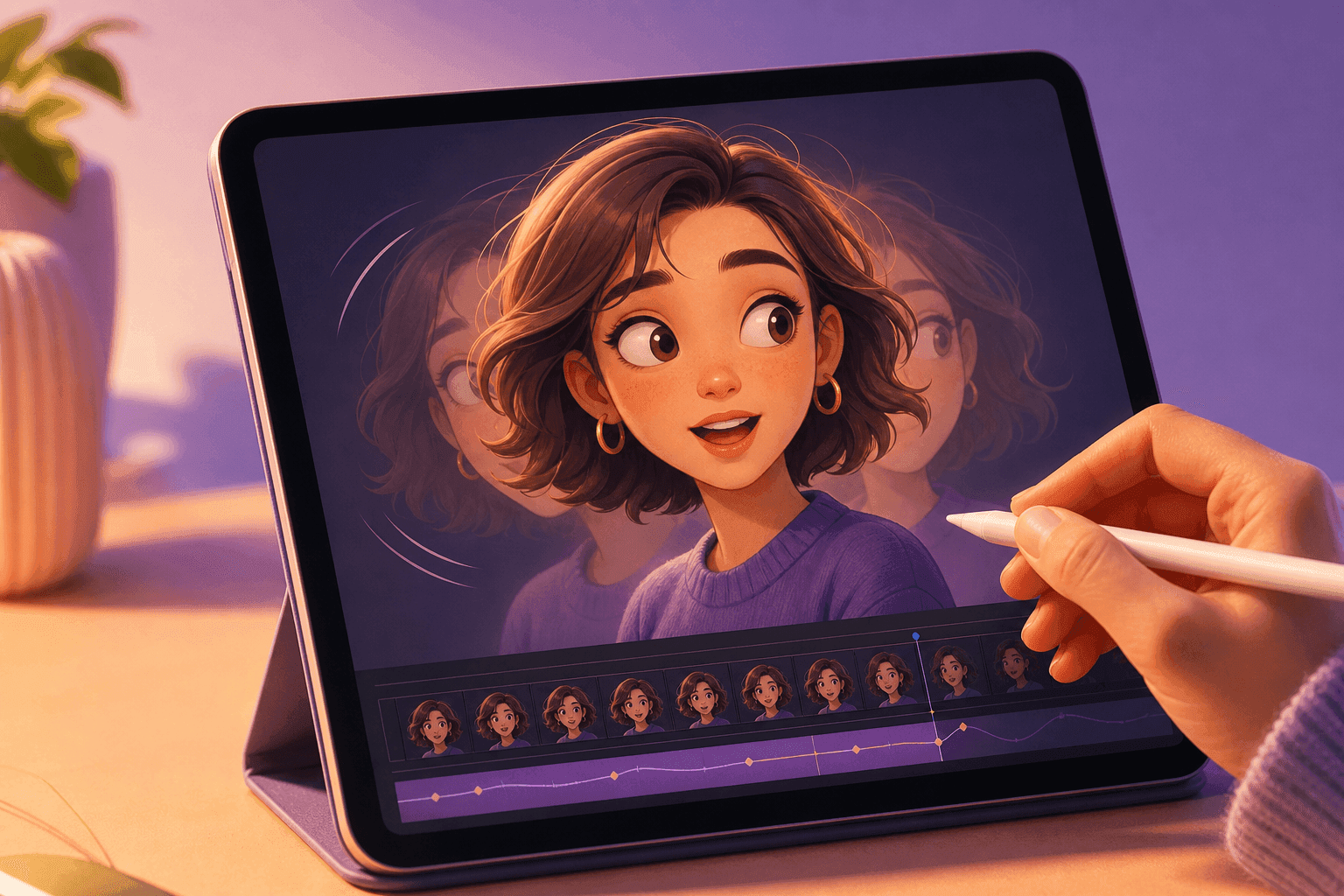
Character portrait animation from a single source image

Animate one source image

Begin with a product photo, character portrait, illustration, or composed scene. JXP 2.0 uses that frame as the visual anchor while your prompt defines what moves, where the camera travels, and how quickly the action develops.
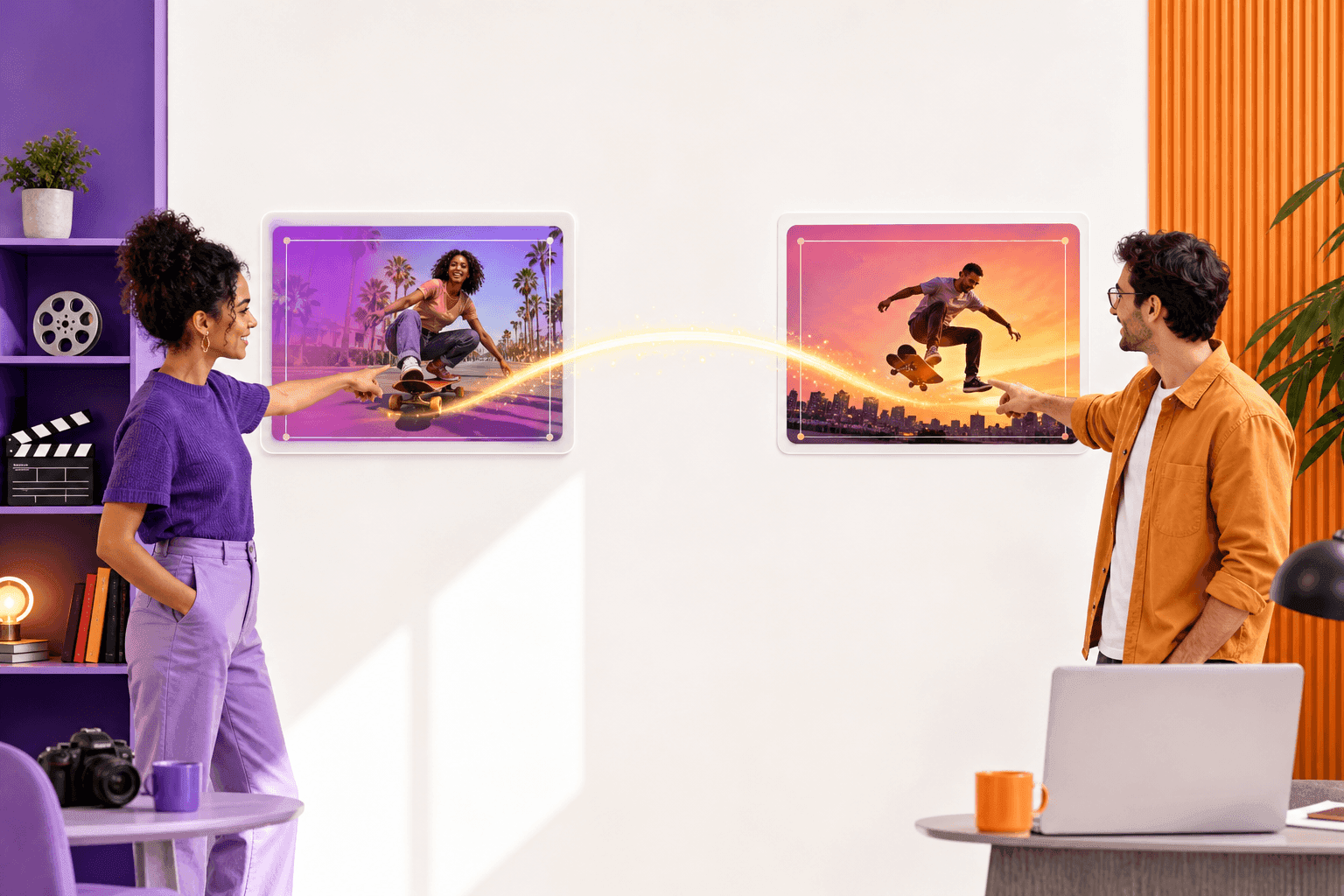

Keyframe transition between two visual states

Connect two keyframes

Upload a start frame and an end frame when the destination matters as much as the opening. Describe the relationship between both images, then let the model generate the transition.

Creative writing a motion prompt for AI video

Direct motion in plain language

Write the movement you want to see instead of building an animation timeline. Name the subject action, camera direction, speed, lighting, and mood in one focused prompt.

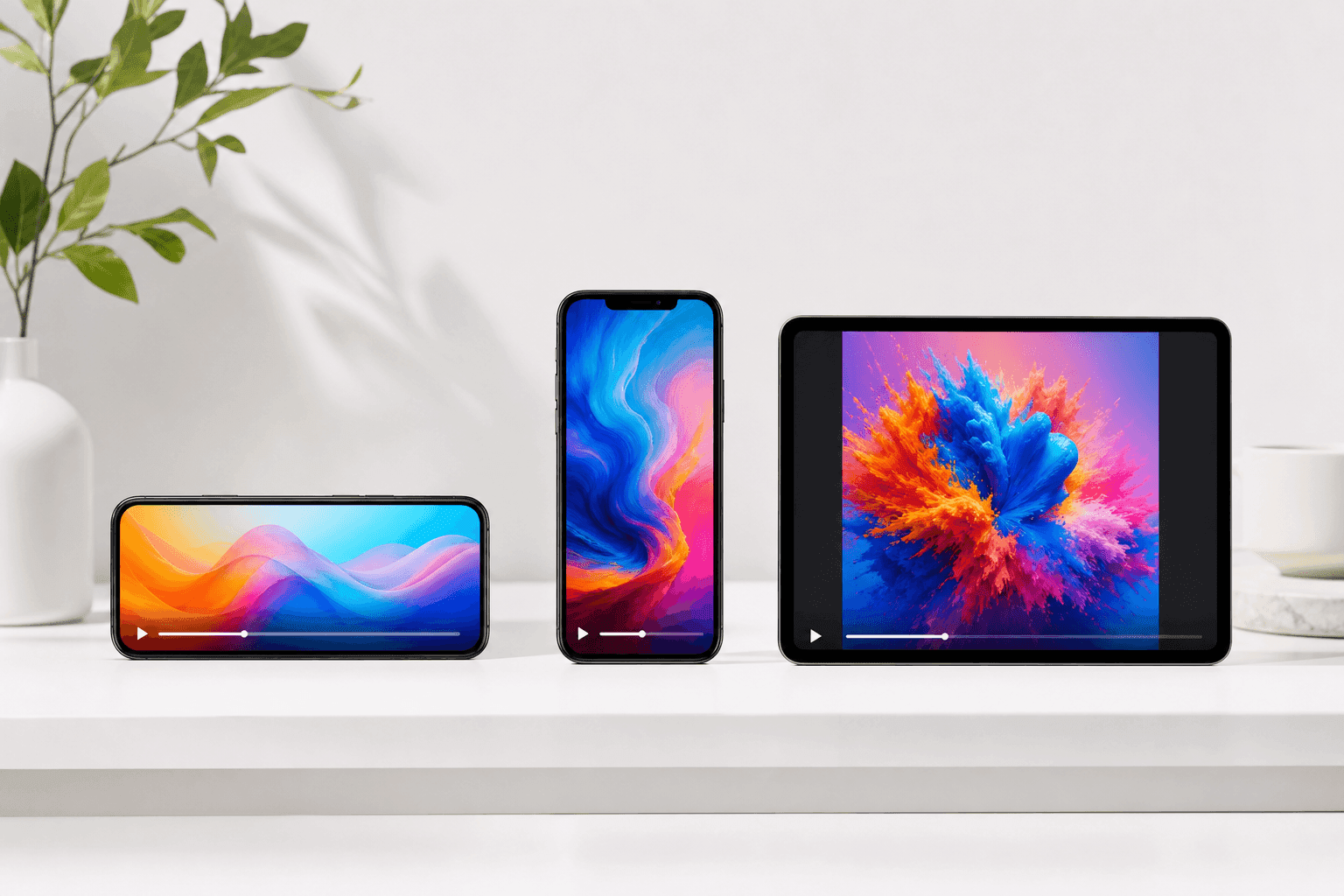
Multiple aspect ratio outputs for different platforms

Choose the format before rendering

Create landscape, vertical, square, or portrait video without cropping a finished result into the wrong composition. Plan for a website hero, social feed, or product page from the start.

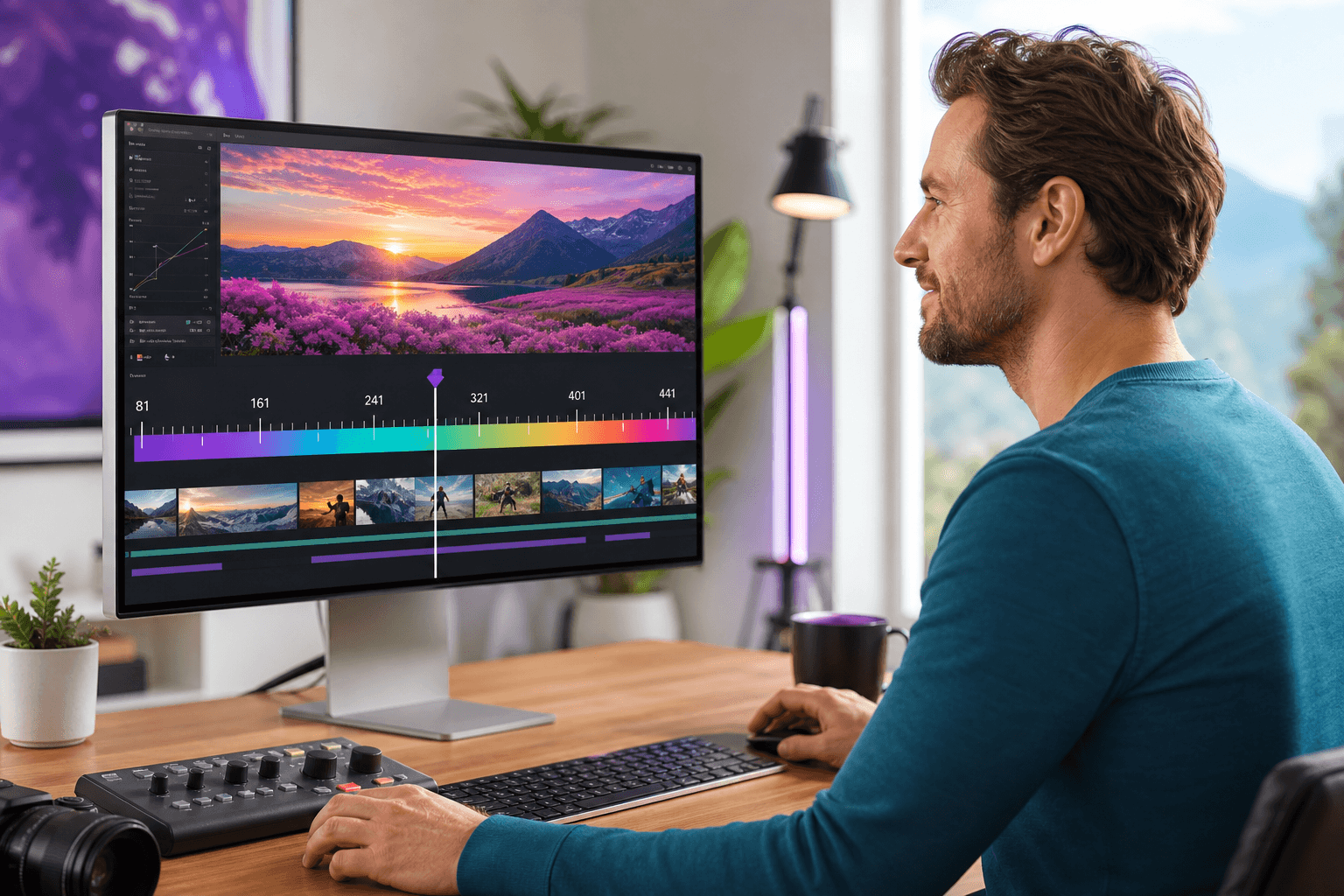
Filmmaker adjusting frame count on a bright monitor

Control sequence length with frames

Select 81, 121, 161, 241, or 441 frames. Every option follows the model requirement that total frames use an 8n + 1 value. With playback fixed at 24 fps, a higher frame count gives the action more time to develop.

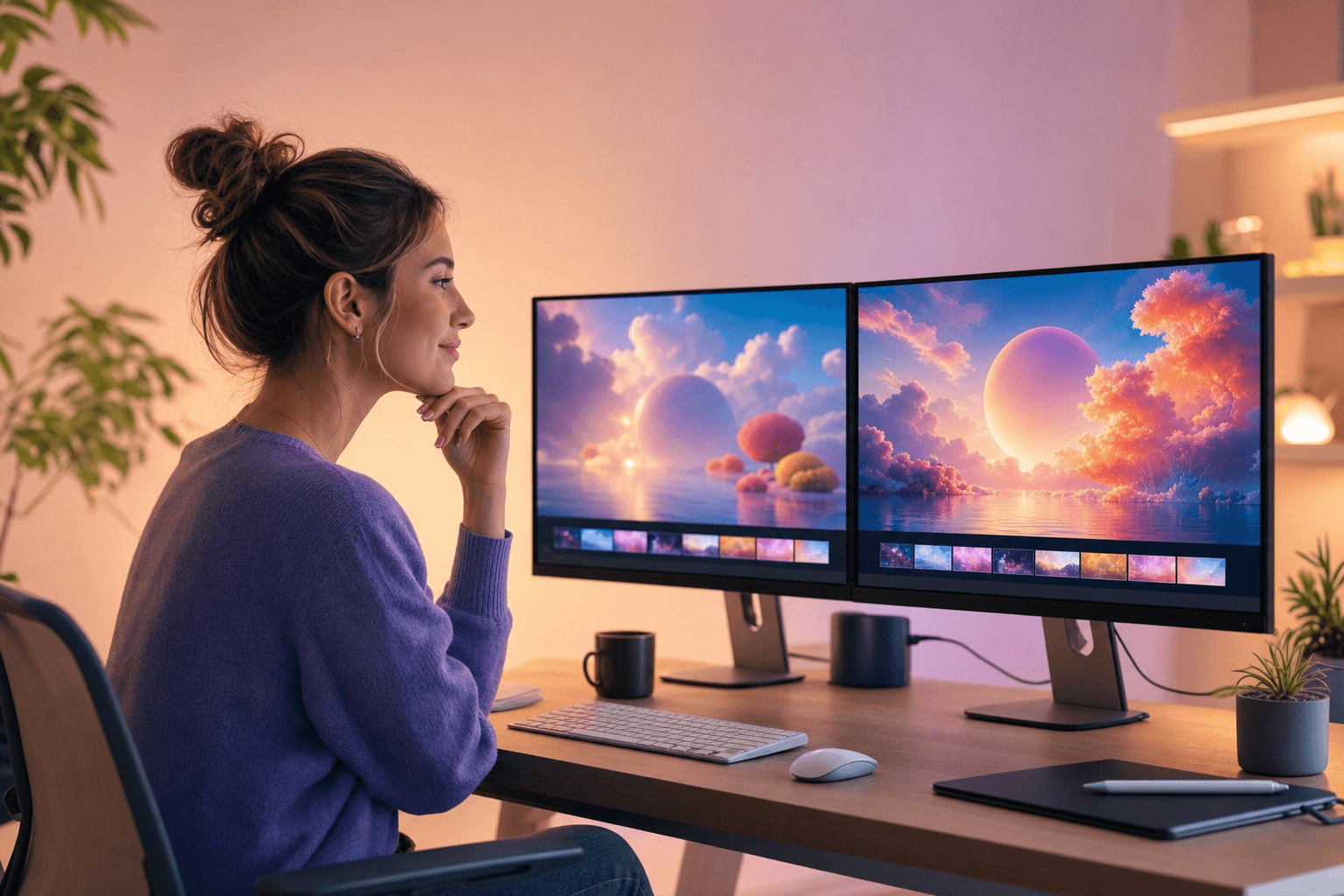
Creative comparing video iterations with seed control

Use a seed for structured iteration

Leave the seed empty for a new starting point or enter a positive integer when you want a more controlled comparison between prompt variations.

Two workflows

Single Image or Keyframes

Single Image mode is the direct route when you want to preserve one composition and add movement. Keyframes are better when a transition needs a defined destination.

Marketer animating a single product photo into video
One image

Single Image

Use a photo or illustration as the opening visual. Describe subject motion and camera movement while the source image anchors the scene.

  • One required image
  • mode: ti2vid
  • Best for motion from a fixed composition
Creatives planning a keyframe transition between two frames
Two images

Keyframes

Set both ends of the shot. Your prompt explains how the model should move from the first supplied frame to the second.

  • Start and end frame
  • mode: keyframes
  • Best for transitions and transformations
How it works

How to Make an AI Video With JXP 2.0

Three steps from a still frame to a review-ready clip — all inside one creation area.

  1. 01

    Prepare your frames

    Choose Single Image or Keyframes, then upload one source image or a matched start-and-end pair. Use clear images with the subject at a useful scale and enough room for the movement you plan to describe.

  2. 02

    Describe motion and settings

    Write the main action, camera direction, pacing, and lighting in the prompt. Pick the aspect ratio, frame count, and an optional seed before you render.

  3. 03

    Generate and refine

    Submit the task and follow progress in the preview panel. Download the result or start another pass with a tighter prompt, different frame count, or revised seed.

Use cases

Where JXP 2.0 Fits Into a Creative Workflow

Use it when a still visual already communicates the design but the next deliverable needs movement, pacing, or a transition.

01

Product motion

Turn a still product image into a short display clip. Describe a slow rotation, a controlled camera push, moving reflections, or a reveal between clean start and end frames.

02

Social video concepts

Build vertical 9:16 ideas for Reels, Shorts, and mobile campaigns. Test framing and movement before committing time to a longer editing workflow.

03

Character and illustration animation

Add a restrained gesture, a shift in expression, environmental motion, or a camera move while keeping the supplied artwork as the visual foundation.

04

Storyboards and previsualization

Connect storyboard panels with keyframe mode to explore how one shot could lead into the next. The result can help communicate pacing and camera intent.

05

Interface and launch visuals

Animate a prepared app screen, device composition, or branded graphic for a landing-page loop, feature reveal, or presentation opener.

06

Creative transitions

Use clearly different start and end frames to plan transformations, time changes, location shifts, material changes, and other transitions that need a defined destination.

FAQ

JXP 2.0 Frequently Asked Questions

What is JXP 2.0?

JXP 2.0 is an AI video model for turning a source image and a written motion prompt into a video. It supports both single-image animation and keyframe workflows.

How does single-image video generation work?

Upload one image, describe the movement and camera direction, choose an aspect ratio and frame count, then start the task. JXP 2.0 uses the image as the visual starting point for the generated sequence.

What is keyframe mode?

Keyframe mode accepts a start image and an end image. Your prompt describes the transition between them, while the model builds the motion that connects both frames.

Which aspect ratios does JXP 2.0 support here?

The generator offers 16:9, 9:16, 1:1, 4:3, and 3:4. These cover landscape video, vertical social clips, square posts, and traditional portrait or presentation formats.

How do frame count and frame rate affect duration?

This page uses a fixed 24 fps frame rate. A higher frame count produces a longer sequence, while lower frame counts are useful for shorter motion tests.

What does the seed field do?

A seed gives the generation process a repeatable starting value. Reusing it can help when testing prompt changes, though generated motion can still vary when other inputs change.

What should I include in a JXP 2.0 prompt?

Describe the subject action, camera movement, pacing, lighting, and the visual relationship between the first and final frame. Use direct instructions and keep competing actions to a minimum.

Can I download the generated video?

Yes. When the task finishes, the result appears in the preview panel with a download action so you can save the generated video.

Create Your Next Shot With JXP 2.0

Upload the frame that already captures your idea. Add the motion, format, and timing you need, then turn it into a video you can review and refine.

Open the JXP 2.0 generator