If you make a lot of short videos, you already know the pain. Good clips cost time and money. You try one idea, wait, pay credits, and half the time the result is not quite right. Then you do it again. Seedance 2.0 Mini was built for exactly this problem. It is the cheapest and fastest tier in ByteDance's Seedance 2.0 family, and it is made for people who need many usable clips fast, not one perfect film.
This guide walks you through how to use Seedance 2.0 Mini on JXP from start to finish. No fluff. Just what to prepare, what to click, what to type, and what to do when something goes wrong. By the end, you will be able to go from a blank screen to a finished MP4 in a few minutes.
What Seedance 2.0 Mini Actually Is
Let's get the basics straight first, because the naming can confuse people.
Seedance 2.0 is ByteDance's flagship AI video model. It launched in early 2026 and came with three tiers. Standard is the full-power version for top quality. Fast is the speed version. And Mini, released in mid-2026, is the lightest one. Mini costs around half of what standard Seedance 2.0 costs, and it runs roughly twice as fast as the Fast tier, while keeping quality at a similar level. Some early tests even showed Mini edging out Fast on motion stability.
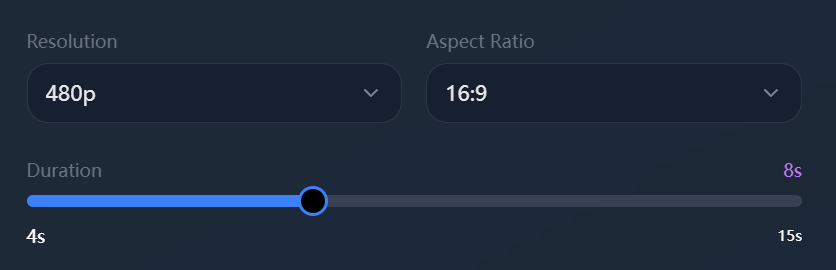
In short: Mini is cheap, quick, and good enough for most short-form work. It outputs 480P and 720P clips, four to fifteen seconds long. It does not do 1080P, so it is not the tool for a polished broadcast master. It is the tool for reels, ads, product demos, and quick tests.
One quick warning. ByteDance also ships a text model called "Seed 2.0 mini." That is a totally different thing. We are talking about the video model here.
Try the Seedance 2.0 Mini AI Video Generator
What You Need Before You Start
You don't need much. That is part of the appeal. Here is the short list.
An account on JXP. Head to the platform and sign up. New users get free credits to try things out, so you can test Seedance 2.0 mini free before spending a cent. No credit card is needed just to start.
Some credits. Video generation uses credits. On JXP, a clip costs roughly 2 to 10 credits depending on length and resolution. Credit packages start at $10, with $30 and $99 options for heavier users. Good news: credits never expire, so you don't lose them if you take a break.
A clear idea. This matters more than people think. Mini works best when you know what you want before you type. A one-line "make a cool video" prompt gives you a random result. A specific scene gives you something usable.
Reference media (optional). If you already have a product photo, a character look, or a style you like, get those files ready. You can feed images, video clips, and audio into the model to guide the look. More on that below.
That's it. No software to install, no plugins, no editing suite. Everything runs in the browser.
The Complete Step-by-Step Workflow
Here is the full process, broken into clear steps. Follow them in order the first time, and after that it becomes second nature.
Step 1: Open the Seedance 2.0 Mini generator
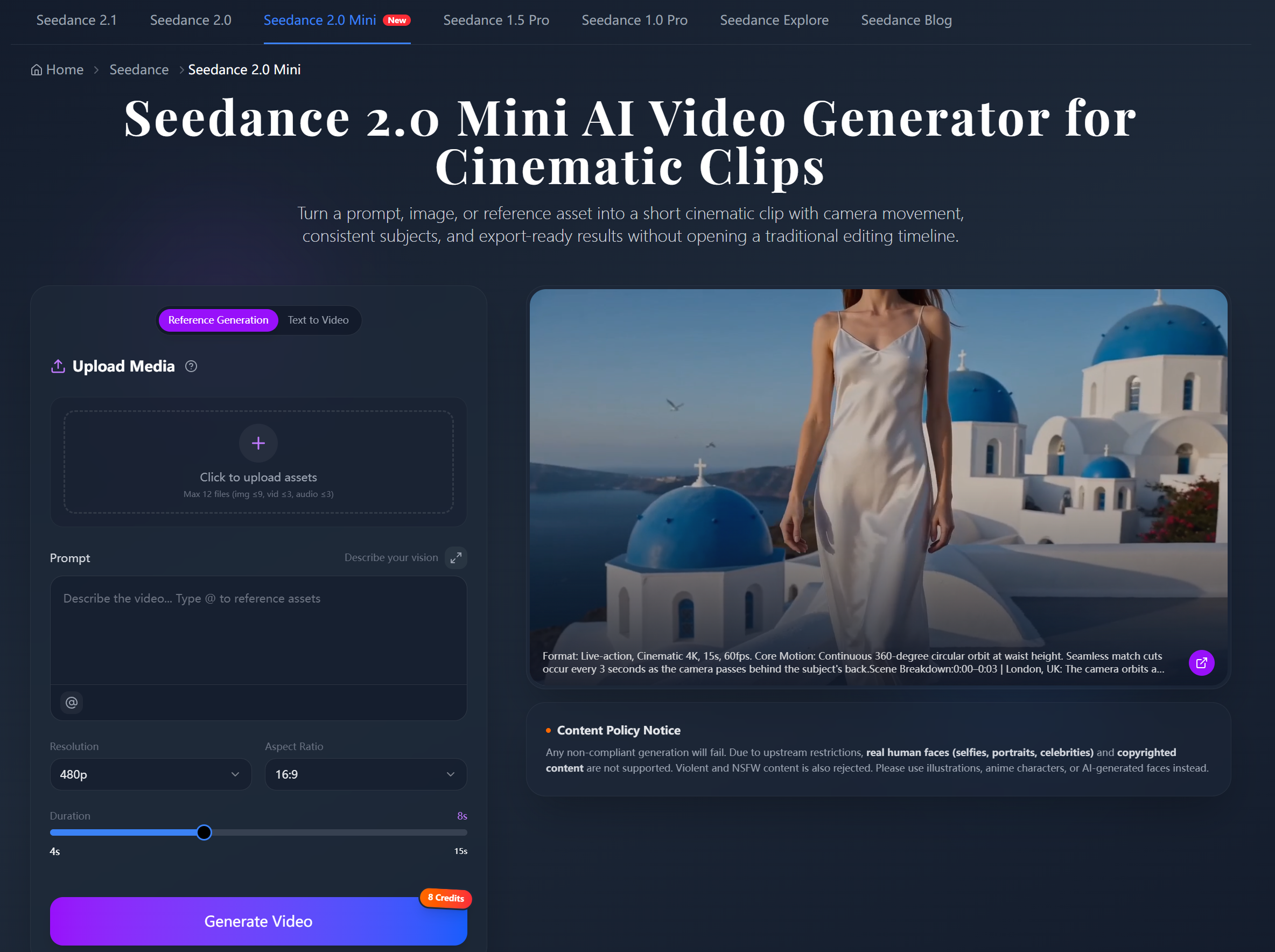
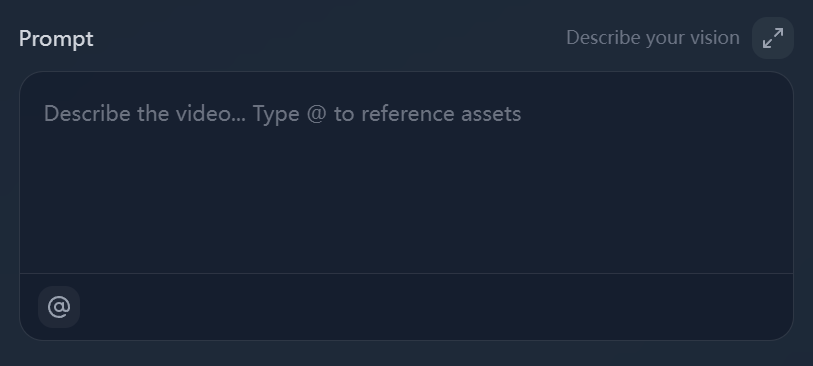
Log into JXP and pick Seedance 2.0 Mini from the model menu. You will land on the main generation screen. Everything you need sits on one page: a mode selector, a prompt box, a reference upload area, and the parameter controls. Take ten seconds to look around so you know where things are.
Step 2: Choose your generation mode
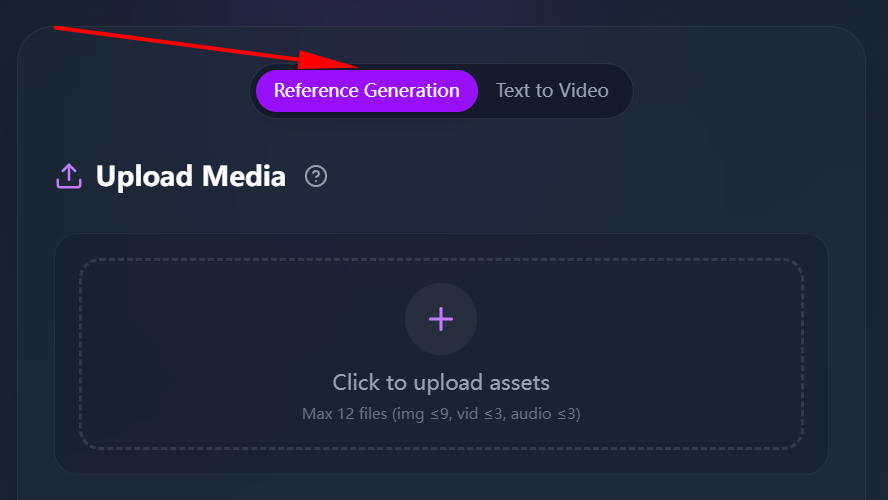
Decide how you want to start. There are two common paths.
Text-to-video means you start from words alone. You type a scene and the model builds it. This is the fastest way to test ideas.
Image-to-video means you start from a picture. If you want Seedance 2.0 mini image to video, upload your still first, and the model animates it while keeping your subject, framing, and color intact. This is the better choice when the subject matters — a product, a character, a specific look you already have.
Pick whichever fits your job. You can always switch later.
Step 3: Add your references (if you have them)
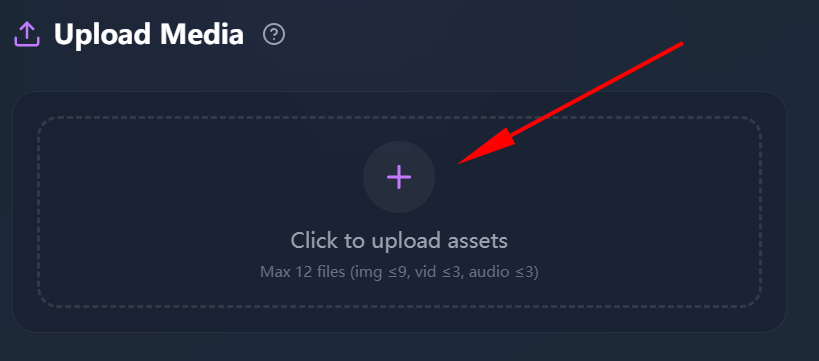
If you chose image-to-video, or if you just want more control, upload your reference files now. The Seedance family supports a generous set of inputs — up to several images, a few short video clips, and audio files in one project. Use images to lock a character or product. Use a video clip to copy a camera move or motion style. Use audio to guide mood or pacing.
For each file, describe in plain words what you want the model to take from it. For example: "use this image as the main character, keep her face and outfit the same throughout." The model reads that and follows it.
If you have nothing to upload, skip this step. Text alone works fine for many clips.
Step 4: Write your prompt
This is the heart of the whole thing. A good prompt does most of the work. We cover the writing details in the next section, but the basic shape is simple: describe the subject, the action, the camera, and the mood. Keep it concrete.
Step 5: Set your output options
Below the prompt, you'll find the settings. Choose your resolution (480P for drafts, 720P for finals), your clip length (4 to 15 seconds), and your aspect ratio. Use 9:16 for TikTok and Reels, 16:9 for YouTube, 1:1 for square posts. Match the format to where the video will live.
Step 6: Generate and review
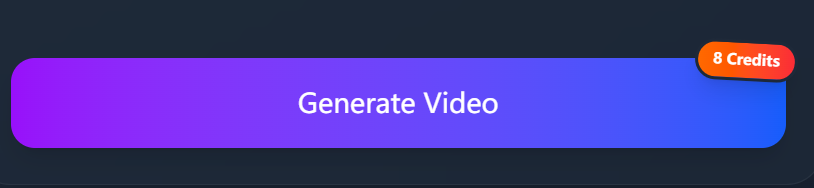
Hit generate. Mini is fast, so you won't wait long. When the clip comes back, watch it closely. Check the motion — does it flow or does it stutter? Check the subject — does the face or product stay consistent? Check the framing and pacing. If it's good, download the MP4. If not, move to the next step.
Step 7: Refine and repeat
This is where Mini shines. Because each clip is cheap and quick, you can tweak and regenerate without stress. Change one thing at a time — a camera move, a lighting note, a small detail — and run it again. This loop is how you get from "okay" to "great" without burning your budget.
How to Write Prompts That Work
A weak prompt gives weak video. Here is how to write one that actually delivers, organized by the parts that matter.
Name the subject clearly. Don't write "a person." Write "a woman in her thirties wearing a red jacket." The model can't guess what you didn't say.
Describe the action. Say what happens and in what order. "She walks toward the camera, then turns to look out the window." Motion needs direction.
Direct the camera. This is where amateur and pro results split. Add camera language: slow push-in, orbit around the subject, static locked shot, tracking shot from the side. Telling the model how to move the camera makes the clip feel directed instead of random.
Set the mood and lighting. "Moody bar interior, neon accents, soft shadows" gives a completely different feel than "bright morning kitchen, natural light." Lighting carries the emotion.
Keep it focused. Mini does best with one clear scene. Don't cram five things into one prompt. If your idea has many parts, break it into separate clips and stitch them later.
A simple template to copy: [subject] + [action] + [camera movement] + [lighting and mood] + [style]. Fill in those five slots and you'll already be ahead of most users.
Prompt Template You Can Copy
If writing prompts still feels fuzzy, use this table. Each row is one slot to fill in. Go top to bottom, fill each box, then read it back as one sentence. That's your prompt.
Slot | What to write | Example |
|---|---|---|
Subject | Who or what is in the shot | A young woman in a yellow raincoat |
Action | What it does, in order | walks down a wet street, then looks up |
Camera | How the camera moves | slow push-in from the front |
Lighting & mood | The feel of the scene | rainy night, soft neon glow, calm mood |
Style | The overall look | cinematic, shallow depth of field |
Put those five together and you get: "A young woman in a yellow raincoat walks down a wet street, then looks up. Slow push-in from the front. Rainy night, soft neon glow, calm mood. Cinematic, shallow depth of field." That's a clean, specific prompt the model can actually work with.
Output Specs Reference
Here is the quick spec sheet so you can plan before you spend credits.
Setting | Options | Best use |
|---|---|---|
Resolution | 480P, 720P | 480P for drafts, 720P for finals |
Clip length | 4 to 15 seconds | Short-form, hooks, ad cutdowns |
Frame rate | 24fps | Standard cinematic feel |
Aspect ratio | 9:16, 16:9, 1:1, 4:3 | Match the platform |
Export format | MP4 | Ready to post anywhere |
Inputs | Text, image, video, audio | Mix as needed |
Note the ceiling: there is no 1080P on Mini. If you need a high-res master, draft on Mini and finish on standard Seedance 2.0.
Seedance 2.0 Mini vs Seedance 2.0
People ask this all the time, so here is a clean comparison. The Seedance 2.0 mini vs Seedance 2.0 choice comes down to what kind of job you're doing.
Feature | Seedance 2.0 Mini | Seedance 2.0 (Standard) |
|---|---|---|
Best for | High-volume short clips | Polished, final production |
Speed | Very fast (about 2x Fast) | Slower |
Cost | Lowest tier (~half of standard) | Highest of the three |
Max resolution | 720P | Higher / 2K |
Multimodal inputs | Yes | Yes, fuller control |
Character consistency | Good for short clips | Stronger across long cuts |
Ideal user | Creators testing many ideas | Brands, agencies, filmmakers |
Simple rule: use Mini for the upstream work — testing prompts, making social cuts, churning out variations. Switch to standard Seedance 2.0 when you need top-end fidelity for a final deliverable. Many creators use both: rough everything out on Mini, then promote the winners to the full model. If you want to compare the bigger model directly, you can read more on the Seedance 2.0 Mini review page before you decide.
What Actually Works in Practice
Theory is nice, but here are the habits that separate smooth workflows from frustrating ones.
Draft cheap, finish smart. Run your first ten ideas on Mini at 480P. Pick the two that work. Only then bump up resolution or move to the standard model. This saves real money over time.
Lock your subject with a reference image. If you need the same character or product across several clips, upload one clean image and reuse it every time. This keeps everything consistent and saves you from re-describing the subject in every prompt.
Change one thing per regeneration. When a clip is almost right, don't rewrite the whole prompt. Adjust a single element. That way you actually learn what each change does, instead of guessing.
Write camera moves into every prompt. This one habit lifts your results more than anything else. A locked shot and a slow orbit feel like two different production budgets.
Save your best prompts. Keep a simple text file of prompts that gave great results. Reuse and remix them. Over a few weeks you'll build a personal library that makes every new project faster.
Common Mistakes and How to Fix Them
Most problems have simple causes. Here are the ones people hit most, with fixes.
Problem: the video looks random or generic. Cause: the prompt is too vague.
Fix: add specifics — subject details, action, camera, lighting. Vague in, vague out.
Problem: the character's face keeps changing. Cause: no reference image, or too many cuts for the Mini tier.
Fix: upload a reference image to lock the look, and keep clips short and simple. For long multi-cut sequences, use standard Seedance 2.0.
Problem: the motion stutters or feels off. Cause: you asked for too much action in too few seconds.
Fix: simplify the movement, or extend the clip length a little to give the motion room.
Problem: it doesn't match my product photo. Cause: you used text-to-video instead of image-to-video.
Fix: switch to image-to-video and upload the photo as your reference.
Problem: my generation failed and I lost credits. Cause: this usually happens when a prompt or uploaded image breaks the content rules. JXP does not allow real human faces (selfies, portraits, celebrities), copyrighted content, or violent and NSFW material.
Fix: use illustrations, anime characters, or AI-generated faces instead. If a failure is purely a server error, credits are not deducted.
Problem: I'm spending too many credits. Cause: you're finalizing too early.
Fix: draft at 480P, regenerate only what needs fixing, and save the high-res passes for keepers.
Real Use Cases
Here is where Seedance 2.0 Mini fits naturally into real work.
Social media content. Daily reels, shorts, and trend-style clips. The cheap, fast loop lets you keep posting without burning out or going broke.
Product and e-commerce videos. Turn a product photo into a short ad with image-to-video. Show texture, angle, and motion without a studio shoot.
Ad variation testing. Generate ten versions of a hook for the cost of a coffee, run them, and double down on the winner. This is where the low price pays off fast.
Faceless and automated channels. Channels that need a steady flow of clips without filming anything. Mini's volume-friendly pricing fits this perfectly.
Quick explainers and previews. Lesson openers, onboarding clips, internal demos — anything short where speed beats polish.
Concept pitching. Show a client three visual directions in minutes, get a decision, then build the final on the standard model.
Frequently Asked Questions
Is Seedance 2.0 Mini free to use?
New users on JXP get free credits, so you can try Seedance 2.0 Mini free before paying. After that, you buy credits in packages — and they never expire, so there's no rush to use them up.
How is Seedance 2.0 Mini different from standard Seedance 2.0?
Mini is the lighter, cheaper, faster tier. It's built for high volume and short clips at 480P or 720P. Standard Seedance 2.0 is for heavier production with higher resolution and stronger control across long, multi-cut videos.
Can Seedance 2.0 Mini turn an image into a video?
Yes. Pick the image-to-video mode, upload your still, and the model animates it while keeping your subject and framing consistent. It's great for product shots and character clips.
What resolution and length does Mini support?
Mini outputs 480P and 720P, in clips of 4 to 15 seconds, at 24fps. There's no 1080P — for high-res masters, use standard Seedance 2.0.
How many credits does one video cost?
Roughly 8 to 45 credits per clip, depending on length and resolution. Shorter, lower-res drafts cost less, which is exactly why Mini is good for testing
Why did my video fail to generate?
Usually because the prompt or image broke the content rules — real faces, copyrighted material, or NSFW content are blocked. Use illustrations, anime, or AI-generated faces instead. If it failed from a server issue, your credits aren't charged.
Can I use the videos for commercial work?
Yes, generated clips can be used for marketing and commercial content under standard licensing. Always double-check your references follow the content rules.
Final Thoughts
Learning how to use Seedance 2.0 Mini is less about mastering a complex tool and more about building a simple, repeatable habit: write a clear prompt, set your output, generate, review, and refine. The model rewards specificity and quick iteration, and its low cost means you can experiment freely. Start with text-to-video to learn the rhythm, lean on image-to-video when the subject matters, and save the standard model for your final, high-res deliverables.