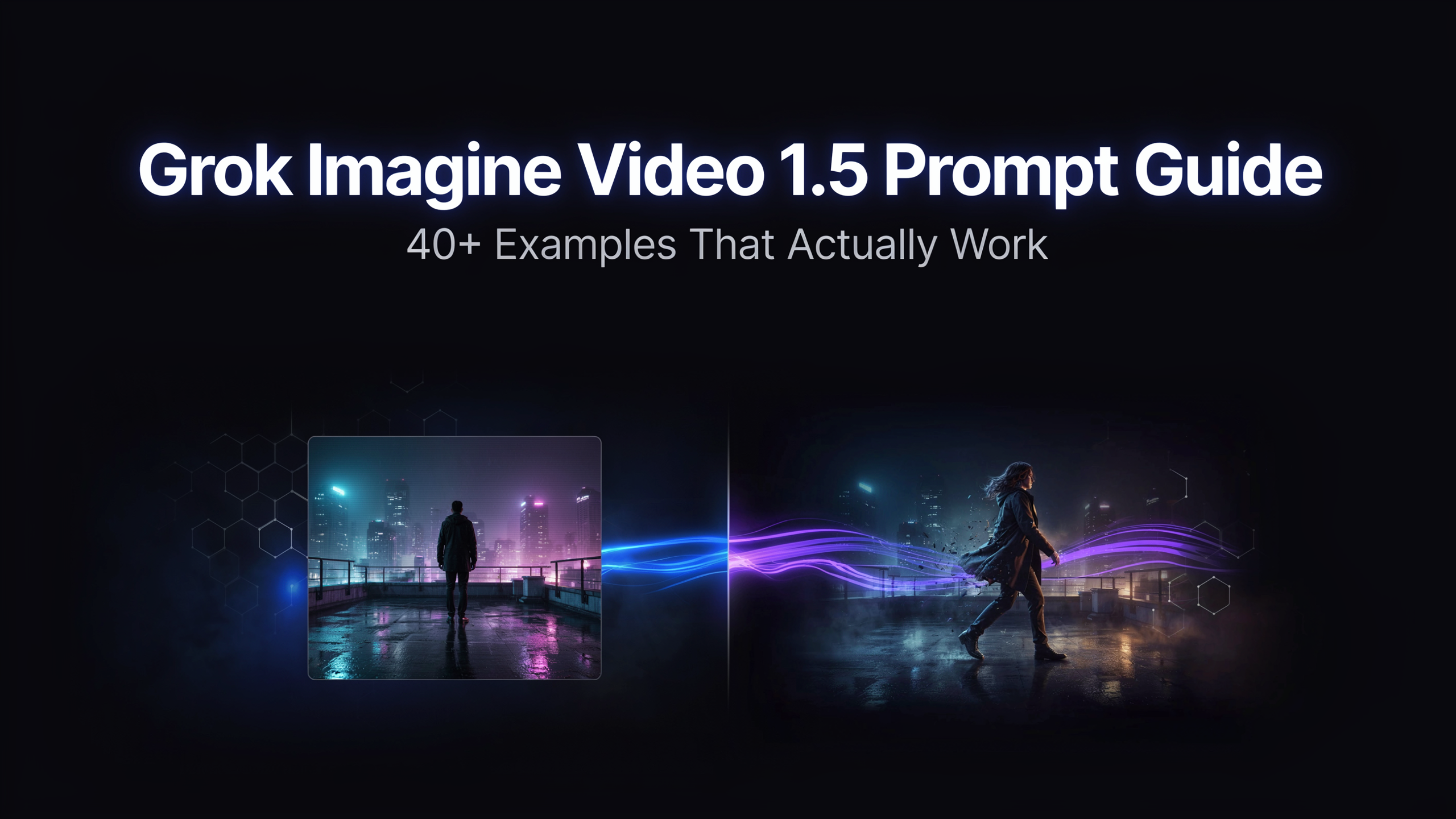
The single biggest factor in your Grok Imagine Video 1.5 prompt results isn’t the source image — it’s the words you type. Grok Imagine Video 1.5, xAI’s #1-ranked image-to-video model (Elo ~1,330 on the Arena leaderboard), follows motion instructions with unusual precision. The right prompt turns a strong still frame into a cinematic, audio-complete clip in under a minute. The wrong one wastes a generation and returns a flat, barely-moving image. This Grok Imagine Video 1.5 prompt guide covers every pattern that works: the core formula, motion verbs, camera moves, atmosphere controls, audio triggers, prompt length strategy, 40+ copy-ready examples by use case, the mistakes that burn credits, and a full reference table you can use immediately.
Try these prompts on Grok Imagine Video 1.5 — free credits included
How Grok Imagine Video 1.5 Reads Your Prompt
Before writing a single word, understand what the model is actually doing with your input. Grok Imagine Video 1.5 is built on the Aurora autoregressive engine and designed as an image-first model: the source frame carries your subject, composition, color palette, and style. Your prompt only needs to supply what the still image cannot — motion, camera behavior, atmospheric additions, and mood direction.
Two things follow in practice:
1. Don’t redescribe the image. If your still shows a woman in a red dress standing in a forest, your prompt doesn’t need “woman in red dress, forest background.” The model sees the image. Redescription wastes prompt space and adds noise.
2. Direct, don’t describe. “Camera slowly pushes in” works. “Cinematic and dynamic” doesn’t. The model responds to specific instructions, not aesthetic adjectives without a physical referent.
The Core Prompt Formula
Every effective Grok Imagine Video 1.5 prompt contains some combination of these four elements — not all four are required every time, but understanding each one gives you full control:
Element | What it controls | Example |
|---|---|---|
Motion verb | What moves and how |
|
Camera instruction | How the shot is framed and moves |
|
Atmosphere | Environmental additions to the frame |
|
Mood / audio cue | Emotional direction and sound |
|
Grok Imagine Video 1.5 Prompt Length Strategy
One of the most common mistakes in this prompt guide’s experience is treating every generation the same way. The correct approach depends entirely on what your source image already provides.
When to Use a Short Prompt (1–8 words)
Use a short, verb-led prompt when your source image already carries the aesthetic: the lighting is right, the color grade is set, the mood is clear. Extra words add noise and can override what the image already communicates.
Best short prompt structure: [subject] + [action verb]
“the horse rears.”“rain falls.”“she blinks slowly.”
When to Use a Long Prompt (20–60 words)
Use a long, structured prompt when you’re directing a specific cinematic look the source image doesn’t already carry — a color grade, lighting style, camera movement, or environmental effect. Front-load the elements the model can’t infer from a still frame.
Best long prompt structure:[camera move] + [lighting/grade] + [atmosphere] + [subject motion] + [audio]
“Slow cinematic push-in, dramatic backlighting with deep shadows and rim highlights, dust particles swirling around the subject, camera rotating clockwise, low atmospheric rumble in the audio.”
The One-Line Rule
Short prompt for strong images. Long prompt for directed looks.
When in doubt, start short. If the output is flat or missing an element, add one specific instruction at a time — don’t jump from three words to fifty in one go.
Situation | Prompt length | Reason |
|---|---|---|
Strong source image with existing look | Short | More words compete with what’s already there |
Source needs a specific aesthetic added | Long | Model can’t infer a color grade from a still |
Locked-camera, minimal motion | Short | Verb + camera lock is all that’s needed |
Multi-part camera move | Medium–Long | Each beat of the path needs to be named |
Illustrated or surreal source | Short | These sources carry their own strong aesthetic |
Motion Verbs: The Engine of Every Prompt
The motion verb is the most important word in any Grok Imagine Video 1.5 prompt. Without a clear verb, the model defaults to minimal motion — a barely-animated still that wastes the generation.
High-Performance Motion Verbs by Category
Human subjects:turns, smiles, blinks, nods, walks, runs, jumps, lands, reaches, looks up, looks down, breathes, laughs, waits
Animals:rears, bucks, leaps, prowls, shakes, stretches, turns its head
Objects and environment:falls, drifts, sways, spins, rises, flows, ripples, flickers, collapses
Verb Precision Matters
Vague | Specific | Why it’s better |
|---|---|---|
|
| Direction, speed, and axis all defined |
|
| Two discrete physical events |
|
| Model knows exactly what to animate |
Camera Instructions: How to Control the Shot
Grok Imagine Video 1.5 follows explicit camera instructions more reliably than almost any other image-to-video model. This is one of its clearest competitive advantages — use it deliberately.
Camera Move Reference
Move | Prompt instruction | Effect |
|---|---|---|
Push in |
| Subject grows larger, creates intimacy |
Pull back |
| Context expands, creates scale |
Orbit |
| 360° reveal, product showcase |
Pan left/right |
| Reveals new content, landscape sweep |
Rise |
| Aerial reveal, establishing shot feel |
Static |
| Locks frame, all motion is subject-driven |
Combined |
| Multi-beat cinematic move |
Locking the Camera: The Right Way
A static camera puts all attention on subject motion and makes audio sync more reliable. Use the negative instruction form only:
Instruction | Works? | Why |
|---|---|---|
| ✅ | Negative instruction reliably locks the frame |
| ✅ | Reinforced negative lock |
| ❌ | Interpreted as smooth-motion description; camera may drift |
| ❌ | Same issue — not a lock instruction |
Multi-Part Camera Moves
Script the path as a comma-separated sequence, two or three beats maximum:
“Camera orbits the subject and pushes in, then pulls back slowly to reveal the full environment, sweeping studio light throughout.”
More than three beats may collapse or be skipped.
Test your camera instructions free on JXP
Atmosphere: Adding What the Still Can’t Show
Atmosphere prompts add physical environmental elements the still image can’t show — rain, dust, heat shimmer — making a clip feel alive rather than simply animated.
High-Impact Atmosphere Prompts
Effect | Prompt phrase | Best used with |
|---|---|---|
Dust |
| Action, athletic, western |
Rain |
| Drama, romance, urban |
Fog / haze |
| Mystery, forest, horror |
Heat shimmer |
| Desert, summer, industrial |
Particles |
| Fantasy, luxury, beauty |
Wind |
| Portrait, outdoor, emotion |
Water |
| Nature, calm, meditation |
Smoke |
| Industrial, moody, cinematic |
Stacking rule: two or three elements maximum: [primary physical effect] + [lighting behavior] + [audio texture]
“Dust particles swirl around the subject, dramatic backlighting with deep shadows, low atmospheric rumble.”
Audio Triggers: Getting Native Sound to Fire
Native audio fires on most clips but not all. These techniques improve the probability that synced SFX appear.
What Controls Audio Output
What’s physically happening — impacts, footsteps, and contact sounds trigger SFX most reliably
Environmental context — outdoor scenes return ambient sound more often than controlled studio scenes
Explicit audio prompts — naming a sound increases its firing probability
Audio Prompt Techniques
Name the sound explicitly:
"board clatter and crowd noise as the skateboarder lands"
Describe the environment’s acoustic character:
"quiet indoor room tone"/"outdoor wind and distant traffic"
Pair audio with physical impact:
"the door slams shut, sharp impact sound"
Add mood-based audio direction:
"tense, low ambient hum"/"warm, soft atmospheric music"
When Audio Won’t Fire Reliably
Emotion-led prompts return music-only outputs more frequently. If synced SFX are critical, choose a prompt with a clear physical event and plan a fallback audio pass for client-facing deliverables.
40+ Grok Imagine Video 1.5 Prompt Examples by Use Case
All prompts below are copy-ready and original. Paste directly into the generator or adjust the verb and camera instruction for your source image.
Portrait & Character Animation Prompts
“She turns slowly toward the camera and smiles, soft window light, strands of hair drifting in a gentle breeze, shallow focus, quiet ambient room sound.”
“He looks up from the book, eyes catching the light, camera not moving, warm golden-hour tone.”
“She exhales slowly, a faint mist forming in the cold air, locked camera, dim ambient sound.”
“He nods once, eyes calm, the light shifts slightly across his face, camera not moving.”
“She reaches up slowly and tucks her hair back, soft window light, locked camera, quiet room tone.”
Tip: Always add "camera not moving" for portraits unless you want a camera move — it reduces identity drift and keeps facial detail stable.
Product & Ecommerce Prompts
“The perfume bottle rotates slowly clockwise, soft studio light gliding across the glass, subtle reflections, faint ambient hum, camera locked.”
“Slow cinematic push-in on the sneaker, dramatic underlighting, dust particles rise from the sole, dark background.”
“Steam rises from the coffee cup, camera not moving, warm morning light, soft ambient café sound.”
“The watch rotates on a dark surface, light catches the dial, camera slowly orbiting, premium ambient hum.”
“The bag opens slowly, the lining reveals, soft diffused light, camera locked, subtle fabric sound.”
Tip: "camera locked" or "camera orbiting" are the most reliable configurations for product shots. Avoid fast motion — it competes with product detail.
Cinematic Action Prompts
“Cinematic slow motion, dust particles swirl around the subject, dramatic backlighting, camera slowly pushes in, deep shadow contrast, volumetric haze.”
“The skateboarder lands the jump, board clatter synced to impact, dust kicks up, low dynamic angle, camera not moving.”
“The door slams shut, a sharp impact sound, dust falls from the ceiling, camera locked on the door.”
“The boxer’s glove connects, slow motion impact, sweat scatters in the air, dramatic side lighting, camera not moving.”
“The car door closes with a solid thud, camera locked, dust settles, warm backlight.”
Tip: Action prompts are where native audio fires most reliably. Clear impact verbs — lands, slams, crashes — consistently trigger synced SFX.
Surreal & Stylized Art Prompts
“She’s chewing, bored, camera not moving.”
“The creature blinks slowly, iridescent scales catching the light, subtle breathing motion, ambient forest sound, locked camera.”
“The robot turns its head, LED eyes flickering, mechanical whir sound, locked camera.”
“The painted figure raises one hand slowly, brushstroke textures shifting, camera not moving.”
“The mask tilts slightly, dramatic side light, dust particles in the air, locked camera.”
Tip: Locked-camera + minimal motion is most reliable for non-photoreal sources. Long prompts can push surreal art toward a photoreal look — keep it short.
Emotional & Narrative Prompts
“He waits on the bench, head down, the wind moves his coat, camera not moving.”
“She reads the letter, her expression shifts slowly, soft window light, camera barely pushing in.”
“He sets down the coffee cup and stares out the window, camera not moving, overcast morning light.”
“She closes her eyes for a moment, the light fades slightly, locked camera, soft ambient room sound.”
“He stands at the door without opening it, the wind moves his coat, camera locked, distant ambient sound.”
Tip: Emotion-led prompts often return music-only outputs. Plan a fallback audio pass for narrative content that requires specific sound.
Nature & Environment Prompts
“The leaves fall slowly through the autumn light, camera not moving, wind rustle sound.”
“Waves crash against the rocks in slow motion, ocean spray, dramatic overcast sky, ambient sea sound, camera locked.”
“The fog rolls through the forest, early morning light filtering through the trees, camera slowly pushing in.”
“Snow falls gently across the frame, cold ambient silence, camera not moving, overcast flat light.”
“The grass sways in the wind, golden hour backlight, camera locked, soft outdoor ambient sound.”
Tip: Environmental sounds (wind, ocean, rain) fire more reliably than complex diegetic SFX — nature scenes are ideal for testing audio generation.
Creative & Experimental Prompts
“The mirror reflects a different angle of the room, slow camera push, ambient hum, soft overhead light.”
“The hourglass sand falls in slow motion, camera locked, warm diffused light, soft ticking ambient.”
“The old photograph comes to life, subtle motion in the eyes, camera not moving, crackle ambient sound.”
“Ink spreads slowly through water, camera locked, diffused light, no sound.”
“The candle flickers in a dark room, camera not moving, warm ambient crackle, single light source.”
Tip: Abstract prompts work best with a locked camera and a single physical event. Let the source image carry the concept.
Generate your first clip with these prompts — free on JXP
Complete Grok Imagine Video 1.5 Prompt Reference Table
Goal | Prompt pattern | Copy-ready example |
|---|---|---|
Trigger subject motion |
|
|
Direct camera move |
|
|
Lock camera |
|
|
Add emotion | Mood adjective on subject |
|
Define grade | Stack look descriptors |
|
Add atmosphere | Physical environmental effect |
|
Trigger audio | Name the sound + event |
|
Portrait animation | Motion + light + room tone |
|
Product reveal | Camera move + material detail |
|
Multi-beat camera | Sequence with commas |
|
Lock subject | Negative instruction |
|
Surreal / illustrated | Short verb, locked camera |
|
Heat shimmer | Environmental effect |
|
Water effect | Surface motion |
|
6 Prompt Mistakes That Waste Credits
Mistake 1: Redescribing the Source Image
The model sees your image. Every word spent redescribing the frame is a word not spent directing the motion. Start with the verb — always.
Mistake 2: Aesthetic Adjectives Without Physical Referents
"Cinematic and dramatic" tells the model nothing actionable. Replace every adjective with an event: "camera pushes in, deep shadow contrast, dust particles" gives three specific physical instructions.
Mistake 3: Contradictory Camera Instructions
"Camera orbits and stays still" produces unpredictable results. One coherent camera path per shot. For multi-beat moves, sequence the beats with commas in the correct order.
Mistake 4: Prompting for 4K or Ultra-High Detail
Grok Imagine Video 1.5 outputs at 480p or 720p maximum. Writing "4K, ultra-detailed, 8K resolution" burns a generation and returns the same resolution. Remove resolution requests entirely — use the resolution selector in the interface.
Mistake 5: Expecting Guaranteed Lip-Sync From Image-to-Video
Native audio fires reliably on physical events. Lip-synced dialogue from a still is inconsistent. Build dialogue-driven content on a text-to-video model instead.
Mistake 6: Over-Prompting a Strong Source Image
A well-lit, well-composed frame with strong color already has the look. Three words can unlock the motion without overriding it. Start short; add one element at a time if the output needs adjustment.
Frequently Asked Questions
What is the best prompt structure for Grok Imagine Video 1.5?
Motion verb + camera instruction + atmosphere + audio cue. Not all four are needed every time — strong source images often need only a verb. Start short and add elements one at a time until the output matches your intent.
How long should a Grok Imagine Video 1.5 prompt be?
Match prompt length to image strength. Strong image = short prompt (1–8 words). Directed look = long prompt (20–60 words). Avoid the 10–15 word middle ground — it often produces vague results where neither the image nor the prompt fully controls the output.
How do I get native audio to fire in Grok Imagine Video 1.5?
Name the sound explicitly, pair it with a physical impact event, and describe the environment’s acoustic character. Action-heavy prompts — impacts, contact sounds, environmental effects — return synced SFX most reliably. Emotion-led prompts return music-only more often. Always plan a fallback audio pass for client-facing work.
How do I lock the camera in Grok Imagine Video 1.5?
Use "camera not moving" rather than "stable camera" or "steady shot." Negative instructions lock the camera more reliably than passive descriptions. Add "subject frozen" if you also need the subject to remain still.
Does prompt order matter in Grok Imagine Video 1.5?
Yes. The model gives more weight to elements that appear earlier. Put the most important instruction first — usually the motion verb or camera move. Place atmosphere and audio cues at the end.
Why is my Grok Imagine Video 1.5 prompt producing a flat result?
The most common causes: no clear motion verb, aesthetic adjectives without physical events, or redescribing the source image instead of directing what should change. Add a specific action verb and one explicit camera instruction, then regenerate.
How do I animate illustrated or non-photoreal art in Grok Imagine Video 1.5?
Use a short prompt with a locked camera and a single motion verb. The minimal configuration ("she blinks, camera not moving") is the most reliable setup for stylized sources. Long prompts on illustrated art can push the output toward a photoreal look — keep it short and specific.
Can I use the same Grok Imagine Video 1.5 prompt for different source images?
The structure transfers, but prompt length may not. A well-composed image needs a shorter prompt than a flat one. Test each new source with a short verb-led prompt first, then refine by adding one element at a time.
What’s the difference between “camera not moving” and “stable camera”?
"Camera not moving" is a negative instruction that locks the frame reliably. "Stable camera" is interpreted as a smooth-motion description — the camera can still drift or float. Always use the negative instruction form to lock the camera.
Final Thoughts
A strong Grok Imagine Video 1.5 prompt does one thing: it directs what the model can’t infer from the still image. Motion verbs fire the action. Camera instructions control the shot. Atmosphere elements add what the frame can’t show. Audio cues improve the chance that native sound fires and syncs. Keep prompts specific, keep camera paths coherent, and match prompt length to your source image’s strength. The reference table and 40+ copy-ready examples in this Grok Imagine Video 1.5 prompt guide give you a working foundation — the fastest way to build on it is to run them on your own source images and iterate from there.
Start with the Grok Imagine Video 1.5 prompt guide — free credits on JXP