How to use Grok Imagine Video 1.5 is one of the most common questions from creators who’ve seen its #1 ranking on the Image-to-Video Arena leaderboard (Elo ~1,330, a +52 jump over version 1.0) and want to replicate those results themselves. Released by xAI on May 31, 2026, Grok Imagine Video 1.5 turns a single still image into a short, audio-complete clip in under a minute — no separate sound step, no complex pipeline. This guide covers the full image-to-video workflow, the prompt patterns that actually work, how native audio behaves, the resolution and credit settings that decide your output quality, and an honest side-by-side with Sora 2, Veo 3.1, Seedance 2, and Wan 2.7.
👉 Try Grok Imagine Video 1.5 Free on JXP →
TL;DR — Grok Imagine Video 1.5 at a Glance
What it is: xAI’s image-to-video model built on the Aurora autoregressive engine — upload a still, write a motion prompt, get a clip with native synchronized audio.
Why it matters: #1 on the Image-to-Video Arena leaderboard (+52 Elo over v1.0), with fast iteration speed and a low cost per draft.
Resolution & length: 480p or 720p, 1–15 seconds, 24fps.
Credit cost on JXP: 480p = 2 credits/sec · 720p = 3 credits/sec (a 6-second 720p clip = 18 credits).
Best for: Fast drafts, social clips, product reveals, portrait animation, concept art, and previsualization.
Honest ceiling: It caps at 720p — a drafting and iteration engine, not a 4K delivery tool.
What Is Grok Imagine Video 1.5?
Grok Imagine Video 1.5 is the dedicated video generation model inside xAI’s Grok Imagine suite, running on the proprietary Aurora autoregressive engine. The defining idea is that it’s image-first: instead of generating motion from a blank text prompt, you anchor the shot with a real still frame — a photo, product render, concept art, or brand asset — and your prompt only tells the model how that frame should move.
The “1.5” upgrade brought four concrete gains over version 1.0:
Better facial accuracy and character consistency across frames
Tighter audio-visual sync — sound effects timed to on-screen action
Faster, more stable generation with fewer artifacts
Wider stylistic range — surreal, photoreal, and animated sources all handled well
The model generates dialogue, sound effects, ambient sound, and music in the same inference pass — no separate audio tool required. Before you spend a single credit, internalize this:
Grok Imagine Video 1.5 is an image-first model built for short, audio-complete shots. Its core strength is animating a strong still frame with synchronized sound — not generating long narrative sequences from a paragraph of text.
Every recommendation in this guide flows from that one fact.
Note: Grok Imagine Video 1.5 is a different product from Grok Imagine 2.0. Version 1.5 is a fast 480p/720p image-to-video preview workflow; 2.0 targets higher-end cinematic creation with a 4K-focused workflow and longer-form concepts.
How to Use Grok Imagine Video 1.5: Step-by-Step Workflow
The full image-to-video workflow takes under a minute from upload to export. Here’s each step with the decisions that actually affect output quality.
Step 1: Upload Your Source Image
Open the generator on JXP and upload a clear source image in JPG, PNG, or WebP format. This first frame anchors your subject, composition, color palette, and style — so choose a shot where the look is already right.
Strong first frames include:
Portraits with clean lighting and a clear subject
Product shots on a controlled background
Fashion or editorial stills with strong color grading
Concept art and illustrated characters
Cinematic stills with existing mood
The cleaner the starting image, the more reliable your output will be.
Step 2: Write a Motion Prompt
In the prompt box, describe how the image should move. With this model you’re directing — not redescribing the scene the image already shows. Name the action verb, the camera movement, the lighting behavior, and the atmospheric detail you want added.
The one-line rule:
Short, action-focused prompts for strong images. Long, cinematic prompts when you’re directing a specific look.
See the full prompt guide in the section below.
Step 3: Choose Resolution and Duration
Grok Imagine Video 1.5 offers two resolution options and a flexible duration range:
Setting | Resolution | Credits/sec | Best for |
|---|---|---|---|
Draft | 480p | 2 credits | Idea testing, fast iteration |
Preview | 720p | 3 credits | Social posts, client review, pitch decks |
Duration runs from 1 to 15 seconds. Most effective clips land between 5–8 seconds — long enough for a complete motion beat, short enough to stay within the model’s coherence window.
Credit math: A 6-second 720p clip costs 18 credits. A 6-second 480p clip costs 12 credits. Match your settings to the job to keep generations efficient.
Step 4: Generate and Review the Output
Generation runs in under a minute for standard clips. When the output returns, check these three things in order:
Motion quality in seconds 0–2 — most generation artifacts appear at the start of the clip
Audio sync — do sound effects match the on-screen action timing?
Face fidelity under motion — the most common weak point is facial softening during fast movement
If any of these fail, adjust the prompt before regenerating — not the source image.
Step 5: Iterate or Export Your Final Clip
The model is built for fast iteration, so treat every first pass as a draft:
Close but not right: adjust the motion verb or camera direction and regenerate
Good for social or draft: download the finished MP4 — 720p is native and sufficient for most digital use
Need 1080p+ final delivery: use the approved concept as a brief, then recreate in a higher-resolution model like Veo 3.1
👉 Start Your First Clip — Free Credits Included →
Grok Imagine Video 1.5 Prompts: Patterns That Work
Prompting this model is different from most image-generation tools. It doesn’t need you to redescribe what’s already in the frame — it needs motion direction, camera instruction, and occasionally mood.
Two Prompt Extremes (Both Work)
Long cinematic prompt — use when directing a specific look the source image doesn’t already carry:
“Slow cinematic push-in on the perfume bottle, soft drifting studio light, subtle reflections sliding across the glass, shallow depth of field, premium luxury mood, faint ambient hum, camera rotating slowly clockwise.”
Minimal motion prompt — use when the image already nails the look and all you need is the verb:
“the leaves fall.”
Both produce high-quality clips. The difference is whether you’re directing aesthetics (long) or triggering motion on a strong source frame (short).
Prompt Pattern Table
Goal | Pattern | Copy-Ready Example |
|---|---|---|
Trigger motion | Lead with a verb |
|
Direct the camera | Name the move explicitly |
|
Lock the camera | Use a negative instruction |
|
Add emotion | Include mood adjectives |
|
Define cinematography | Stack look descriptors |
|
Control atmosphere | Add environmental detail |
|
Portrait animation | Motion + light + ambient |
|
What to Avoid
Redescribing what’s already in the image — waste of prompt space, adds noise
Contradictory camera moves in one shot — pick one coherent path
Expecting guaranteed audio — native SFX fires on most clips, not all; plan a fallback audio pass for client work
Dialogue and lip-sync from image-to-video — inconsistent; use a text-to-video model for speech-driven content
Grok Imagine Video 1.5 Use Cases: 5 Workflows With Copy-Ready Prompts
1. Cinematic Action — Lock a Film Grade Onto Real Motion
Best for: Social content, brand visuals, mood-driven scenes
Prompt:
“Cinematic slow motion, dust particles swirl around the subject, dramatic backlighting, camera slowly pushes in.”
The model excels at carrying a color grade and environmental physics from a still into motion. Lighting continuity holds across the full clip length, and synced ambient audio fires reliably on action-heavy frames.
Bottom line: Use this for mood-first content where the aesthetic is the story — product reveals, brand films in draft, editorial sequences.
2. Surreal & Stylized Concepts — Animate Non-Photoreal Art
Best for: Concept art, brand mascots, illustrated characters
Prompt:
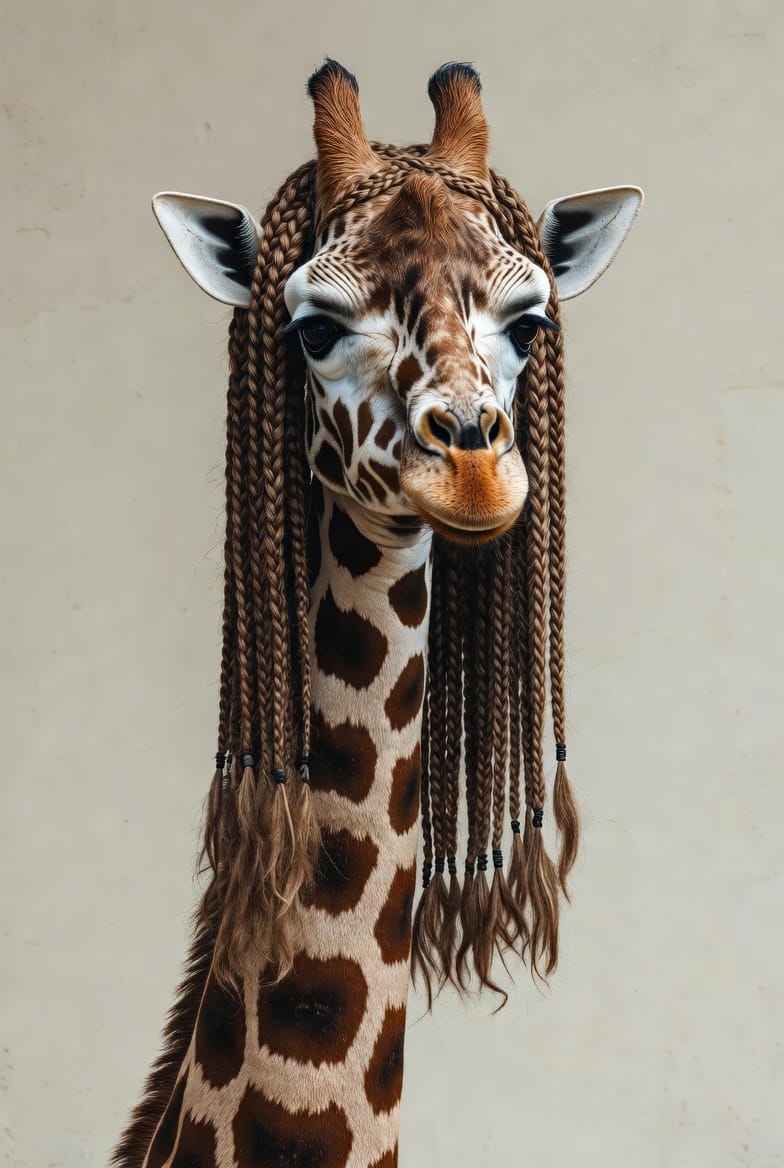
“she’s chewing, bored, camera not moving.”
It handles surreal and illustrated sources as confidently as photography. On simple locked-camera prompts, it delivers clean audio sync and keeps stylized elements — unusual textures, non-standard anatomy — coherent across frames.
Bottom line: One of the few AI video models that doesn’t degrade non-photoreal source art. Strong choice for animated brand assets and concept loops.
3. Emotional Narrative — Animate a Mood in Five Words

Best for: Social storytelling, micro-narratives, character studies
Prompt:
“he waits on the bench, head down, the wind moves his coat.”
Grok Imagine Video 1.5 reads emotional cues into motion pace and posture, not just the literal action. Identity and clothing hold without morphing across a full 6-second clip.
Caveat: Audio is most variable on emotion-led prompts — these clips often return music only, no diegetic SFX.
Bottom line: Emotional storytelling works well; don’t count on ambient sound being present.
4. Physical Action — Trigger Dynamic Motion From a Single Verb
Best for: Action content, sports clips, product demos, dramatic beats
Prompt:
“the skateboarder lands the jump.”
One verb triggers believable physics with synced audio — board clatter, kicked-up dust, secondary motion in clothing and hair. Short and loopable, ideal for a 3–5 second social clip.
Bottom line: Single-verb prompts unlock strong action physics. Plan each shot as a short, complete beat.
5. Camera Control — Execute a Multi-Part Camera Move
Best for: Cinematic B-roll, product showcases, dramatic reveals
Prompt:
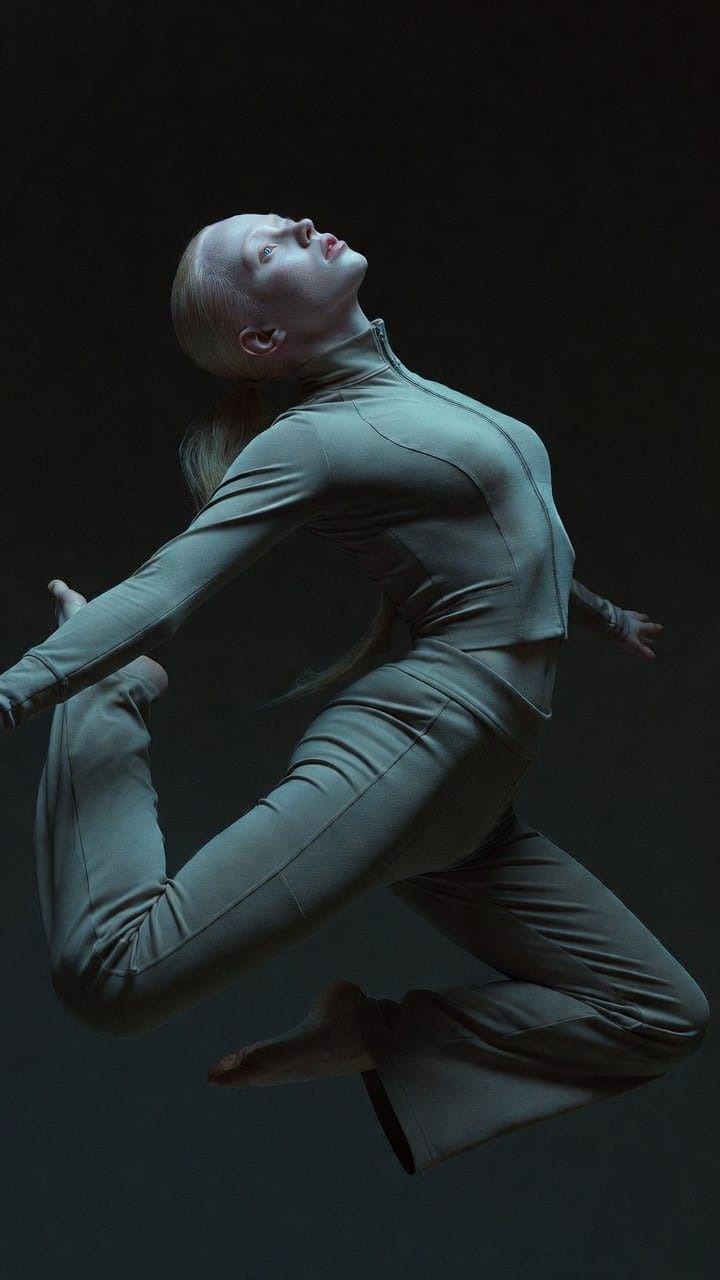
“Subject stays still while the camera orbits and pushes in, then pulls back to reveal the full pose, bright sweeping light, dark background throughout.”
The model executes multi-part camera paths — orbit, push-in, pull-back — in one coherent shot. Material photorealism is high when the source frame is strong.
Caveat: “Still” subjects aren’t perfectly rigid; expect subtle drift in extreme close-ups.
Bottom line: Script your camera path explicitly and the model follows it. One coherent move per shot.
👉 See How It Compares — Generate Your First Clip Now →
Grok Imagine Video 1.5 vs Competitors: When to Use Each Model
Scenario | Best Model | Why |
|---|---|---|
Social short-form (TikTok/Reels/Shorts) | Grok Imagine Video 1.5 ✅ | 720p sufficient; fast, low cost per clip |
Ad concept drafts & rapid iteration | Grok Imagine Video 1.5 ✅ | One of the most cost-efficient ways to test ideas |
Image-to-video (photo → motion) | Grok Imagine Video 1.5 ✅ | #1 on I2V Arena leaderboard |
Stylized / surreal / concept art | Grok Imagine Video 1.5 ✅ | Handles non-photoreal sources well |
Product reveals & ecommerce stills | Grok Imagine Video 1.5 ✅ | Push-ins and rotations from a single frame |
Premium 1080p+ brand film delivery | Veo 3.1 | True 4K, strong 48kHz native audio, chained extension |
Long narrative (>15 seconds) | Veo 3.1 | Chains to 140+ seconds |
Physics-heavy narrative shots | Sora 2 | Superior object weight and momentum |
Multi-reference / dialogue-heavy work | Seedance 2 | Deep multimodal reference system, up to 9 reference images |
Self-hosted / unrestricted production | Wan 2.7 | Open-source Apache 2.0, on-prem deployable |
The professional workflow: Draft on Grok Imagine Video 1.5 for speed and cost efficiency. Graduate the winning concept to Veo 3.1 or Sora 2 when the brief demands 4K delivery or extended length.
Grok Imagine Video 1.5 Limitations
A leaderboard ranking won’t warn you about these:
720p is the hard ceiling. No 1080p, no 4K. Fine for web and social; a firm wall for broadcast or big-screen delivery.
Faces soften under fast motion. High-frequency facial detail is first to go when the body moves quickly. Hero face-forward close-ups carry risk.
Native audio fires on most clips, not all. Roughly 3 out of 5 clips return synced SFX; the rest come back music-only. Plan a fallback audio pass for any client-facing deliverable.
Short clip window. The 1–15 second range is a creative constraint — design each shot as a short, complete beat, not an excerpt from a longer sequence.
Preview behavior can shift. xAI can update output characteristics without notice. Lock your best prompts and source images as soon as you find combinations that work.
Common Mistakes That Waste Credits
Prompting for 4K. The model tops out at 720p — adding “ultra-detailed 4K” burns a generation and returns the same resolution.
Over-prompting a strong image. If the still already carries the look, fewer words produce better results.
Stacking contradictory camera moves. One coherent path per shot.
Building a talking-head workflow on image-to-video. Audio is supported; reliable lip-sync from a still is not. Use a text-to-video model for dialogue-driven content.
Treating Preview outputs as final. It’s still in Preview — outputs can drift between sessions. Save every prompt and source-frame combination that works.
Frequently Asked Questions
Is Grok Imagine Video 1.5 free to try?
Yes — you can start with free credits on JXP, then top up with a one-time credit pack from $10. No monthly subscription is required. Going direct through xAI requires a SuperGrok plan, so JXP is the lower-friction path to your first clip.
What resolution does Grok Imagine Video 1.5 output?
It supports 480p and 720p at 24fps, with clip durations from 1 to 15 seconds. There is no 1080p or 4K option in the current Preview. For higher-resolution final delivery, use Veo 3.1.
How much does Grok Imagine Video 1.5 cost per clip?
On JXP: 480p costs 2 credits per second and 720p costs 3 credits per second. A 6-second 480p clip = 12 credits; a 6-second 720p clip = 18 credits. One-time credit packs start from $10.
Does Grok Imagine Video 1.5 generate audio automatically?
Yes — native synchronized audio (sound effects, ambient sound, and music) is generated in the same inference pass as the video. Audio isn’t guaranteed on every clip; roughly 3 in 5 return synced SFX. Treat it as a strong bonus, and plan a fallback audio pass for client-facing work.
How does Grok Imagine Video 1.5 compare to Veo 3.1?
It’s faster, cheaper, and #1 on the image-to-video leaderboard. Veo 3.1 outputs true 4K, has strong native audio at 48kHz, and supports chained clips up to 140+ seconds. Draft on Grok Imagine Video 1.5; finish on Veo 3.1 when the shot demands it.
What is the difference between Grok Imagine Video 1.5 and Grok Imagine 2.0?
Version 1.5 is a fast image-to-video preview workflow at 480p/720p, optimized for speed and iteration. Grok Imagine 2.0 targets higher-end cinematic creation with a 4K-focused workflow and longer-form concept generation.
Can Grok Imagine Video 1.5 generate dialogue or lip-sync?
It generates native audio, but reliable lip-sync from image-to-video prompts is currently inconsistent. For dialogue-driven content, Sora 2 or Seedance 2 are more dependable options.
What makes Grok Imagine Video 1.5 better than 1.0?
Version 1.5 delivers better facial accuracy and character consistency, tighter audio-visual sync, faster and more stable generation, and an overall quality improvement large enough to take the #1 spot on the Image-to-Video Arena leaderboard — a +52 Elo gain over version 1.0.
Can I use Grok Imagine Video 1.5 outputs commercially?
Clips are generated without a watermark. Commercial licensing, likeness rights, and content-policy terms depend on your specific plan and xAI’s current terms of service. Review those before publishing commercially, especially for real-person likenesses.
What image formats does Grok Imagine Video 1.5 accept?
The generator accepts JPG, PNG, and WebP source images. For best results, use a high-resolution source with clean lighting and a clear subject.
Final Thoughts
Grok Imagine Video 1.5 is among the best image-to-video iteration engines available right now: fast, affordable, audio-complete in a single pass, and ranked #1 on the Arena leaderboard. Use it to draft, animate strong frames, and preview ideas at 480p or 720p — then graduate the winning concept to a 4K model for final delivery. Match your prompt length to the job, direct the camera explicitly, and treat native audio as a high-probability bonus rather than a guarantee. Do those three things and your hit rate will climb fast.
👉 Create Your First Grok Imagine Video 1.5 Clip Free on JXP →