If you’ve been searching for a faster, smarter way to create professional-grade visuals and cinematic videos, learning how to use GPT Image 2 and Seedance 2.0 in JXP is exactly where you should start. JXP brings both of these cutting-edge AI models under one roof, giving creators, marketers, and designers a seamless image-to-video pipeline — no separate accounts, no complex API juggling, just one platform and a clear creative workflow.
In this guide, you’ll learn what GPT Image 2 and Seedance 2.0 actually do, how they work together inside JXP, and how to use them step by step. We’ve included real copy-ready prompts, practical real-world workflows, pro tips, and a full FAQ to help you master UGC videos, product ads, and brand logo animations in minutes.
What Is GPT Image 2 and Why It Matters for Creators
GPT Image 2 is OpenAI’s latest and most advanced native image generation model, launched in April 2026. It represents a fundamental architectural rebuild over its predecessors — not just a minor update. Unlike traditional diffusion-based generators, GPT Image 2 runs image generation natively inside a multimodal neural network, delivering faster output, more precise prompt interpretation, and dramatically better text rendering inside images.
For marketers and content creators, GPT Image 2 means you can describe a campaign visual in plain English and get a near-production-ready image in seconds — without needing a designer or complex prompt engineering.
Key Features of GPT Image 2
Text rendering accuracy above 99%: Solves the long-standing pain point of distorted AI text — perfect for ads, banners, and branded copy.
Reference image mode: Upload reference images to match style, composition, or character appearance with exceptional consistency.
Multiple aspect ratios: Supports 9:16, 16:9, 1:1, 3:4, 4:3 for all social and print platforms.
Inpainting and selective editing: Edit only part of an image instead of regenerating the full composition.
Character Lock & consistency: Maintain subject identity across an entire image series; generate up to 8 unified character assets in one session.
Image Blending: Combine multiple reference images and apply custom moods or styles freely.
Strong design awareness: Outputs are instantly usable for branding, marketing, and campaign deployment.
GPT Image 2 generates images natively at 2K resolution and supports one-click upscaling to 4K, all exported watermark-free with full commercial usage rights.
What Is Seedance 2.0 and What’s New
Seedance 2.0 is ByteDance’s flagship multimodal AI video generation model. Built on a unified audio-video joint generation architecture, it accepts text, images, video clips, and audio as inputs — up to 12 reference assets in one generation — and produces cinematic, multi-shot video with native audio sync and frame-level character consistency. It turns static GPT Image 2 artwork into fluid, lifelike cinematic clips, making it the perfect companion model.
Key Improvements & Core Features of Seedance 2.0
Better prompt following: Understands detailed scene instructions far more accurately than older versions.
Stronger character consistency: People, objects, and visual styles stay stable across every shot.
Smoother natural motion: Movements feel purposeful instead of random or jittery.
Professional camera control: Precisely executes pans, zooms, tracking shots, dolly moves, and cinematic framing.
Enhanced image-to-video conversion: Static reference images transform into believable, immersive animated scenes.
Native audio-video sync: Generates background music, ambient sound, and synchronized dialogue alongside video.
Up to 2K resolution output: Ideal for professional social media, short films, and commercial content.
Short-form optimized: Generates 4–15 second clips perfect for TikTok, Instagram Reels, and YouTube Shorts.
Together, GPT Image 2 and Seedance 2.0 form a complete content production pipeline — from still image to finished video — that previously required a full creative team.
Why Use GPT Image 2 and Seedance 2.0 Together in JXP
The power of this workflow lies in a clear division of creative labor.
GPT Image 2 acts as your visual concept designer and storyboard artist. It turns abstract ideas into high-quality image frames, locking in character, setting, lighting, mood, and composition.
Seedance 2.0 acts as your animation and production layer. It brings static frames to life with dynamic motion, professional camera work, and synchronized audio.
JXP unites both tools in one platform. Generate images in GPT Image 2, then feed them directly into Seedance 2.0 as references — no switching apps, no manual file transfers, no API key management. The result: a full AI content production pipeline — from prompt to polished video — in under 30 minutes.
How To Use GPT Image 2 in JXP: Step-by-Step
Step 1: Access the GPT Image 2 Tool
Navigate directly to the GPT Image 2 generator:
Step 2: Choose Your Generation Mode
Text to Image — Generate visuals entirely from a text prompt.
Reference Image Mode — Upload a reference photo to match style, character, or composition.
Step 3: Write an Effective Prompt
Follow this simple high-conversion prompt structure:
Define subject and core goal
Add layout or framing cues where needed
Stick to one clear visual style
Use natural plain language — clean prompts consistently outperform keyword stuffing
Example — Product visual:
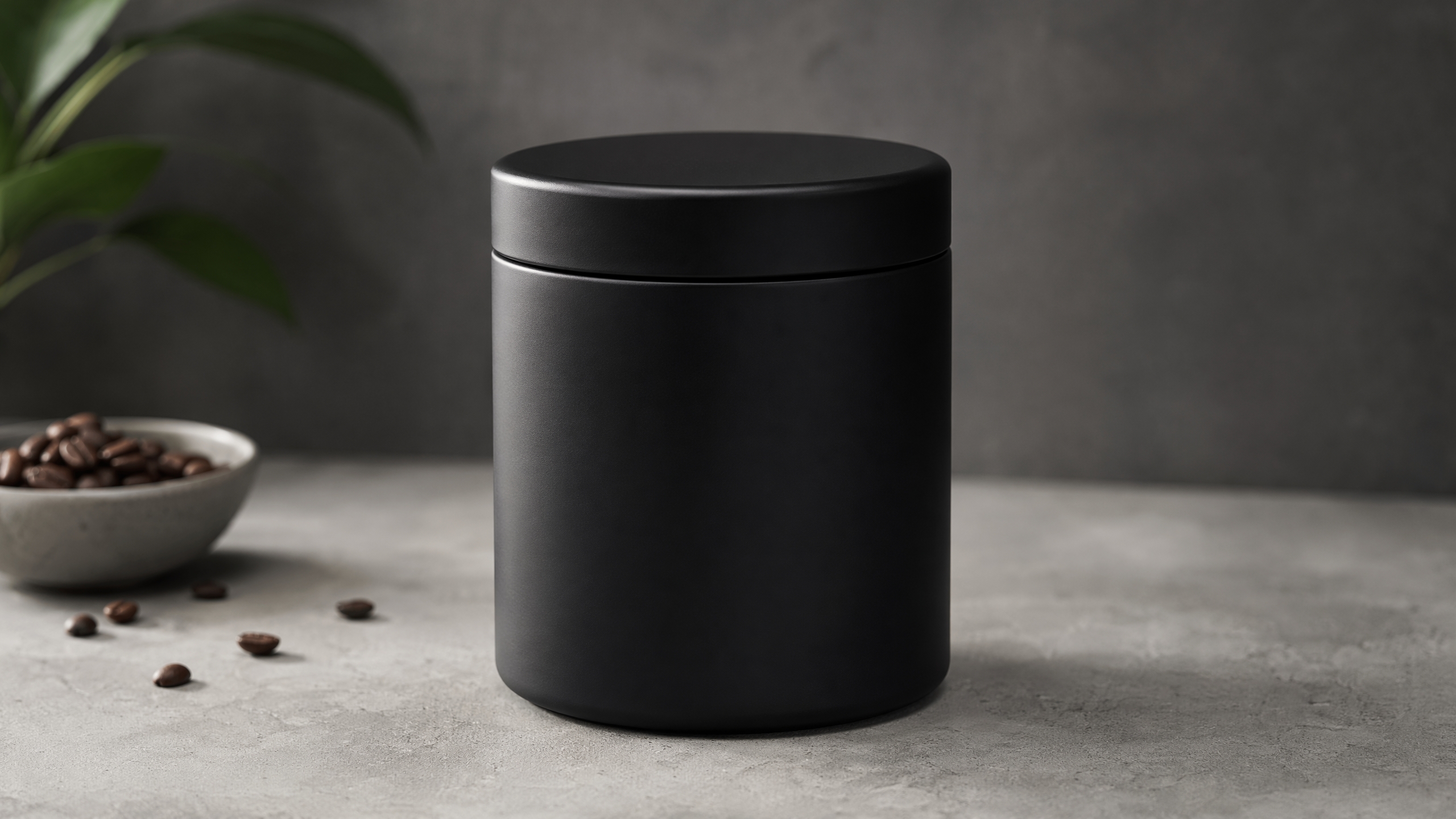
“A premium matte black coffee canister on a brushed concrete countertop, soft studio lighting from the left, minimal background, product photography style, sharp focus, no text.”
Example — Character sheet:
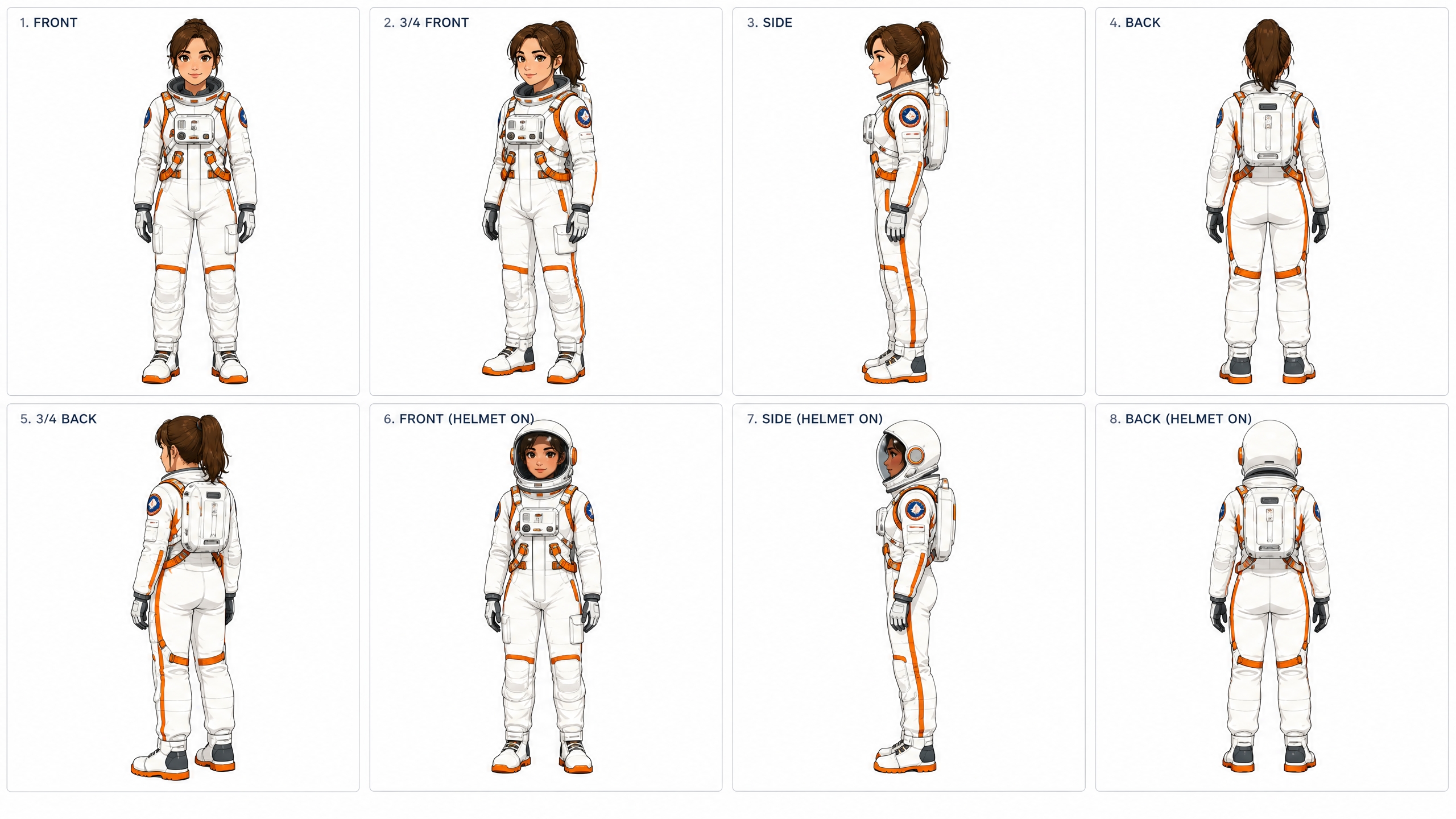
“A young female astronaut in a white and orange spacesuit, facing forward. Clean illustration style with flat color fills and subtle shadow. Full body, white background. 8-panel character consistency sheet.”
Step 4: Select Aspect Ratio and Generate
Pick a ratio for your target platform: 16:9 for widescreen, 9:16 for vertical social, 1:1 for square posts. Click Generate with GPT Image 2.
Step 5: Iterate and Refine
Use the inpainting tool to edit only the flawed sections — faster and more cost-effective than full regenerations for minor adjustments.
Sample GPT Image 2 Outputs with Ready-to-Use Prompts
Output 1 — Urban Fashion Campaign Visual
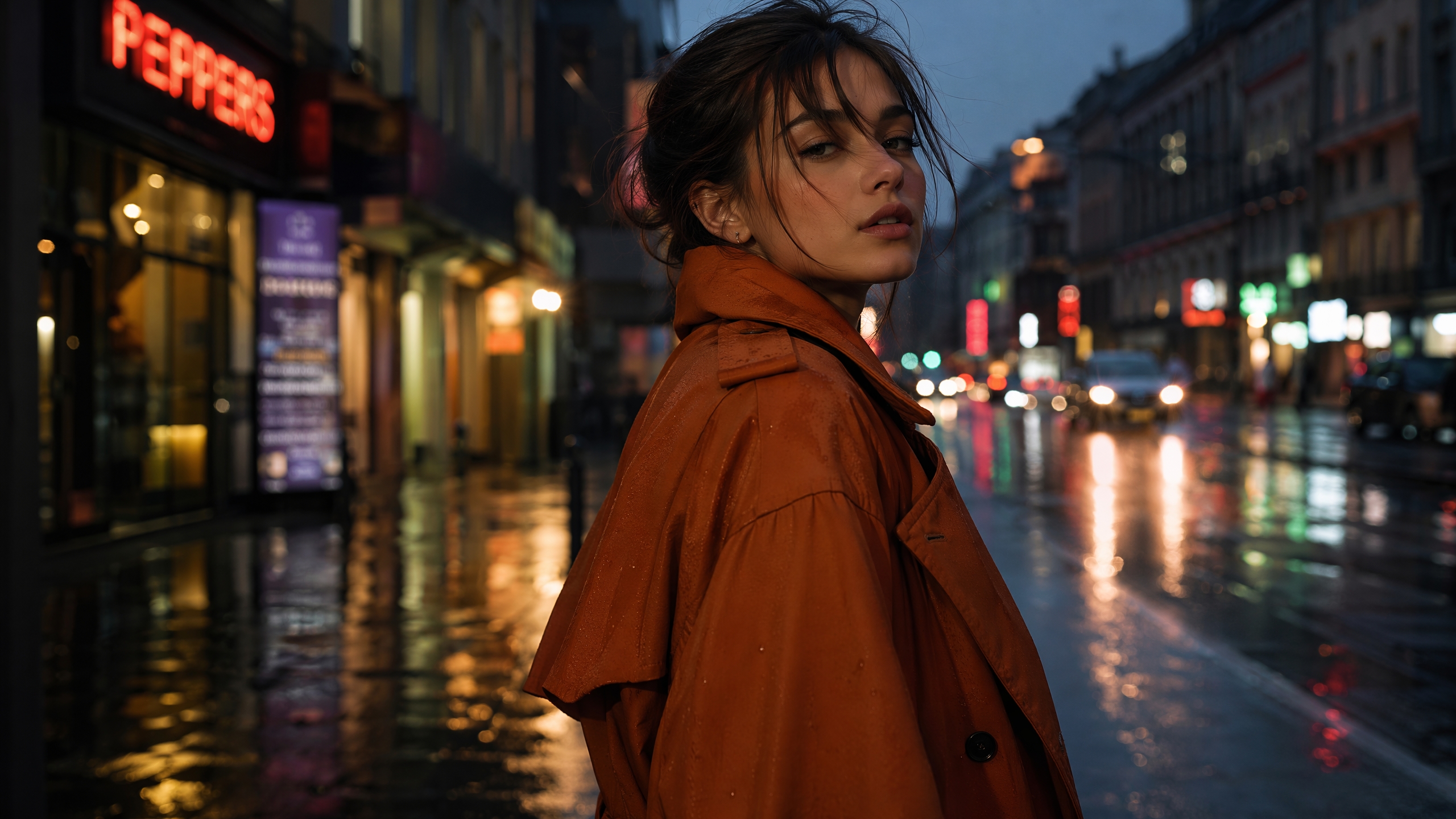
Prompt: “A young woman in a rust-orange oversized trench coat, standing on a rain-slicked street at dusk, neon shop signs reflected on the pavement behind her. Editorial fashion photography style, shallow depth of field, cinematic color grade.”
Use case: Fashion brand autumn collection hero image.
Output 2 — Tech Product Announcement Banner
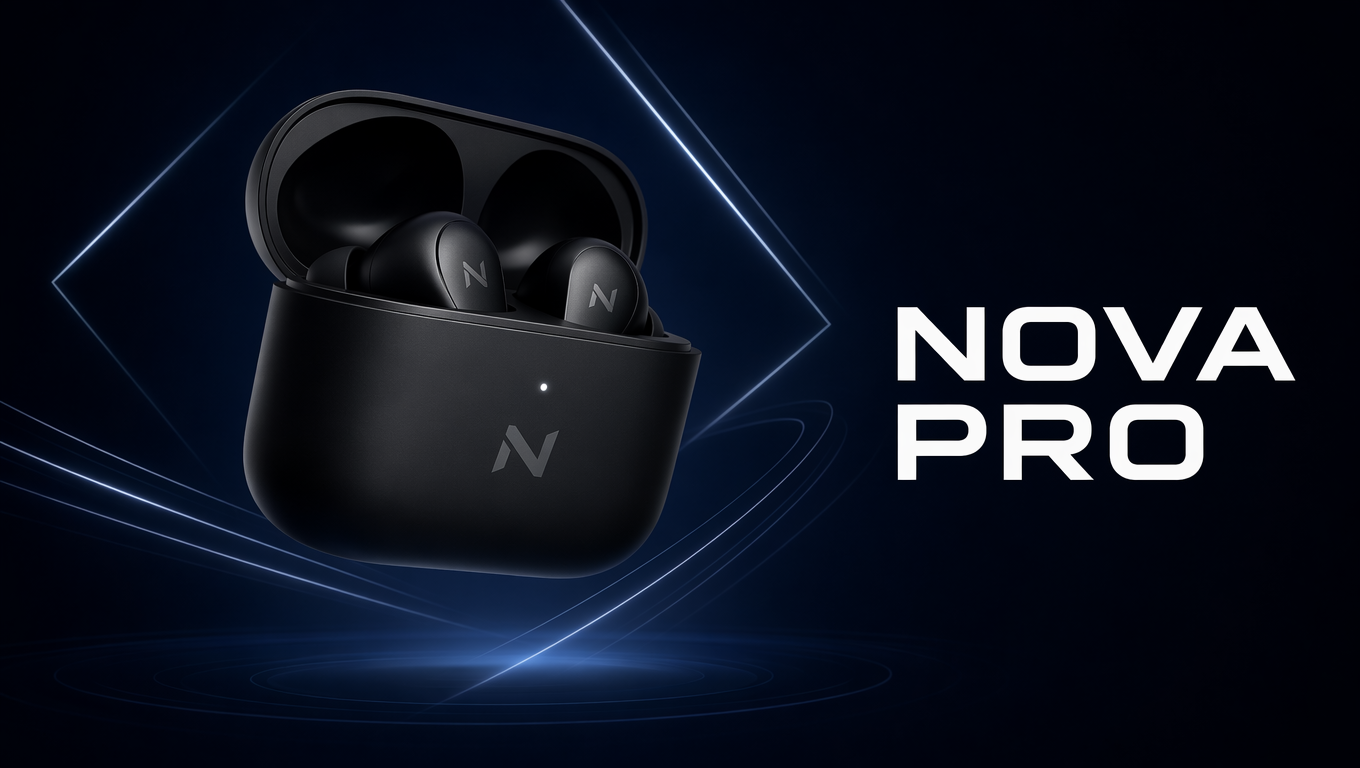
Prompt: “A sleek, matte black wireless earbud case floating against a deep navy background, surrounded by subtle geometric light trails. Bold sans-serif text reads ‘NOVA PRO’ in white. Minimal, futuristic product design aesthetic.”
Use case: Tech product launch announcement banner.
Output 3 — Educational Infographic
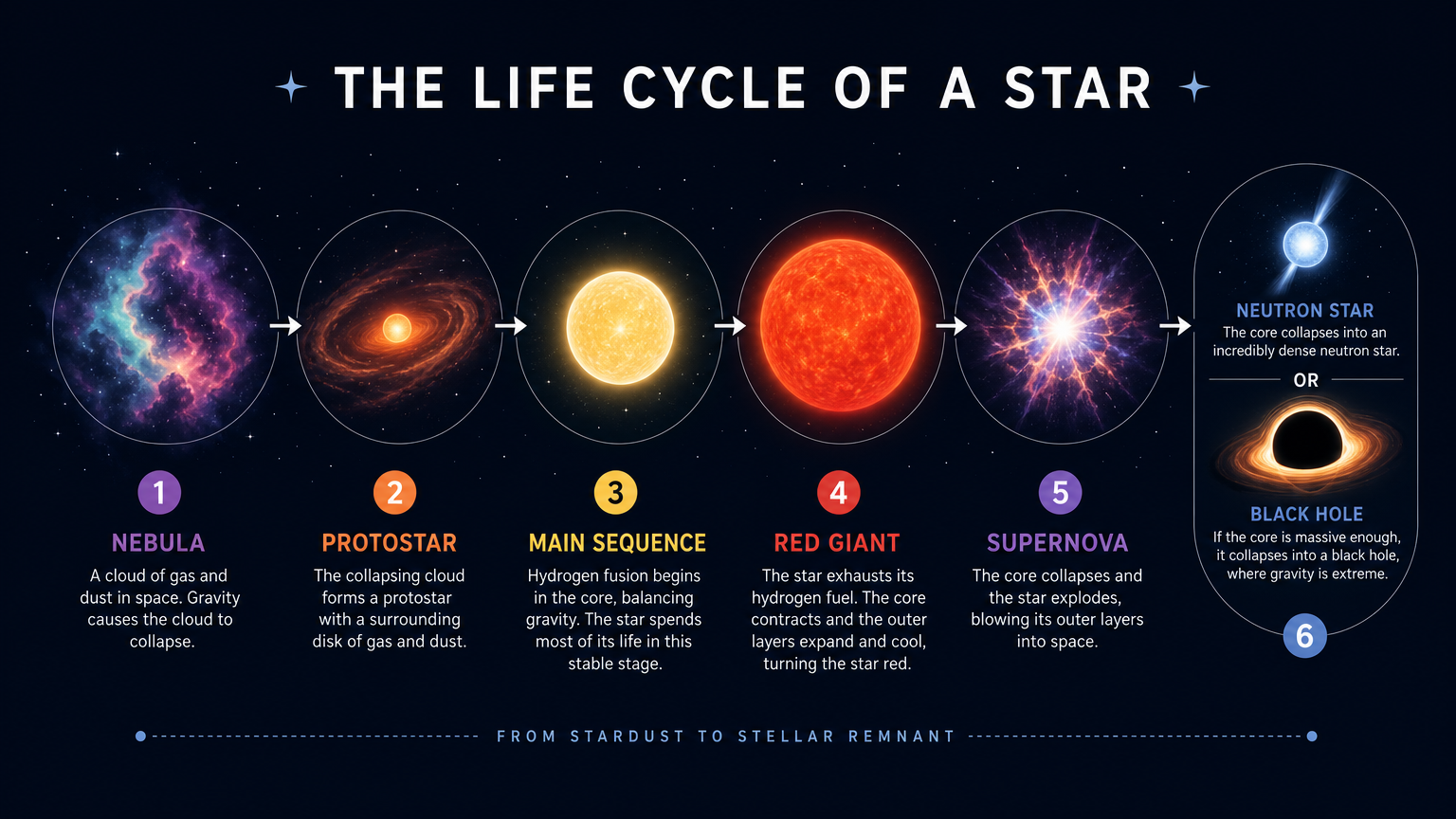
Prompt: “A clean, modern infographic showing the life cycle of a star: nebula → protostar → main sequence → red giant → supernova → neutron star or black hole. Flat design style, dark space background, soft gradient colors, labeled stages.”
Use case: Science education social posts and blog thumbnails.
How To Use Seedance 2.0 in JXP: Step-by-Step
Once your GPT Image 2 static assets are finalized, bring them to life with Seedance 2.0.
Step 1: Open Seedance 2.0 in JXP
Access the Seedance 2.0 video generator inside the JXP platform.
Step 2: Upload Your GPT Image 2 Output as Reference
Upload your finalized image to lock in character appearance, environment, lighting, and color palette for consistent video output.
Step 3: Write a Professional Motion Prompt
Use this structure: [Style & Mood] → [Dynamic Action Description] → [Camera Movement]
Example:
“Cinematic, dramatic atmosphere. The astronaut slowly raises her helmet visor revealing her face, dust particles floating around her in slow motion, soft golden backlight. Slow push in on her face.”
Step 4: Set Audio Parameters (Optional)
Seedance 2.0 generates native background music and ambient sound alongside the video.
Audio example:
“Soft ambient electronic underscore, gentle synth pads, quiet and introspective tone.”
Step 5: Generate and Review
Most clips render in under 60 seconds. Refine your motion prompt for a second pass if needed, then download the final watermark-free video.
3 Practical Real-World Workflows (With Copy-Ready Prompts)
1. Creating UGC-Style Videos
UGC is the highest-converting social media format for TikTok, Instagram Reels, and YouTube Shorts. With GPT Image 2 and Seedance 2.0 in JXP, you can create authentic creator content without hiring influencers or shooting footage.
Step 1 — Generate Portrait with GPT Image 2
Prompt: Create a realistic UGC-style image of a woman in her late 20s holding a skincare serum and speaking to the camera. She is sitting in a softly lit bedroom with warm natural light coming from the window. Hold the product close enough to be clearly visible. Style it like a candid TikTok or Instagram Reel frame — casual, friendly, and not overly staged. Her expression should be natural and enthusiastic, as if she is sharing a genuine review with her followers.
Step 2 — Animate with Seedance 2.0
Prompt: Turn this image into a realistic UGC-style video. The woman is holding the skincare serum and talking to the camera as if sharing her personal review. She smiles naturally, makes small hand gestures, and explains that the serum absorbs quickly, feels lightweight, and leaves skin glowing. Keep the camera slightly handheld, like a real social media video. Make the movement natural and convincing.
2. Creating Product Ad Videos
Short-form product ads capture attention instantly and drive paid social conversions.
Step 1 — Design Ad Creative with GPT Image 2
Prompt: Avant-garde sportswear fashion advertisement. A female athlete seated on an oversized tennis racket positioned like a monumental sculpture. Giant bold typography reading “PRECISION” in the background. Crisp white studio backdrop, reflective court-like floor, luxury editorial aesthetic, cinematic lighting, ultra-clean composition. High-end campaign feel.
Step 2 — Animate Ad with Seedance 2.0
Prompt: Animate this image into a stylish sportswear ad. Keep movement subtle and intentional. Slowly push the camera toward the model while the typography gently moves into place behind her. Add soft light movement on the reflective floor, subtle fabric motion on the clothing, and a premium cinematic ad feel. Keep the model mostly still with small, natural micro-movements.
3. Creating Brand Logo Animations
Professional logo animations are ready in under 10 minutes — suitable for video outros, social content, presentations, and brand reels.
Step 1 — Generate Storyboard with GPT Image 2
Upload your logo first, then use this prompt:
Prompt: Create a detailed animation storyboard sheet for a logo animation. Use the uploaded logo as the primary reference. The logo style is clean and modern. The storyboard should clearly show frame-by-frame movement, motion arrows, glow effects, transition timing notes, and animation direction indicators. Keep the layout structured and easy to follow, as if it were a professional motion design brief.
Step 2 — Generate Logo Animation with Seedance 2.0
Prompt: Create the logo animation as described in the storyboard image. Follow the motion arrows, frame sequence, glow effects, and transition direction precisely. Make the animation look clean, elegant, and suitable as an outro for professional social media videos. The final result should feel polished and brand-ready.
Full GPT Image 2 → Seedance 2.0 Pipeline Examples
Fashion Brand Short Video Ad
GPT Image 2 Prompt:
“A woman in a cream-colored knit sweater standing in a sunlit autumn forest, golden leaves falling around her. Warm, editorial photography style. Soft bokeh background. Full body shot.”
Seedance 2.0 Prompt:
“Cinematic and warm. The woman slowly turns to face the camera, a gentle smile forming as leaves drift past her. Subtle rack focus from the background to her face. Natural ambient forest sound, light breeze.”
Result: A 10-second short video ad ready for Instagram or TikTok — complete with character consistency, atmospheric motion, and audio.
Tech Product Demo Video
GPT Image 2 Prompt:
“A matte black smartwatch on a minimalist white surface. Close-up product shot, sharp focus, professional studio lighting from above. No text.”
Seedance 2.0 Prompt:
“Sleek and modern. The watch face lights up with a smooth animation, a subtle reflection slides across the screen surface. Camera performs a slow clockwise orbit around the product. Soft electronic chime audio.”
Creative Use Cases for All Creator Types
The GPT Image 2 and Seedance 2.0 workflow in JXP delivers value across every creative vertical.
Social media creators: Build complete TikTok and Reels campaigns with consistent characters, motion, and audio across multiple clips.
E-commerce brands: Transform product photos into dynamic video ads with zero production budget.
Marketing agencies: Produce first-draft video concepts for client pitches in under 30 minutes.
Indie filmmakers and animators: Use the storyboard grid approach — generate a 3×3 panel layout with GPT Image 2, then animate each panel with Seedance 2.0 — for low-cost cinematic storytelling.
Educators and course creators: Turn complex topics into visually rich explainer videos with accurate diagrams and animated sequences.
Game developers and concept artists: Generate character sheets, environment concepts, and animated character previews for rapid prototyping.
Advanced Pro Tips for Perfect Results
Lock the image first. Refine your GPT Image 2 output completely before animating — poor static art produces poor video.
Use reference mode for consistency. Upload character or brand references to lock appearance across all assets in a campaign series.
Write motion prompts as scene direction. Describe what happens in the scene itself — not just static camera moves over a frozen image.
Keep prompts focused. Avoid conflicting style directions; single-intent prompts deliver significantly better output quality.
Iterate quickly. Generate multiple GPT Image 2 variations and pick the strongest before moving to animation.
Leverage Character Lock. Maintain visual consistency across every asset in a recurring campaign.
Match aspect ratio to platform. Use 9:16 for vertical social content and 16:9 for cinematic ads and brand content.
Why JXP Is the Right Platform
JXP unifies GPT Image 2 and Seedance 2.0 in one beginner-friendly interface with no steep learning curve. Key platform advantages include fast 2K image generation with one-click 4K upscaling, 100% watermark-free exports with full commercial usage rights, natural language editing for rapid iteration, built-in reference mode and direct model integration, and a workflow that scales equally well for solo creators, small businesses, and enterprise marketing teams.
Start Creating with GPT Image 2 on JXP — Free to Try
Frequently Asked Questions (FAQ)
Q: What is GPT Image 2 and how is it different from DALL-E 3? GPT Image 2 is OpenAI’s latest native image generation model. Unlike DALL-E 3’s separate diffusion pipeline, GPT Image 2 generates images inside the language model, delivering faster speed, near-perfect text rendering, and better prompt alignment.
Q: Can I use GPT Image 2 for commercial projects? Yes. All JXP-generated outputs come with full commercial usage rights for ads, packaging, social media, and brand assets.
Q: What resolution does GPT Image 2 produce? Native 2K resolution, with one-click 4K upscaling and watermark-free exports.
Q: Do I need design or video editing experience? No. Both models work with plain natural language — no design skills or prompt engineering expertise required.
Q: What content can I create with this workflow? UGC videos, product ads, logo animations, campaign banners, e-commerce shots, character series, infographics, and full social media campaign assets.
Q: How long does Seedance 2.0 take to generate videos? Most clips render in under 60 seconds. GPT Image 2 images generate in under 5 seconds.
Q: Is API access available? Yes. API integration is available on JXP Pro and Max plans for developers embedding GPT Image 2 into custom workflows.
Q: Can I use my own photos as references? Yes. JXP supports JPG, PNG, and WEBP reference uploads up to 20MB.
Q: Does Seedance 2.0 work without GPT Image 2? Yes, it supports direct text-to-video. However, the image-to-video pipeline delivers far more consistent and polished results.
Q: What is the best prompt length for GPT Image 2? Aim for 80–200 focused characters. JXP supports up to 500 characters, but overly long or conflicting prompts reduce output quality.
Q: How many credits does a GPT Image 2 generation cost? Standard generation costs 10 credits per image on JXP.
Q: What aspect ratios are supported? 9:16, 16:9, 1:1, 3:4, 4:3 — covering all major social and print platforms.