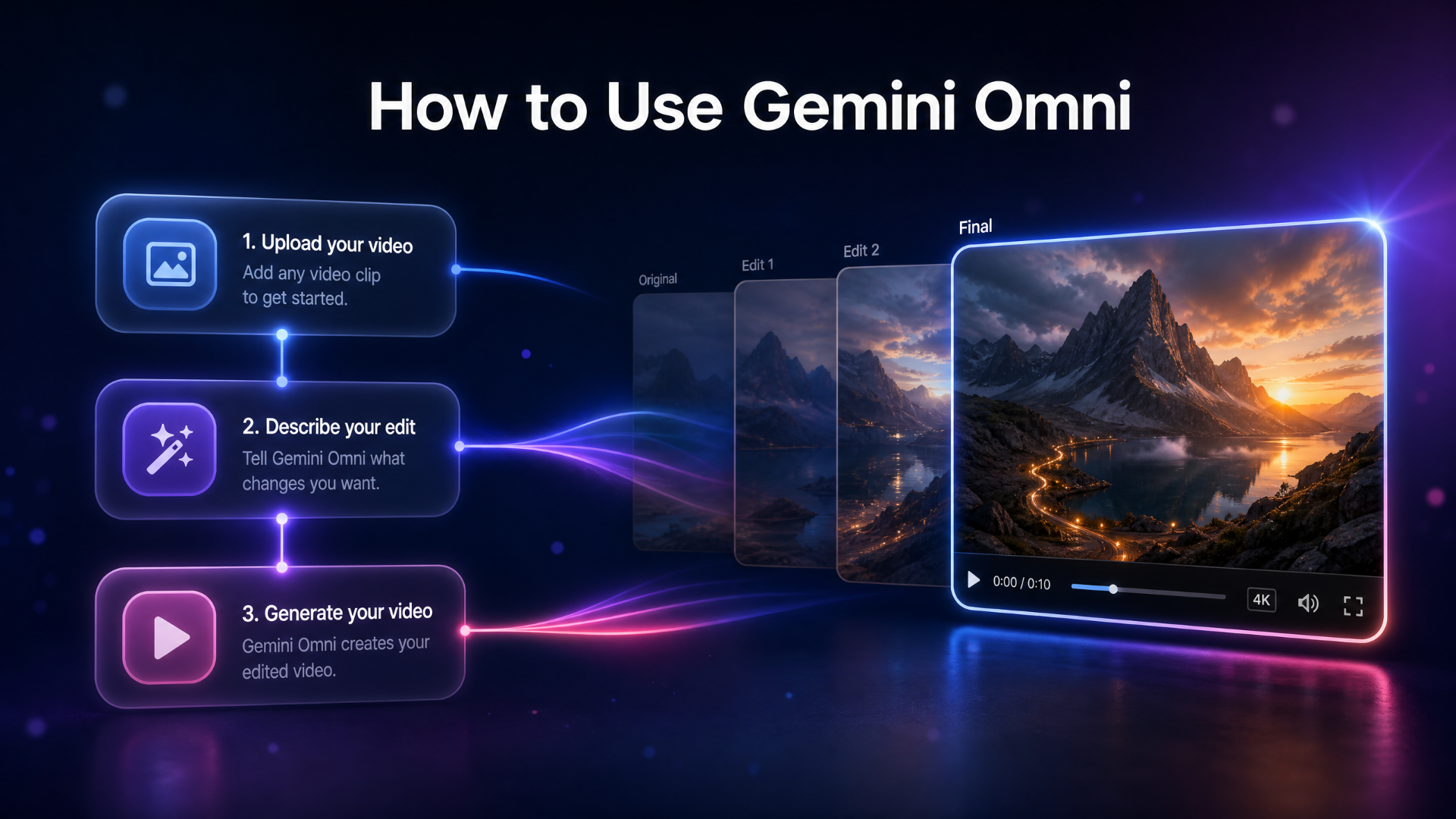
Learning how to use Gemini Omni is easier than you might think — but getting great results takes understanding how its unique workflow differs from every other AI video tool. Gemini Omni is Google DeepMind’s multimodal AI video model, announced at Google I/O 2026. Unlike traditional text-to-video generators, it lets you build and refine video through natural conversation, accepting text, images, video, audio, and even hand-drawn sketches as input. This guide walks you through the complete Gemini Omni workflow: from writing your first prompt, to multi-turn editing, to advanced reference-based techniques — with real prompt examples from Google DeepMind’s official showcase.
New to this model? Start with our complete What Is Gemini Omni guide for the full overview, then come back here to learn how to use it.
Quick start: If you want to generate AI video right now without a Google AI subscription or regional waitlist, you can try the same multimodal workflow on JXP immediately.
Step | What you do |
|---|---|
1. Write your prompt | Describe subject, action, environment, camera, lighting, style, audio, duration |
2. Edit multi-turn | Refine through conversation — change one element per turn |
3. Add references | Guide output with image, audio, video, or sketch inputs |
4. Transfer style & motion | Reuse aesthetics and movement across scenes |
5. Apply world knowledge | Reference real science, history, and context in prompts |
👉 Try Gemini Omni Video Generation — Start Free on JXP
Where to Access Gemini Omni {#where-to-access}
Before diving into how to use Gemini Omni, you need to know where it’s available. As of May 2026, Gemini Omni Flash is rolling out across three Google platforms:
Gemini app — Available to Google AI Plus, Pro, and Ultra subscribers. Navigate to the video creation section within the app.
Google Flow — Google’s dedicated AI filmmaking tool, designed for creators who want precise control over shots, characters, and scene structure.
YouTube Shorts — Integrated directly into the Shorts creation workflow for short-form content creators.
Access is gated by account tier and region, which means many users are still on a waitlist. If you don’t have access yet, JXP’s Gemini Omni video tool offers the same multimodal workflow — text-to-video, image-to-video, and conversational editing — with no subscription required.
Step 1: Write Your First Gemini Omni Prompt {#step-1}
The foundation of using Gemini Omni effectively is learning how to write prompts that the model can act on. Gemini Omni understands natural language, so you don’t need special syntax — but the structure of your prompt significantly affects output quality.
The Anatomy of a Strong Gemini Omni Prompt
Think like a film director when writing your first Gemini Omni text-to-video prompt. Include as many of these elements as relevant:
Subject — What or who is the focus of the scene?
Action — What is happening?
Environment — Where does the scene take place?
Camera — What is the shot type? (wide angle, close-up, slow push-in)
Lighting — What is the light source and quality? (morning side light, neon, golden hour)
Style — What visual aesthetic? (photorealistic, claymation, stop motion, voxel)
Audio — What sounds or music accompany the scene?
Duration — How long should the clip be? (“10-second shot”)
Physics & Motion Example
“A marble rolling fast on a chain reaction style track, continuous smooth shot.”
This prompt works well because it describes the subject (marble), the action (rolling on a chain reaction track), and the camera style (continuous smooth shot). Gemini Omni’s understanding of real-world physics means it will render the marble’s acceleration, momentum, and bounce accurately — no manual keyframes needed.
Science Explainer Example
“Claymation explainer of protein folding, everything is made out of clay, no hands, stop motion, accurate.”
Notice how this prompt specifies style (claymation), subject (protein folding), constraints (no hands), technique (stop motion), and an accuracy requirement. Gemini Omni draws on Gemini’s scientific knowledge to produce biologically accurate content — not just a visually stylized guess.
Step 2: Master Gemini Omni Multi-Turn Editing {#step-2}
The most powerful — and most misunderstood — feature of Gemini Omni is multi-turn video editing. This is where the Gemini Omni workflow separates itself from every other AI video tool on the market.
Instead of regenerating your entire video every time you want a change, Gemini Omni builds on each edit, preserving everything you’ve established so far. Think of it like working with a collaborative director who remembers every decision you’ve made.
How Gemini Omni Multi-Turn Editing Works: Violinist Example
Here’s a real example from Google DeepMind’s official Gemini Omni demo:
Input video: A violinist performing in a recording studio.
Turn 1:
“Transport the violinist to the image environment.”
Result: The studio background transforms into an open meadow. The violinist and their performance are preserved exactly.
Turn 2:
“Make the violin invisible.”
Result: The violin disappears. The violinist’s arm movements, bow technique, and body posture remain — now performing an invisible instrument.
Turn 3:
“Change the camera angle to be over the violinist’s shoulder.”
Result: The camera repositions behind the violinist, showing the meadow from their perspective. The invisible violin and meadow environment are both maintained.
Each turn stacks on the previous output. This is how professional-quality iterative editing works with Gemini Omni — you’re never starting over, you’re always building forward.
Tips for Effective Gemini Omni Multi-Turn Editing
Change one element per turn. The more focused your instruction, the more precise the edit.
Reference what you want preserved. If an element is important, mention it explicitly (“keep the character consistent”).
Use turns for camera adjustments. Repositioning camera angle, zoom level, or framing is ideal for a dedicated turn.
Save style changes for their own turn. Changing aesthetic (e.g., from photorealistic to claymation) mid-sequence works best as a standalone instruction.
Step 3: Use Gemini Omni Reference Inputs for Precise Control {#step-3}
One of Gemini Omni’s most advanced capabilities is reference-based control — using images, video clips, audio files, or sketches alongside your text prompt to guide the output with precision.
Image Reference: Transform Your World
You can provide an image reference to define the environment, style, or character that should appear in your video. Here’s an example from Google’s official showcase:
“When the hand opens, make a vast 3D architectural structure based on this image start building upward, sitting in the palm of the hand, reflecting prismatic light onto the hand and table. It builds with a 3D wireframe holographic effect. No music, just realistic real world sound.”
The image provides the architectural style; the text prompt defines the action, scale, lighting, and audio treatment. Gemini Omni synthesizes both into a single cohesive output.
Audio Reference: Sync Sound to Action
Gemini Omni accepts audio references and can synchronize them with video events:
“Add harp sounds synchronized to when I touch each fern leaf. Change the leaf structure to all resemble semi-translucent 3D bioluminescent plant life, with bioluminescent fireflies flying around it that react as I play, in sync with the sounds, subtle bokeh depth of field, dynamic lighting, reflecting off the walls in the room.”
The audio timing drives the visual events — a level of multimodal precision that no single-modality tool can replicate.
Sketch-to-Video: Turn Doodles into Footage
Gemini Omni can translate hand-drawn sketches into realistic video, using the sketch as a guide for motion rather than appearance:
“Turn this into realistic footage, using the drawing only as a guide for movement; do not show the drawing in the final video.”
This is especially useful for storyboarding and previsualization — sketch a camera path or character movement, then let Gemini Omni render it as polished footage.
👉 Try Reference-Based Video Generation on JXP
Step 4: Apply Gemini Omni Style Transfer and Motion Transfer {#step-4}
Gemini Omni’s style transfer and motion transfer features let you reuse creative elements across different scenes and characters.
Motion Transfer Example
“Apply the motion of the whale swimming from the provided video to the provided image of fluid reflective material. Do not show the whale or water; instead, have this reflective moving material form a shape that resembles the whale as it swims.”
The motion pattern from the whale video is extracted and applied to a completely different visual material. The result: a whale-shaped form made of reflective fluid, animated with the original swimming motion.
Style Transfer Example
“Apply the pose and motion from input video to the provided character from this image. Apply style from image reference to the new video.”
Use this technique to maintain character consistency across scenes while changing style or environment — essential for creators building multi-scene narratives.
Character and Object Swap Example
“Change spaceship to [object]”
Gemini Omni can replace specific elements in a video — characters, objects, backgrounds — while maintaining the surrounding scene’s coherence. Simply provide a reference image of the replacement element alongside your instruction.
Step 5: Apply World Knowledge in Your Gemini Omni Prompts {#step-5}
One of Gemini Omni’s unique advantages over other AI video generators is that it draws on Gemini’s knowledge of history, science, biology, and cultural context. You can reference real-world concepts in your Gemini Omni prompts and trust that the model understands them accurately.
Brain Science Explainer Example
“A skeuomorphism stop motion explainer about how the brain hippocampus works with a compelling voiceover. Don’t add seahorses. No voice cuts at the end. Don’t add text.”
The constraint “Don’t add seahorses” is a reference to the hippocampus’s seahorse-like shape — Gemini Omni understands this anatomical fact and respects the instruction. This level of domain-specific awareness is rare among AI video generation tools.
Text Sync Example
“Word by word, one word on the screen at a time: did, you, know, that, this, model, can, do, pretty, good, text! Each word appears with a different animated style, perfect pacing to a rhythm, sizzle reel.”
Gemini Omni can render text within video frames and synchronize its appearance with audio timing — a notoriously difficult task for AI video generators. Use this for kinetic typography, social media content, and title sequences.
Gemini Omni Prompt Tips: Full Reference {#prompt-tips}
Here is a consolidated list of prompt-writing best practices for anyone learning how to use Gemini Omni video generation effectively:
Structure Tips
Lead with subject and action, then add environment and camera
Specify duration — “10-second shot,” “12-second wide angle” — for tighter, more predictable outputs
Name the visual style explicitly — “photorealistic,” “claymation,” “voxel art,” “monochrome line art,” “skeuomorphism”
Add negative constraints — “no text overlays,” “no hands,” “no music, just realistic sound”
Multi-Turn Tips
One change per turn for maximum precision
Reference what must be preserved — Gemini Omni is consistent, but explicit instructions help
Use camera moves as dedicated turns — angle changes, zoom effects, and tracking shots each deserve their own instruction
Reference Input Tips
Provide images for style and environment — don’t just describe it, show it
Use video references for motion — if you want a specific movement pattern, provide a reference clip
Combine audio and visual references in the same prompt for synchronized outputs
Gemini Omni vs Other AI Video Tools: Workflow Comparison {#comparison}
Workflow Feature | Gemini Omni Flash | Veo 2 | Runway Gen-4 | Kling AI |
|---|---|---|---|---|
Multi-turn conversational editing | ✅ | ❌ | Limited | ❌ |
Image + audio + text input together | ✅ | Limited | Limited | Limited |
Sketch-to-video | ✅ | ❌ | ❌ | ❌ |
Character swap with reference image | ✅ | ❌ | Partial | Partial |
Motion transfer across clips | ✅ | ❌ | Partial | ❌ |
World knowledge in generation | ✅ | ❌ | ❌ | ❌ |
Text rendering inside video | ✅ | Limited | Limited | Limited |
Best for filmmakers and multi-scene narratives: Gemini Omni Flash, for its multi-turn editing and reference-based control. Best for pure cinematic quality: Veo 2. Best for timeline-based editing: Runway Gen-4. Best for physics-heavy motion: Kling AI.
The Gemini Omni workflow is the most capable end-to-end creative system currently available. The multi-turn editing architecture alone represents a fundamentally different approach to AI-assisted video production. For a deeper feature-by-feature breakdown, see our What Is Gemini Omni guide.
How to Start Using Gemini Omni Today {#start-today}
Direct access to Gemini Omni through Google requires a Google AI subscription (Plus, Pro, or Ultra) and may be subject to regional availability. For creators who want to start using Gemini Omni-style AI video generation immediately, JXP offers the full multimodal workflow — text-to-video, image-to-video, and conversational refinement — with no waitlist.
👉 Start Creating with Gemini Omni on JXP — No Waitlist
Key Takeaways
Here’s everything you need to remember about how to use Gemini Omni:
How to use Gemini Omni starts with understanding its multi-turn workflow — you’re building a scene iteratively, not regenerating from scratch
Write Gemini Omni prompts like a film director: subject, action, environment, camera, lighting, style, audio, duration
Use Gemini Omni multi-turn editing to change one element per turn while preserving everything you’ve built
Reference inputs (images, video, audio, sketches) give you precise creative control beyond text alone
Leverage world knowledge in your prompts — Gemini Omni understands science, history, and domain-specific context accurately
Access requires a Google AI subscription or regional availability; JXP offers immediate access to the same workflow
Frequently Asked Questions {#faq}
How do I use Gemini Omni for the first time?
Start with a clear text-to-video prompt that describes subject, action, environment, and visual style. Keep it specific — “10-second studio product shot of a matte black coffee grinder on a steel counter, slow push-in camera, morning side light, photorealistic” — then use follow-up turns to refine. If you don’t have Google AI access yet, you can start immediately on JXP.
What is Gemini Omni multi-turn editing?
Multi-turn editing means each prompt you send builds on the previous output, rather than regenerating the video from scratch. You can change background, remove objects, swap camera angles, or adjust style — all while preserving everything established in earlier turns.
Can I use images as input with Gemini Omni?
Yes. Gemini Omni accepts images as reference inputs for environment, character, style, or object replacement. Provide an image alongside your text prompt and specify how it should be used — as a background reference, a style guide, or a character to swap in.
What’s the best way to write Gemini Omni prompts?
Write like a film director. Specify subject, action, environment, camera motion, lighting, visual style, audio, and duration. Add negative constraints (“no text,” “no hands”) to exclude unwanted elements. For multi-turn workflows, focus each turn on a single change.
How is Gemini Omni different from other AI video tools?
The key difference is its multi-turn conversational editing system and multimodal input support. Most AI video tools require you to regenerate from scratch for each change. Gemini Omni builds on previous edits, accepting text, images, audio, and sketches as inputs — and drawing on Gemini’s world knowledge to ensure content accuracy.
Is there a Gemini Omni free version?
Access through Google requires a Google AI subscription. Free-tier availability varies by region and platform. If you want to try Gemini Omni-style video generation for free, JXP offers no-subscription access to the same multimodal workflow.
Can Gemini Omni generate text inside videos?
Yes. Gemini Omni can render readable text within video frames and sync its appearance with audio rhythm — a feature it demonstrated with the word-by-word animated text prompt. Use this for kinetic typography, title sequences, and social media content.
What platforms support Gemini Omni?
As of May 2026, Gemini Omni Flash is available in the Gemini app (Google AI subscribers), Google Flow (filmmakers), and YouTube Shorts (short-form creators). For immediate access without a subscription, JXP supports the same workflow.