Whether you're a content creator, marketer, or AI enthusiast, the combination of GPT Image 2 and Kling 3.0 is the fastest way to create broadcast-quality AI videos without professional equipment. In this step-by-step tutorial, you'll learn exactly how to go from concept to finished 4K video in under 30 minutes — with real prompts, proven workflows, and three real-world examples.
No camera. No crew. No studio. Just text, a great prompt, and the right tools.
What Is GPT Image 2? (And How It Differs from DALL-E 3)
GPT Image 2 is OpenAI's latest image generation model, capable of producing photorealistic, commercially usable images from detailed text prompts. Unlike DALL-E 3, which relies on a separate diffusion pipeline, GPT Image 2 generates images natively within the language model — resulting in measurably better output for commercial use cases:
~40% faster generation — images in seconds vs. minutes
90%+ text rendering accuracy — perfect for logos, signage, and broadcast overlays
Better prompt coherence — the output more faithfully matches your creative intent
Native high-resolution output — ready for 4K video animation without upscaling artifacts
Key Strengths of GPT Image 2
GPT Image 2 excels at several critical capabilities that make it ideal as the first step in AI video production:
Photorealism: Images look like real photographs, not AI illustrations
Broadcast-quality realism: Scorebug overlays, compression artifacts, realistic lighting — it convincingly mimics live TV footage
Product and commercial photography: Generate high-end ad visuals for skincare, tech, fashion, and food brands
Contextual detail accuracy: Logos, text, scene composition, and lighting rendered with precision
GPT Image 2 is the perfect foundation in the AI video creation pipeline — it produces the visual still that Kling 3.0 then animates into a cinematic clip.
What Is Kling 3.0?
Kling 3.0 is a next-generation AI video generation model developed by Kuaishou. It takes a static image (or text prompt) and animates it into a smooth, physically realistic video clip. Kling 3.0 4K is especially renowned for:
Ultra-realistic motion: Rain, reflections, liquid splashes, and fabric movement all behave according to real physics
4K resolution output: Suitable for professional advertising, social media, and content marketing
Cinematic color grading: Automatically applies film-like visual styling to every frame
Long-form coherence: Maintains visual consistency across the full clip duration
When you pair GPT Image 2's photorealistic stills with Kling 3.0's animation engine, the result is ad-level production quality without a single camera.
GPT Image 2 + Kling 3.0 vs. Traditional Video Production
Before diving into the workflow, understand how this AI combination compares to traditional methods:
Evaluation | GPT Image 2 + Kling 3.0 | Traditional Video Production |
|---|---|---|
Time to Completion | 10-30 minutes | 2-4 weeks |
Total Cost | $20-100/month | $2,000-10,000+ |
Required Skills | Prompt writing | Photography, lighting, editing |
Equipment Needed | None | Camera, lights, microphone |
Iteration Speed | Seconds | Days |
Output Quality | Ad-grade (products, commercial) | Cinema-grade (any scenario) |
Scalability | Unlimited variations | Low (each variation requires reshooting) |
Best For | E-commerce, social media, brands | Feature films, documentaries, long-form |
This comparison shows why GPT Image 2 + Kling 3.0 has become the go-to workflow for creators and brands looking to produce content at scale.
Why Use GPT Image 2 + Kling 3.0 Together?
The GPT Image 2 + Kling 3.0 AI video workflow is greater than the sum of its parts. Here's why this combination dominates AI video creation:
1. Full Creative Control from Concept to Motion
GPT Image 2 lets you define every visual detail — lighting, setting, subject, style. Once the perfect still is generated, Kling 3.0 adds cinematic motion that faithfully respects every element you've designed.
2. Dramatic Cost Reduction (95%+ Savings)
Traditional video ads require cameras ($2,000-5,000+), talent, lighting rigs ($1,000-3,000), and post-production editing. With GPT Image 2 + Kling 3.0, a solo creator can produce broadcast-quality video content for a fraction of the traditional budget.
3. Speed and Iteration
Generate dozens of image variations with GPT Image 2, then animate the best ones with Kling 3.0. The full cycle from concept to finished video can be completed in under 30 minutes.
4. Versatility Across Industries
From sports broadcast simulations to luxury product commercials to lifestyle content, the GPT Image 2 + Kling 3.0 pipeline handles every category with consistent, commercial-grade quality.
How to Use GPT Image 2 and Kling 3.0: 5-Step Workflow
Here is the complete workflow for creating AI videos using GPT Image 2 and Kling 3.0, from initial concept to final export.
Step 1: Write an Effective GPT Image 2 Prompt — Tips & Best Practices
Start with a clear creative brief: What is the scene? Who or what is in it? What style — photorealistic, commercial, lifestyle, or broadcast?
Tips for writing effective GPT Image 2 prompts:
Be highly specific about subject, setting, camera angle, and lighting
Include style references: "broadcast TV screenshot," "high-end skincare ad," "cinematic product shot"
Describe technical details if needed: "16:9 aspect ratio, broadcast color grading, slight compression grain"
Specify clothing, expression, props, and background details for maximum accuracy
Example: Layered Prompt Structure
Instead of one long prompt, break it into layers for maximum control:
Layer 1 (Subject): "A young woman in her 20s with long black hair, perfect features, wearing a tight low-cut top"
Layer 2 (Setting): "Sitting on red stadium chairs at a professional hockey game, leaning back slightly"
Layer 3 (Context): "Captured from afar by a live broadcast camera, unaware she's on camera"
Layer 4 (Style): "ESPN broadcast screenshot, professional TV quality"
Layer 5 (Technical): "16:9 aspect ratio, broadcast color grading, compression artifacts, realistic lighting"
Combining these layers creates a more precise and controllable output.
Step 2: Generate Your Photorealistic Image with GPT Image 2 (Quality Checklist)
Go to the GPT Image 2 tool and enter your prompt. Review the output carefully — if the image doesn't match your vision, refine the prompt and regenerate.
Quality Checklist Before Moving to Kling 3.0:
✅ Does the lighting look natural and cinematic?
✅ Are all visual details (text, logos, props) rendered accurately?
✅ Is the composition horizontal/16:9, suitable for video?
✅ Is the image sharp enough to withstand 4K animation?
✅ Do colors match your brand or creative intent?
Refinement Tips:
If the image doesn't meet your standards, use natural language to refine it:
"Make the lighting brighter and add more reflections"
"Change the background to a darker shade"
"Add more splashing water around the product"
Iterate 2-3 times until the image is perfect. The extra 5 minutes spent here saves 20 minutes of regeneration later.
👉 Generate Your Image with GPT Image 2
Step 3: Upload to Kling 3.0 and Add Your Motion Prompt
Once you have a strong GPT Image 2 output, upload it directly to Kling 3.0. Add a short motion prompt to guide the animation direction.
Tips for Kling 3.0 motion prompts:
Keep it brief and action-focused: "Make a realistic video from this photo"
Describe the desired movement: "camera slowly pulls back," "liquid splashes in slow motion"
Specify physical atmosphere: "rain falls on the surface," "subtle breathing motion," "city lights shimmer in reflection"
Step 4: Generate & Review Your AI Video — What to Look For
Kling 3.0 will process the image and produce a short video clip. Review it for:
Smoothness and naturalness of motion
Physical realism of elements like water, wind, and reflections
Color consistency between the animated clip and the original GPT Image 2 output
If the result isn't ideal, adjust your motion prompt and regenerate — iteration is fast and low-cost.
👉 Animate Your Image with Kling 3.0
Step 5: Export 4K Video & Publish Across Platforms
Download your 4K AI video and deploy it across channels:
Instagram Reels: 9:16 aspect ratio, 15-60 seconds
TikTok: 9:16 aspect ratio, 15-60 seconds
YouTube Shorts: 9:16 aspect ratio, 15-60 seconds
Product Pages: 16:9 aspect ratio, autoplay with sound off
Digital Ads: 16:9 or 1:1 aspect ratio depending on platform
All exports from Kling 3.0 are watermark-free and ready for immediate publication.
Real Examples: GPT Image 2 + Kling 3.0 Showcase
Example 1: Sports Broadcast Scene — Hockey Game Fan
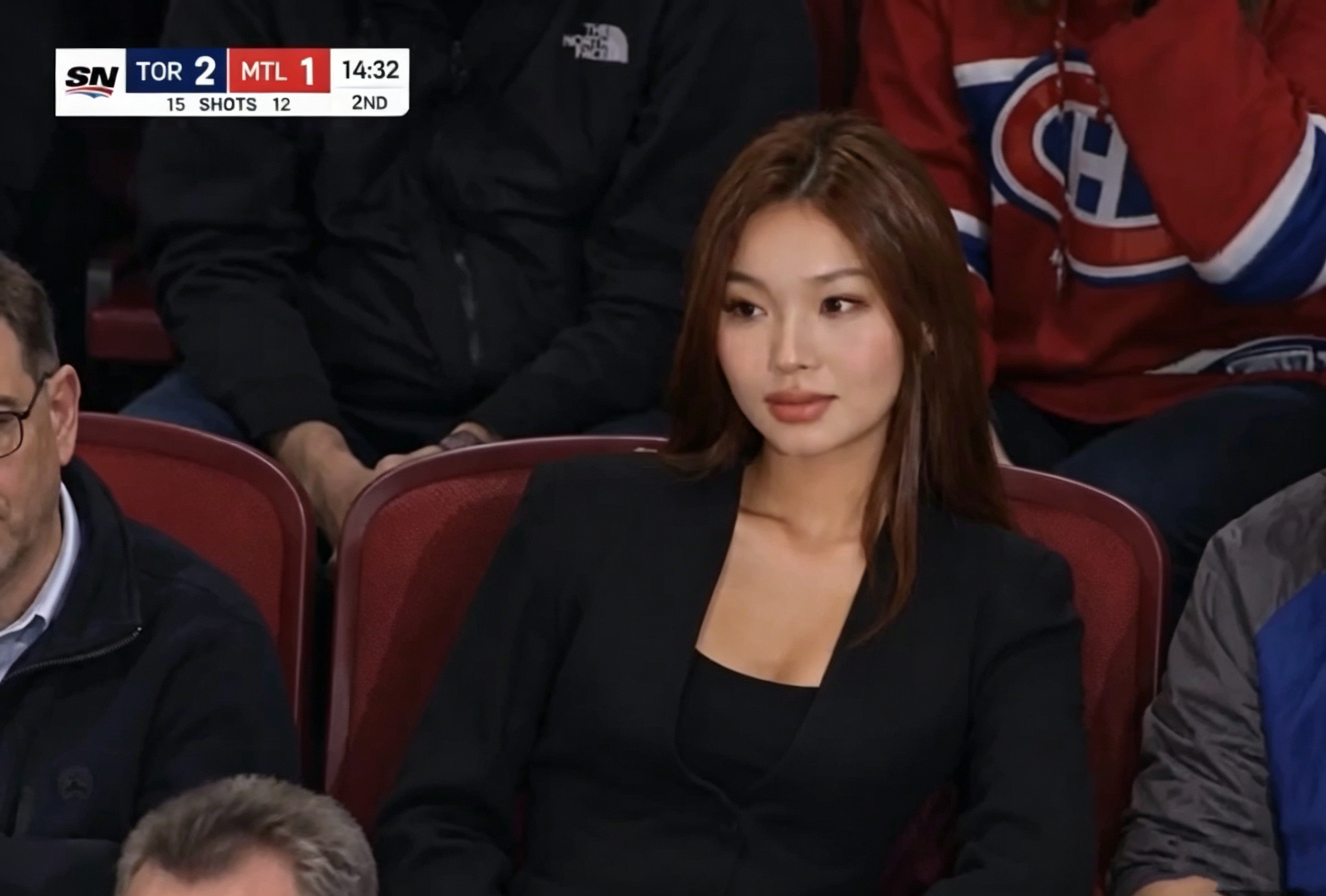
GPT Image 2 Prompt:
A young woman sitting in the crowd at a professional hockey game is captured from afar by a live broadcast camera. She is sitting on the red stadium chairs, leaning back slightly, and looking away.
Prompt Breakdown (Reusable Framework):
Subject: "A young woman" (specific demographic, relatable)
Setting: "Professional hockey game" (specific context and venue)
Camera Technique: "Captured from afar by a live broadcast camera" (technical authenticity)
Composition: "Sitting on red stadium chairs, leaning back slightly" (pose and framing)
Mood: "Looking away" (emotional direction, natural behavior)
Kling 3.0 Prompt:
Make a realistic video from this photo.
Result:
A hyper-realistic clip that looks like actual live TV sports coverage — complete with broadcast scorebug overlay, crowd atmosphere, and natural subject movement. The output is virtually indistinguishable from real footage.
Use Cases & Variations:
Social media content: Viral sports moments, fan reactions, highlight reels
Sports-themed storytelling: Documentary-style clips, game highlights, fan engagement content
Broadcast mock-ups: Fake news, parody videos, deepfake experiments
How to adapt this: Replace "hockey game" with "NBA game," "tennis match," or "football stadium" for different sports content. Change "young woman" to "athlete," "coach," or "celebrity" for different subject types.
Example 2: Skincare Product Commercial — Pure Aloe Gel
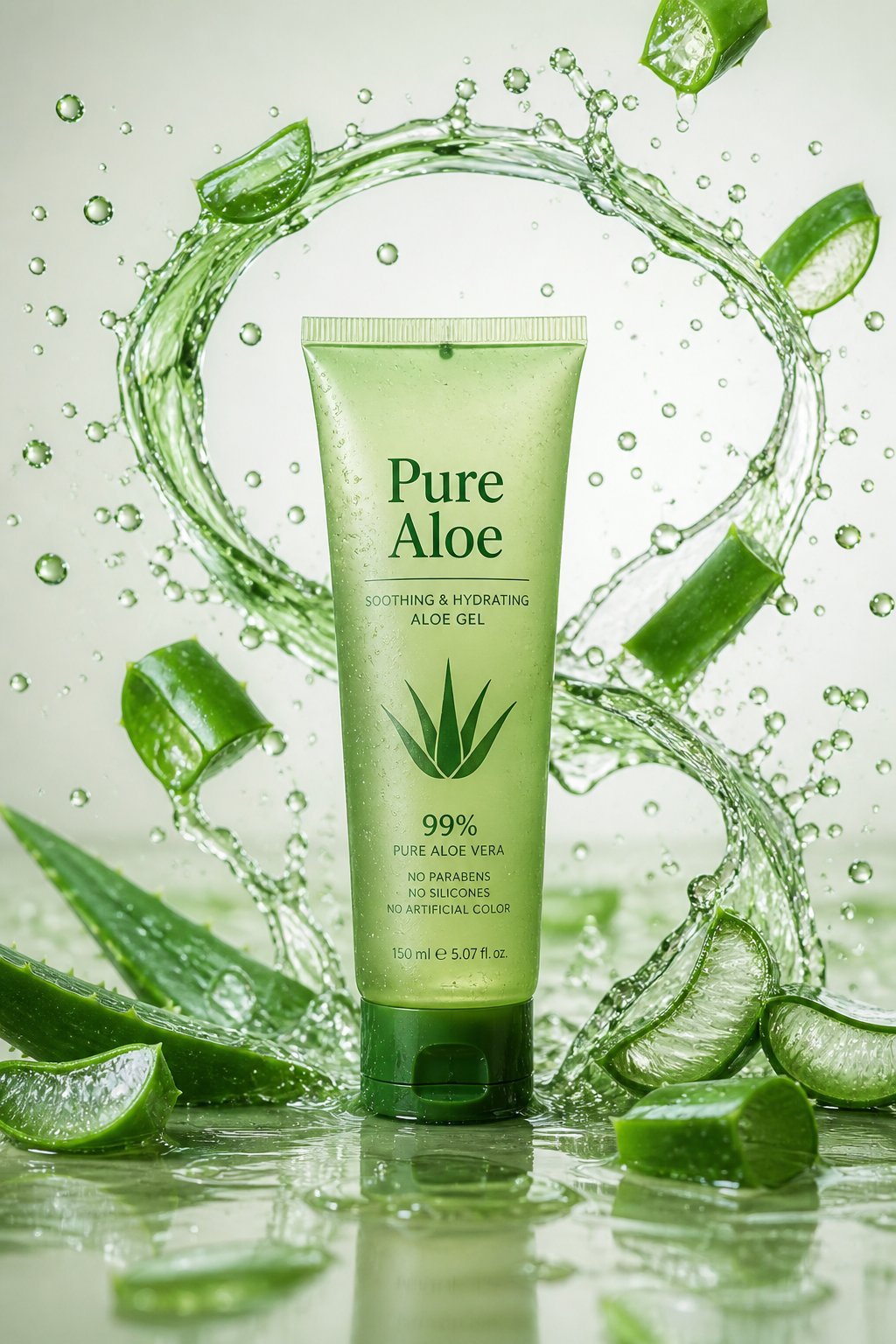
GPT Image 2 Prompt:
A frosted green glass tube of aloe gel labeled "Pure Aloe" standing on a glossy surface, surrounded by vibrant arcs of aloe juice and shattered aloe vera leaves splashing in mid-air. Crisp clean background, natural green highlights, high-end skincare commercial style.
Prompt Breakdown (Reusable Framework):
Product Detail: "Frosted green glass tube labeled 'Pure Aloe'" (specific branding)
Setting: "Glossy surface" (professional product photography aesthetic)
Motion Elements: "Aloe juice arcs and shattered leaves splashing in mid-air" (dynamic action)
Style: "High-end skincare commercial style" (luxury aesthetic)
Color: "Natural green highlights" (brand-aligned color palette)
Kling 3.0 Prompt:
Animate the liquid splashes, drops, and leaf motion in slow-motion 4K. Add water droplets and natural lighting reflections.
Result:
A stunning product video that rivals professionally shot skincare commercials — fluid motion, macro-level detail, and cinematic green color grading. The video showcases the product's premium quality and natural ingredients.
Use Cases & Variations:
E-commerce product pages: Animated product videos without studio shoots
Instagram ads: Short-form vertical ads for skincare brands
Brand launch campaigns: Product reveal videos, influencer content
How to adapt this: Replace "aloe gel" with other skincare products (serum, moisturizer, sunscreen). Change "green" to match your brand color. Adjust "splashing" to other motion types (rolling, flowing, dripping) based on product type.
Example 3: Luxury Smartwatch Rain Ad
GPT Image 2 Prompt:
A cinematic shot of a black smartwatch placed on a wet glass surface, rain streaks on the window behind it, reflections of city lights, dramatic moody lighting, luxury ad aesthetic, ultra-sharp product focus.
Prompt Breakdown (Reusable Framework):
Product: "Black smartwatch" (specific model/color)
Surface: "Wet glass surface" (premium, sophisticated setting)
Environment: "Rain streaks on window, city light reflections" (cinematic atmosphere)
Lighting: "Dramatic moody lighting" (luxury aesthetic)
Style: "Luxury ad aesthetic, ultra-sharp product focus" (professional commercial quality)
Kling 3.0 Prompt:
Animate rain falling, light reflections shifting, droplets rolling across the watch surface. Create realistic, moody cinematic lighting with physical accuracy.
Result:
A visually stunning 8-second smartwatch commercial with rain, reflections, and physically realistic lighting — described by creators as "ad-level production without a camera." The video evokes premium quality and technological sophistication.
Use Cases & Variations:
Tech product advertising: Smartwatch, phone, and gadget promotions
Brand storytelling: Luxury brand videos, lifestyle content
Launch videos: New product releases, seasonal campaigns
How to adapt this: Replace "smartwatch" with other tech products (headphones, phone, tablet). Change "rain" to other weather effects (snow, fog, sunset). Adjust "moody" to "bright" or "minimalist" for different brand aesthetics.
Advanced Tips for Better AI Video Results
Use Layered Prompting
Don't write a single short prompt. Layer your descriptions: subject → setting → style → technical specs. The more context GPT Image 2 has, the more precise and commercially usable the output.
Match Image Composition to Video Intent
If Kling 3.0 will animate a liquid splash, leave visual space around the subject in the GPT Image 2 image. If you want a camera pull-back effect, frame the subject centrally with environmental context visible on all sides.
Iterate on Both Stages
Don't settle for the first output at either stage. Generate 3–5 image variations with GPT Image 2 and pick the strongest before animating. This single habit dramatically improves final video quality.
Use Broadcast and Commercial Style References
Prompting GPT Image 2 with terms like "ESPN broadcast screenshot," "luxury skincare TV commercial," or "Apple product launch visual" dramatically elevates realism and style coherence in the final output.
Stick to 16:9 Ratio
Horizontal composition ensures seamless playback on all social and ad platforms. Plan your composition with video animation in mind.
How to Ensure Your AI Videos Don't Look "Fake"
This is one of the most common concerns creators raise about AI-generated video. Here's a proven checklist:
Key Strategies
Use specific, detailed prompts — vague prompts produce generic-looking results
Choose realistic scenarios — avoid fantastical or physically impossible settings
Focus on product, lifestyle, and commercial content — these are where AI genuinely excels at photorealism
Use Kling 3.0's 4K output — higher resolution consistently reads as more authentic
Avoid common AI tells — unnatural hand positions, impossible physics, over-smooth motion
Test multiple prompt variations — generate 3-5 versions and select the most realistic output before publishing
Add subtle post-production touches — color grading and sound design close the remaining gap to professional quality
The Golden Rule: The more specific and grounded your prompt, the more realistic the output.
Common Mistakes to Avoid When Creating AI Videos
Learning what NOT to do is just as important as learning the right approach.
❌ Mistake 1: Writing Vague Prompts
Bad: "Make a video of a product"
Good: "A luxury skincare product in a frosted glass tube, on a glossy surface, with natural green lighting and professional commercial styling, 16:9 aspect ratio, high-end skincare ad aesthetic"
Why it matters: Specific prompts produce specific, professional results. Vague prompts produce generic, unusable outputs.
❌ Mistake 2: Ignoring Composition
Bad: Centering the subject with no environmental context
Good: Leaving 30% of frame for camera movement and environmental details
Why it matters: Kling 3.0 animates based on the composition you provide. Poor composition limits animation possibilities.
❌ Mistake 3: Expecting Kling 3.0 to Fix Bad Images
Bad: Uploading a low-resolution or poorly composed GPT Image 2 output to Kling 3.0
Good: Iterating on GPT Image 2 until the image is perfect before animating
Why it matters: Kling 3.0's output is only as good as the input image. Garbage in, garbage out.
❌ Mistake 4: Using Unrealistic Prompts
Bad: "A person flying through the air with physics-defying movements"
Good: "A person walking naturally through a sunlit room"
Why it matters: Kling 3.0 excels at realistic physics. Unrealistic prompts produce unconvincing results.
❌ Mistake 5: Forgetting About Aspect Ratio
Bad: Creating a square image, then animating for Instagram Reels
Good: Planning 16:9 composition in GPT Image 2 for video-first thinking
Why it matters: Aspect ratio affects composition, framing, and final video quality. Plan ahead.
✅ Pro Tip: The 3-5 Rule
Test 3-5 prompt variations and pick the best one before animating. The extra 2 minutes spent on iteration saves 10 minutes of regeneration later. Quality at the source saves time downstream.
Advanced Techniques: Mastering GPT Image 2 + Kling 3.0
Once you've mastered the basics, these advanced techniques unlock even greater creative possibilities.
Technique 1: Layered Prompting for Maximum Control
Break complex prompts into distinct layers, each addressing a specific aspect:
Layer 1 (Subject): "A luxury smartwatch with rose gold accents"
Layer 2 (Environment): "Rainy cityscape at dusk, wet reflective surface"
Layer 3 (Lighting): "Warm city lights reflecting off wet glass"
Layer 4 (Style): "High-end product photography, cinematic color grading"
Layer 5 (Technical): "4K resolution, 16:9 aspect ratio, ultra-sharp focus"
This creates a hybrid visual that combines precision at each level.
Technique 2: Reference Image Stacking
Upload multiple reference images to GPT Image 2 to combine visual elements:
Reference 1: Luxury product aesthetic (overall look)
Reference 2: Specific lighting style (mood and atmosphere)
Reference 3: Color palette and mood (brand consistency)
Result: A hybrid visual that combines the best elements of all references.
Technique 3: Character Consistency Across Series
If creating multiple videos of the same product or character:
Generate the primary image with detailed character/product description
Use Kling 3.0 to create the first video
Use the same GPT Image 2 image as reference for subsequent variations
Kling 3.0 will maintain visual consistency across the series
This ensures brand consistency across multiple videos.
Technique 4: Motion Prompt Sequencing
For longer videos, sequence multiple Kling 3.0 prompts and combine in post-production:
Segment 1: "Camera slowly pulls back to reveal the full scene"
Segment 2: "Product rotates 360 degrees on the surface"
Segment 3: "Liquid splashes around the product in slow motion"
Combine segments in post-production (using Adobe Premiere, Final Cut, or DaVinci Resolve) for complex narratives.
Long-Tail Use Cases for GPT Image 2 + Kling 3.0
The GPT Image 2 + Kling 3.0 workflow is being applied across a growing range of creative and commercial use cases:
AI-generated sports highlights: Broadcast fan content, viral moments, highlight reels
E-commerce product videos: Generate videos without studio shoots, perfect for Amazon, Shopify, WooCommerce
AI influencer lifestyle clips: Social media automation, content calendars, brand partnerships
Luxury brand video ads: Digital marketing campaigns, Instagram ads, brand storytelling
AI-powered cinematic trailers: Indie creator projects, game trailers, film previews
Fake broadcast screenshots: Storytelling, parody content, educational mock-ups
Animated food photography: Restaurant marketing, delivery app content, food brand campaigns
AI travel content: Animate stunning landscapes from a single image, travel vlogging, destination marketing
Startup pitch decks: Supplement presentations with AI-generated product demo videos
Frequently Asked Questions (FAQ)
Q: What is GPT Image 2 used for?
A: GPT Image 2 is an advanced AI image generator for creating photorealistic, commercial-grade photos from text prompts. It works perfectly for product shots, broadcast-style visuals, lifestyle scenes and ad-ready imagery for AI video workflows.
Q: What is Kling 3.0 and how is it different from other AI video tools?
A: Kling 3.0 is a 4K AI video model by Kuaishou with physically realistic motion simulation. It outperforms many competitors in handling rain, liquid splashes, light reflections and natural subtle movement for cinematic results.
Q: Can I use GPT Image 2 + Kling 3.0 for commercial advertising?
A: Yes. Both tools provide full commercial usage rights. You can use generated videos for product ads, brand campaigns, social media marketing, and any other commercial purpose without additional licensing. This makes the workflow ideal for agencies, e-commerce brands, and independent creators looking to reduce production costs.
Q: How much does it cost to create AI videos with GPT Image 2 + Kling 3.0?
A: Both tools offer free trials and paid plans. A typical workflow costs significantly less than traditional video production:
Traditional product video: $2,000–$10,000+ (equipment, talent, crew, editing)
GPT Image 2 + Kling 3.0: $20–$100/month depending on usage
This represents a 95%+ cost reduction for small creators and startups.
Q: How long does it take to create an AI video with this workflow?
A: The entire process typically takes 10-30 minutes:
Writing and refining your GPT Image 2 prompt: 2-5 minutes
Generating the image with GPT Image 2: 10-30 seconds
Uploading and animating with Kling 3.0: 2-5 minutes
Reviewing and exporting: 2-3 minutes
The full workflow from concept to finished 4K video can be completed in under 30 minutes.
Q: Do I need any video editing skills to use GPT Image 2 + Kling 3.0?
A: No. Both tools are designed for ease of use. Writing effective prompts is the most important skill — and this guide provides the exact templates and frameworks to get started immediately, regardless of your technical background.
Q: What are the limitations of AI-generated videos? When should I use traditional video production instead?
A: GPT Image 2 + Kling 3.0 excels at:
✅ Product photography and e-commerce videos
✅ Lifestyle and commercial content
✅ Animated product demonstrations
✅ Social media content at scale
Limitations to be aware of:
❌ Complex multi-scene narratives requiring long-form storytelling
❌ Real human performances requiring emotional depth and nuance
❌ Content requiring specific real-world locations
❌ Videos longer than 30–60 seconds without natural scene breaks
For these cases, AI videos work best as supplements to traditional production, not full replacements.
Q: How do I ensure my AI-generated videos don't look "fake" or "obviously AI"?
A: Use specific, detailed prompts and choose realistic, grounded scenarios. Focus on product and lifestyle content where AI photorealism is strongest. Use Kling 3.0's 4K output, test multiple prompt variations before publishing, and consider light post-production color grading to add the final layer of authenticity. The more specific your prompt, the more convincing the result.
Q: Can Kling 3.0 animate any image?
A: Kling 3.0 works best with high-resolution, well-composed images. GPT Image 2 outputs are ideal inputs because they're already optimized for clarity, composition, and visual consistency — which is exactly why this two-tool combination delivers such reliable results.
Q: What resolution does Kling 3.0 output?
A: Kling 3.0 supports 4K resolution output, making it suitable for professional advertising, large-format displays, and high-quality social media content across all major platforms.
Q: How does GPT Image 2 compare to DALL-E 3?
A: GPT Image 2 generates images natively within the language model, while DALL-E 3 relies on a separate diffusion pipeline. This gives GPT Image 2 several advantages:
40% faster generation
90%+ text rendering accuracy (vs. DALL-E 3's lower accuracy)
Better coherence between prompt and output
More suitable for commercial use and video creation
Start Creating AI Videos Today
The GPT Image 2 + Kling 3.0 combination has fundamentally changed what's possible for individual creators and small teams. You no longer need a production budget to create cinematic, ad-quality video content — just the right prompts and a proven workflow.
With the 5 steps in this guide, you can go from creative idea to finished 4K AI video in under 30 minutes.
👉 Get Started with GPT Image 2
The future of content creation is here. Start creating today.